

Last Updated on January 18, 2026 by Larious
Let’s admit it – Windows used to be simple. You clicked on things, and they opened. Life was good. But then, the AI revolution came, and the AI features were now spread everywhere on the operating system.
If you’re a Windows 11 user and tired of AI tools popping up everywhere, you don’t need to disable them one by one. There’s a workaround that lets you disable all AI features in one go.
Table of Contents
How to Remove All AI Features from Windows 11?
There are various ways to remove AI features on Windows 11. You can do it from the App’s settings, registry tweaks, group policies, etc. But the easiest way out is to run a script from PowerShell.
Yes, a script is available on GitHub that lets you disable or remove AI features across the OS. Here’s what you need to do.
1. Right click on PowerShell and select Run as administrator.
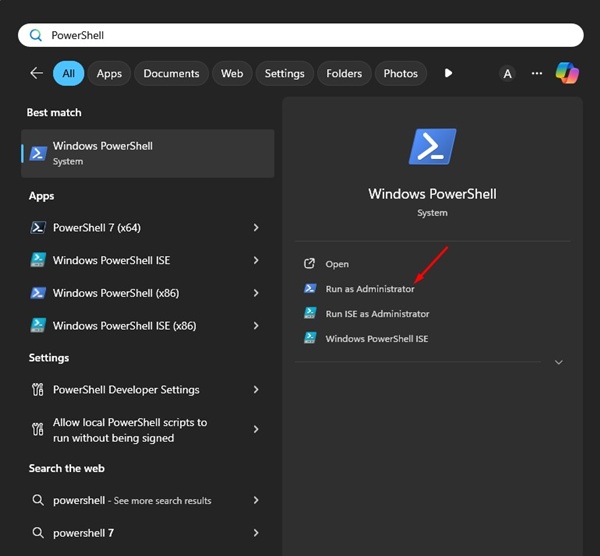
2. Copy and paste the given command and press Enter.
([scriptblock]::Create((irm "https://raw.githubusercontent.com/zoicware/RemoveWindowsAI/main/RemoveWindowsAi.ps1"))) -nonInteractive -backupMode -AllOptions
3. Now just wait while the script runs.
Once completed, restart your PC. Windows will now feel better and faster.
How to Restore the AI Features in Windows?
If you’ve changed your mind and want to bring back the annoying AI features on Windows, here’s what you need to do.
1. Launch PowerShell with Admin Rights.
2. Copy and paste the given script and press Enter.
([scriptblock]::Create((irm "https://raw.githubusercontent.com/zoicware/RemoveWindowsAI/main/RemoveWindowsAi.ps1"))) -nonInteractive -revertMode -AllOptions
After running this script, restart your PC. This will bring back the AI features.
Important thing to remember:
This isn’t a magic script. If Microsoft adds new AI features to its OS, the script will need updates too.
You should keep your eye on this GitHub page for any changes that might come soon.
So, this guide explains how to remove all AI features from Windows with just a simple script. If you need more help on this topic, let us know in the comments. Also, if you find this guide helpful, don’t forget to share it with your friends.

