

Last Updated on October 16, 2026 by Larious
The Quick Settings panel on Windows 11 is convenient since it allows you to toggle various settings without opening the Settings app. However, the problem with Quick Settings in Windows 11 is that it’s highly customizable, and anyone having access to your PC can customize it.
Any other user signed in to your PC can launch the Quick Settings panel and add or remove buttons. If you want to avoid such things, you need to prevent Quick Settings changes on Windows 11 by following these steps.
Table of Contents
1. Prevent Quick Settings Changes via Registry
This method will use the Registry Editor of Windows 11 to prevent Quick Settings Changes.
1. Open the Registry Editor app from the Windows Search.
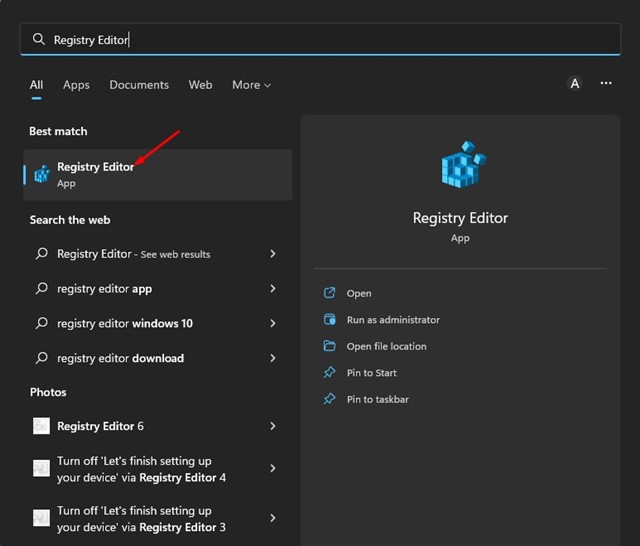
2. In the Registry Editor, navigate to the following path:
HKEY_LOCAL_MACHINE\SOFTWARE\Policies\Microsoft\Windows

3. Right-click on the Windows Key and select New > Key.
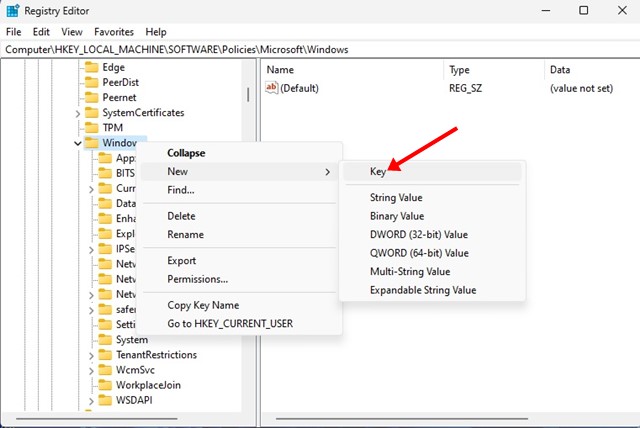
4. Name the new key as Explorer and press Enter.
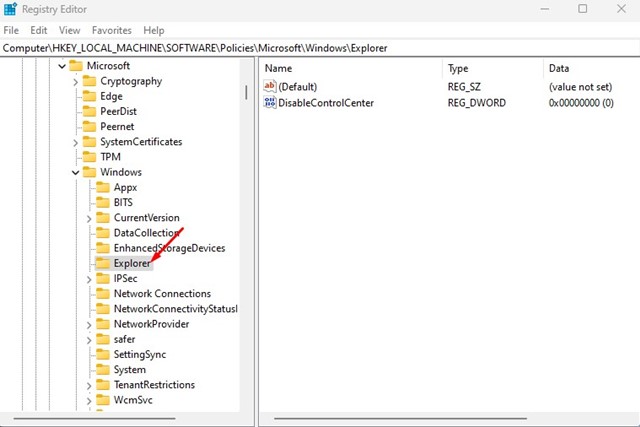
5. Select the Explorer key and, in the right pane, right-click and select New > DWORD (32-bit) Value.
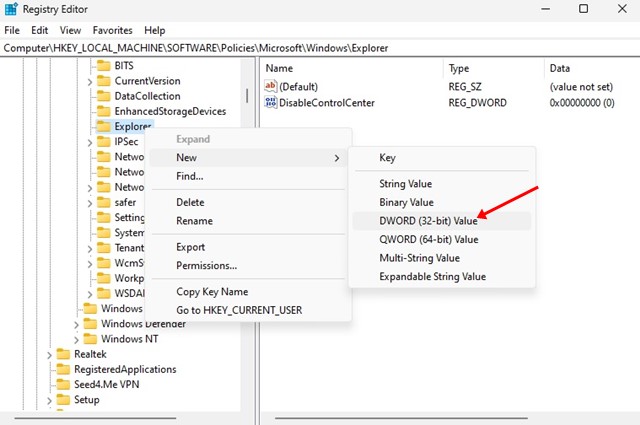
5. Name the new DWORD (32-bit) Value as DisableEditingQuickSettings.
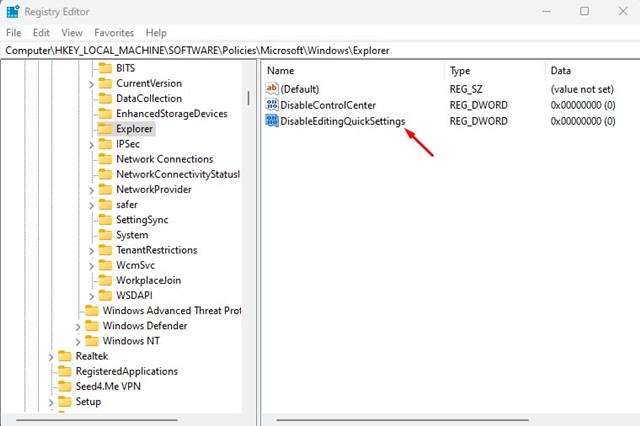
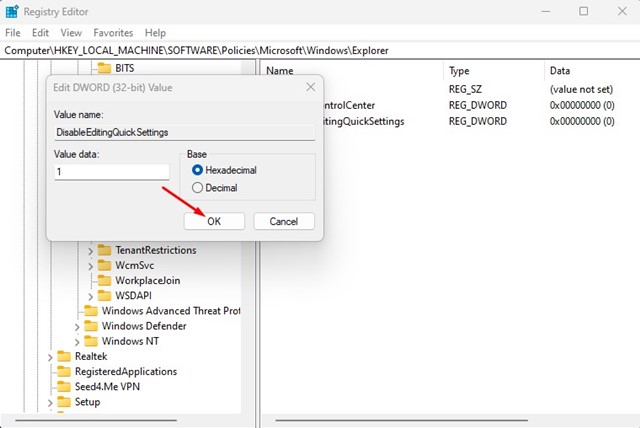
6. Double-click DisableEditingQuickSettings and enter 1 in the Value Data field. Once done, click Ok.
2. Prevent Quick Settings Changes via Local Group Policy Editor
This method will use the Local Group Policy Editor to prevent Quick Settings changes on Windows 11.
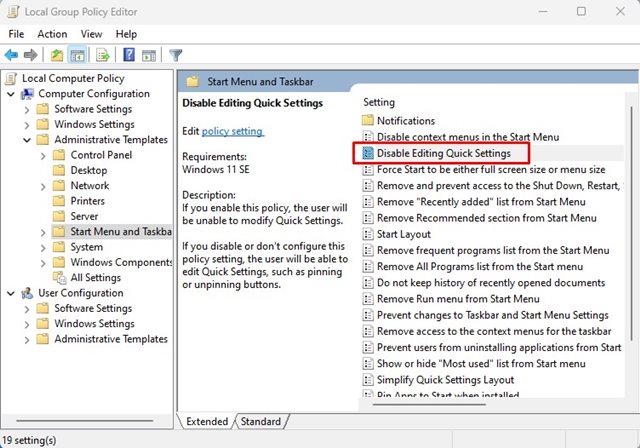
1. Open the Local Group Policy Editor from the Windows Search.
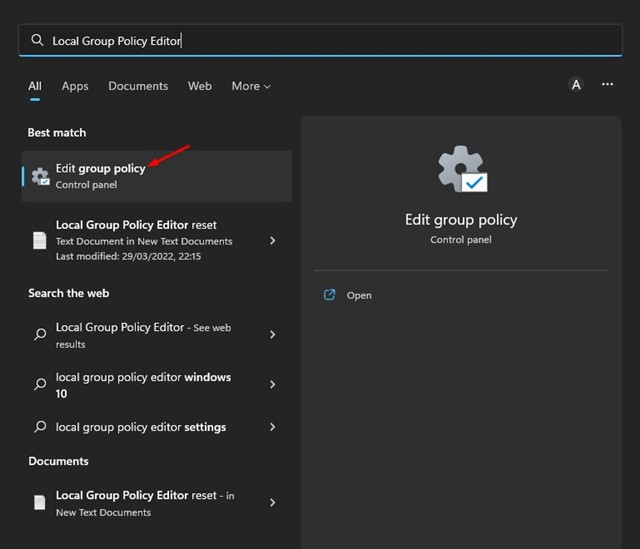
2. In the Local Group Policy Editor, navigate to the following path:
Computer Configuration > Administrative Templates > Start Menu and Taskbar
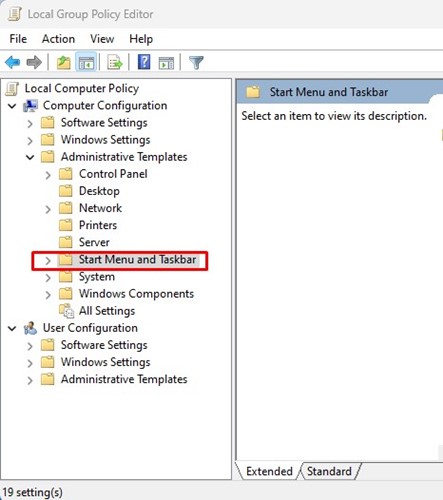
3. Find and double-click the Disable Editing Quick Settings policy.
4. Select Enabled and click Ok on the Disable Editing Quick Settings Window.
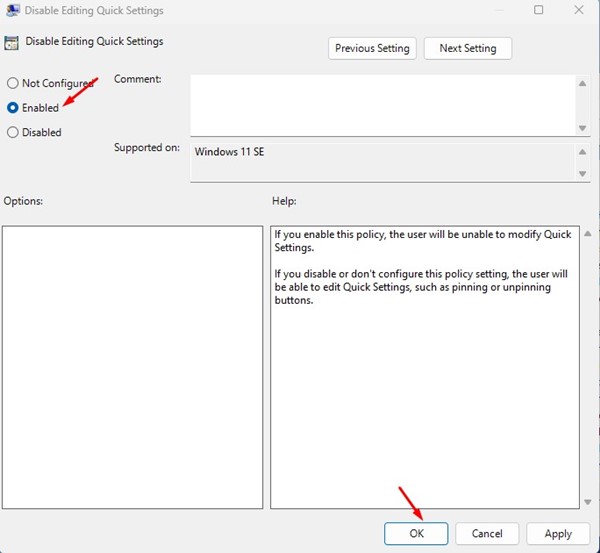
5. After making the changes, open Task Manager and restart the Windows Explorer process.
Also read: How to Download & Install Tor Browser on Windows 11
So, that’s all about how to prevent Quick Settings changes on Windows 11. If other users on your Windows 11 often edit Quick Settings, you can follow these two methods to restrict them from making the changes.

