

Last Updated on October 17, 2026 by Larious
Anyone who has access to your computer can open the Settings app on Windows 11 and change the network settings, privacy, language settings, etc. If your family members use your PC, it’s good to disable access to Settings altogether.
This article will list the two best methods to block access to Settings on Windows 11. Since the methods require Registry editing, make sure to follow the steps carefully.
Table of Contents
1. Block Access to Settings on Windows 11 via Registry
In this method, we will use the Registry Editor to block Settings access on Windows 11.
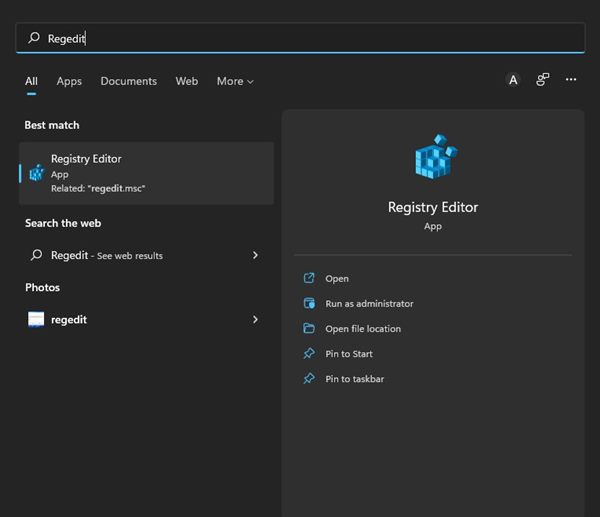
1. Click on the Windows 11 Search and type in Regedit. Next, open the Registry Editor from the list of options.
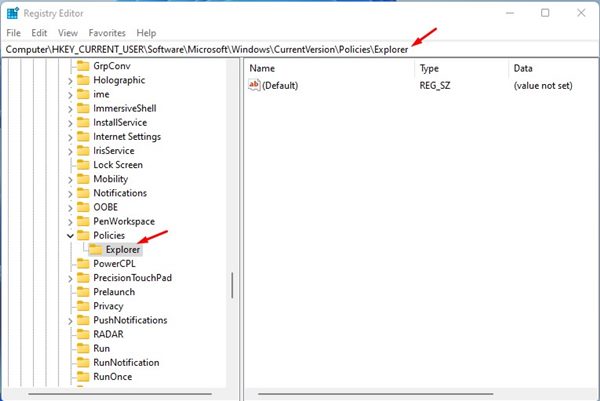
2. In the Registry Editor, navigate to the path:
HKEY_CURRENT_USER\Software\Microsoft\Windows\CurrentVersion\Policies\Explorer
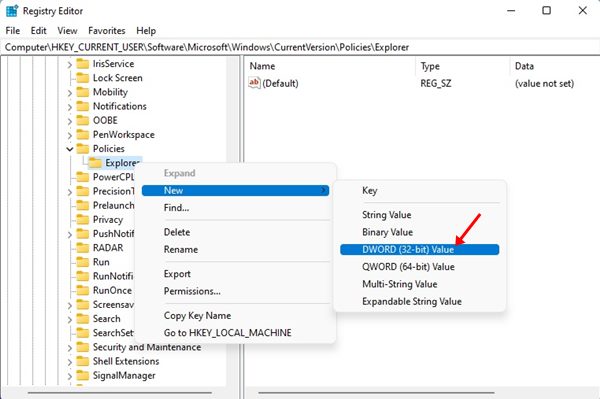
3. Right-click on the Explorer folder and select New > DWORD (32-Bit) Value.
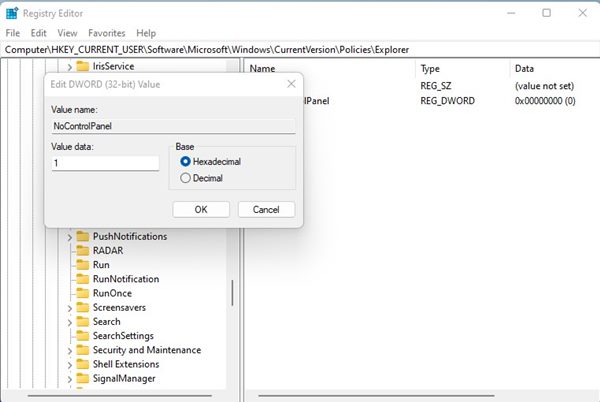
4. Name the new key NoControlPanel and press Enter.
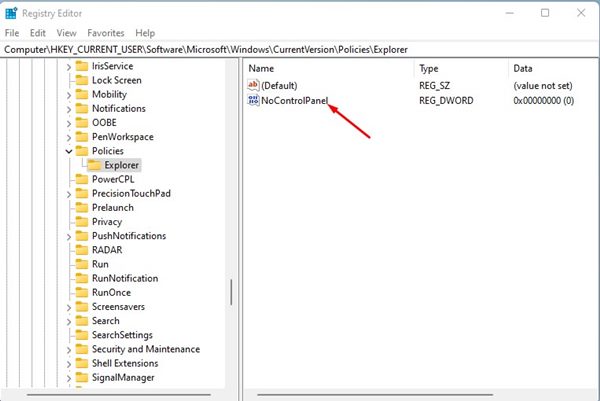
5. Once done, double-click on the NoControlPanel DWORD key and enter 1 in the Value Data field. Next, click Ok.
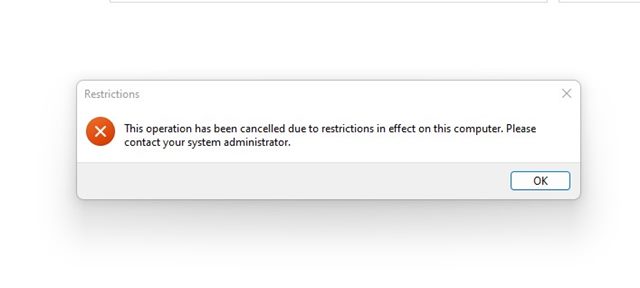
6. Once done, close the Registry Editor and open the Settings app. You will see an error prompt like this.
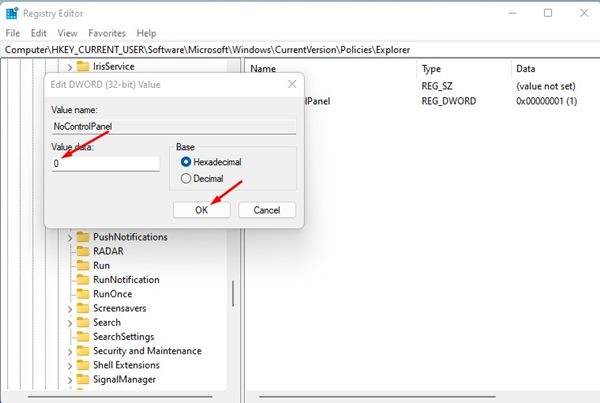
7. If you wish to enable the Settings app, set 0 in the Value data field in Step 5.
2. Disable Windows 11 Settings App via Local Group Policy
We will use the Local Group Policy Editor to disable access to the Windows 11 Settings app.
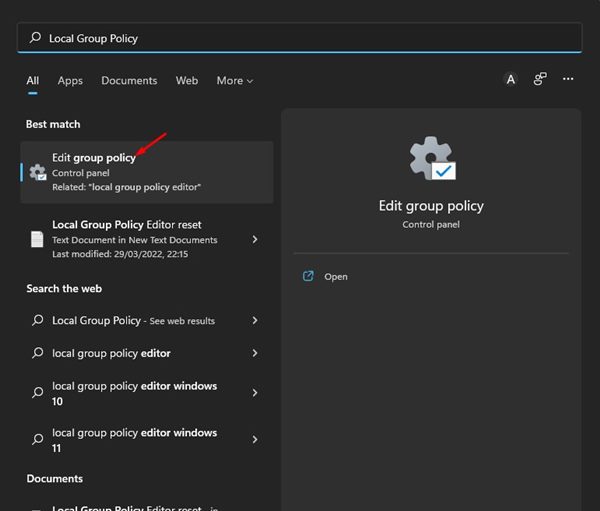
1. Open the Local Group Policy Editor from the Windows Search.
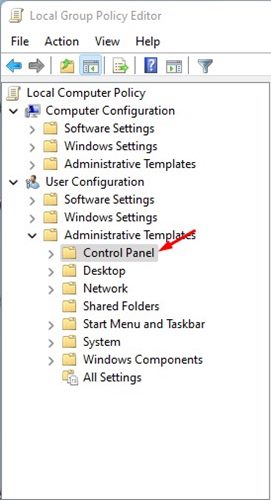
2. In the Local Group Policy Editor, navigate to:
User Configuration > Administrative Templates > Control Panel
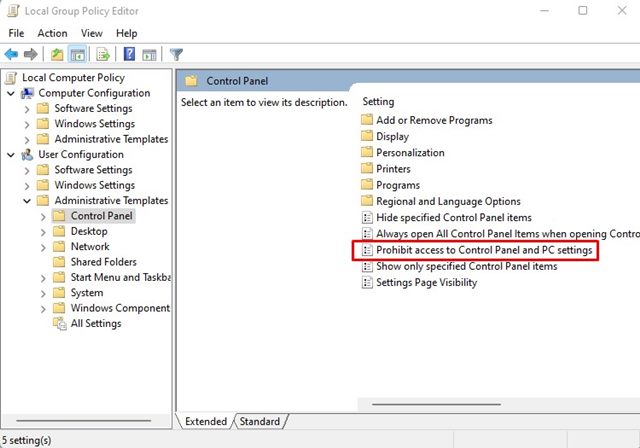
3. Double-click on Prohibit access to Control Panel and PC Settings.
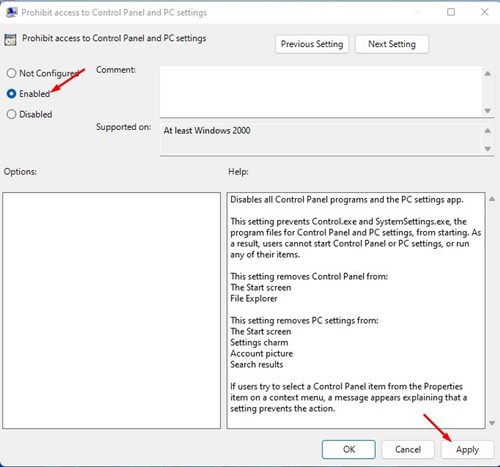
4. Select Enabled and click on the Ok button on the Window that appears.
5. Nothing will happen if anyone tries to access the Settings app. This will also block access to the Control Panel.
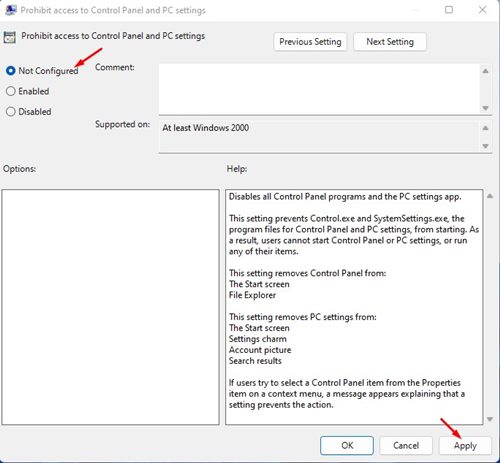
6. If you wish to revert the changes, select Not Configured in Step 4.
These are the two best ways to block users from accessing the Settings app on Windows 11. If you are the admin of a Windows 11 PC, you can follow these methods to prevent other user accounts from accessing Settings.

