

Last Updated on November 4, 2026 by Larious
As part of the folder customization options, Windows 11 allows you to customize the folder pictures as well. Hence, if you are selective about how Windows 11 shows the contents and icons of the folders, you can customize them as per your liking. Below, we have shared a step-by-step guide on customizing the Folder pictures in Windows 11.
1. Open File Explorer on Windows 11 and locate the folder you want to change the picture.
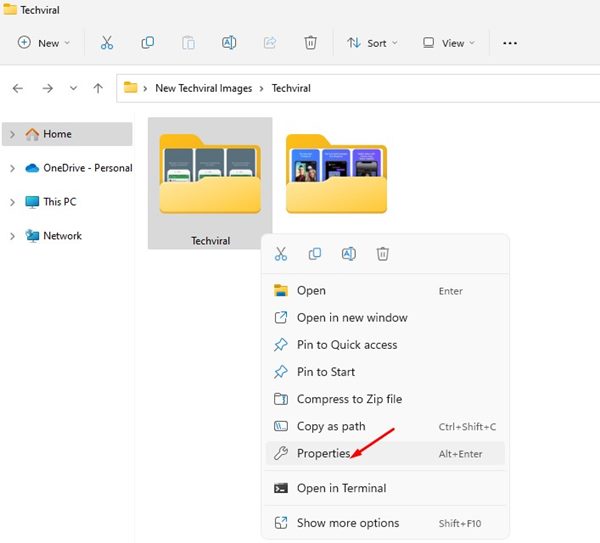
2. Right-click on the folder and select Properties.
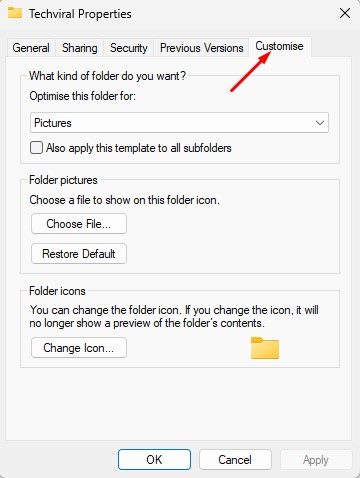
3. Switch to the Customise tab.
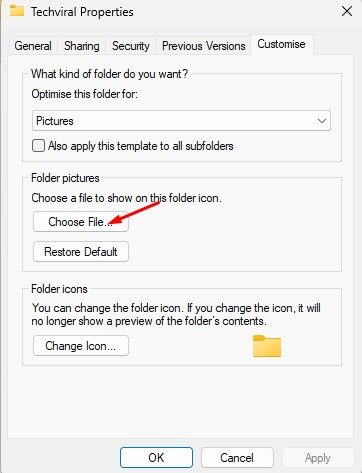
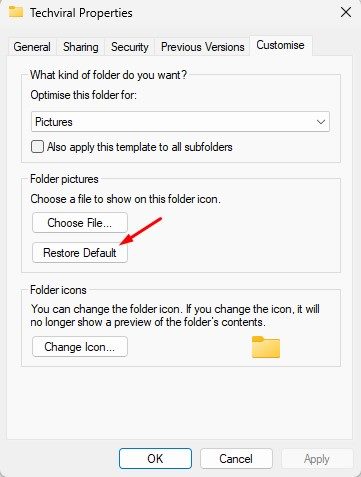
4. On the Customize tab, click on Choose File under Folder pictures.
5. You need to select the image that you want to use as a Folder picture.
6. Click on the Apply button and then on Ok.
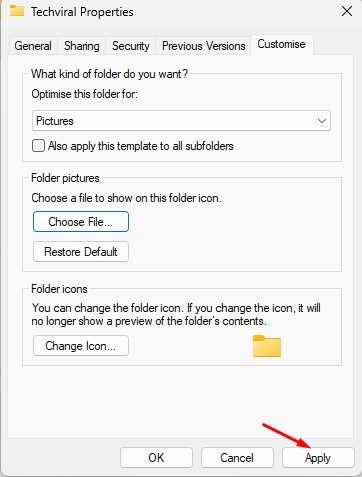
This will immediately change the folder picture in Windows 11. If you wish to revert the change, click on the Restore default button in the Folder picture section.
This is just another of the best ways to customize the appearance of Folders in Windows 11. If you want more folder customization options, you can install third-party applications to change the folder colors. We have shared a detailed guide on changing folder colors on Windows 11; you need to check out that guide.
Here is how to customize your folder’s appearance by changing its picture in Windows 11. You can follow the same method to change Folder pictures on your Windows 10 PC as well. If you want more customization options, give third-party apps to customize Windows 11 a try.

