

Last Updated on November 7, 2026 by Larious
If you don’t want an app to modify files stored in any particular folder, you can add the folder to Controlled Folder Access in the Windows Security app. The feature basically protects files, folders, and memory areas on your device from unauthorized changes by unfriendly applications.
In this article, we shared a step-by-step guide on how to add folders to Microsoft Defender Control Folder Access in Windows 11.
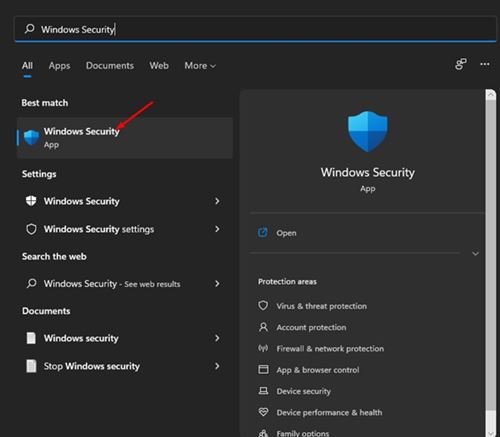
1. Click on the Windows 11 Search and type in Windows Security. Then, click on the Windows Security app from the list of results.
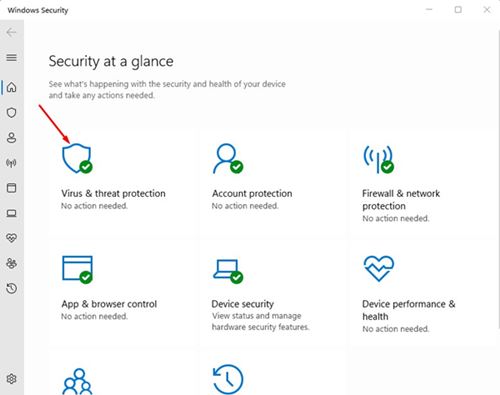
2. In Windows Security, click on the Virus & threat protection option.
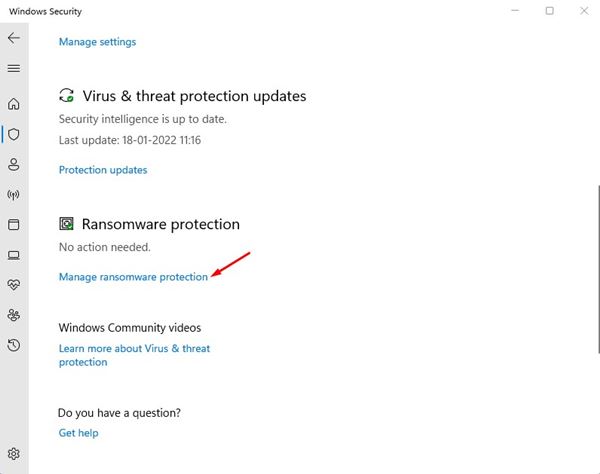
3. In the right pane, scroll down and click on Manage Ransomware Protection.
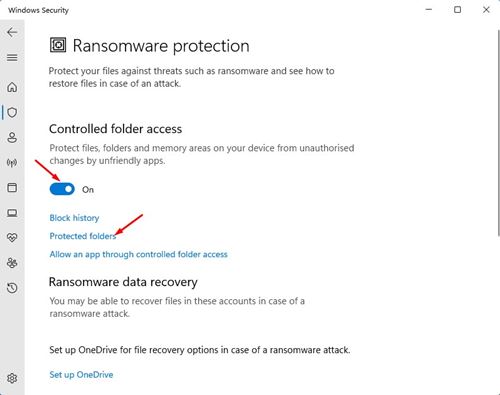
4. Now turn on Controlled folder access and click on the Protected folders link.
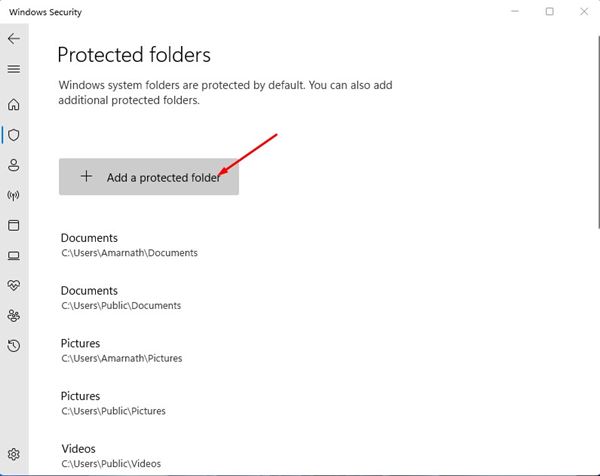
5. If you store your essential data in other folders, you need to click on the Add a protected folder option and add the folders with your important data.
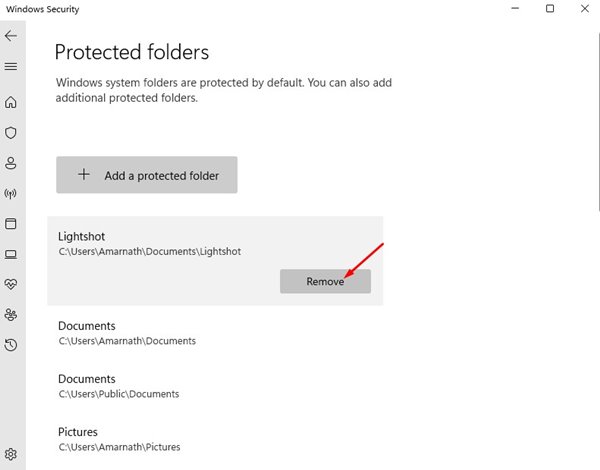
6. If you wish to remove any protected folder, click on the folder and click on Remove.
Once you add a folder in Controlled Folder Access, Windows Security will block every suspicious app from making changes to that particular folder. This is a useful feature that everyone should enable. I hope this article helped you! Please share it with your friends also. If you have any doubts related to this, let us know in the comment box below.

