

Last Updated on November 8, 2026 by Larious
Although joining the Windows Insider Program on Windows 11 is easy, it is not for everyone. Windows Insider Program users often report stability issues after installing new updates.
Since insider builds are not as stable as the release versions, users might face many bugs. For this reason, many users want to leave the Windows Insider Program. If you don’t want to leave the Windows Insider Program, you can make several changes to your group policy and registry to prevent Windows Insider Preview Build updates.
If your computer is used by more than one person in your family, you can follow this guide to prevent them from getting Insider Preview Builds.
Table of Contents
1. Using Local Group Policy
In this method, we will use the Local Group Policy Editor to stop users from getting Windows Insider Preview build updates.
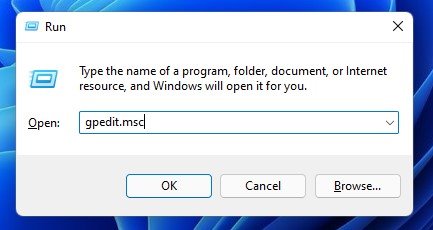
1. Press the Windows Key + R on your keyboard. This will open the RUN dialog box; type in gpedit.msc, and press Enter.
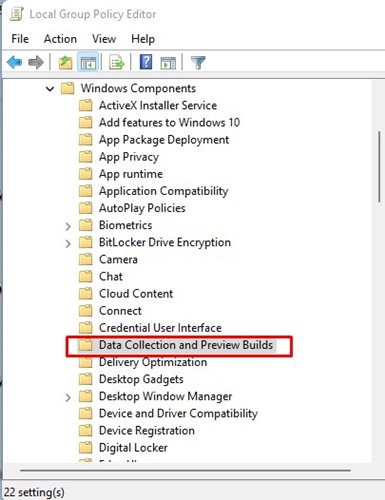
2. On the Local Group Policy Editor, navigate to the following path:
Computer Configuration --> Administrative Templates --> Windows Components --> Data Collection and Preview Builds
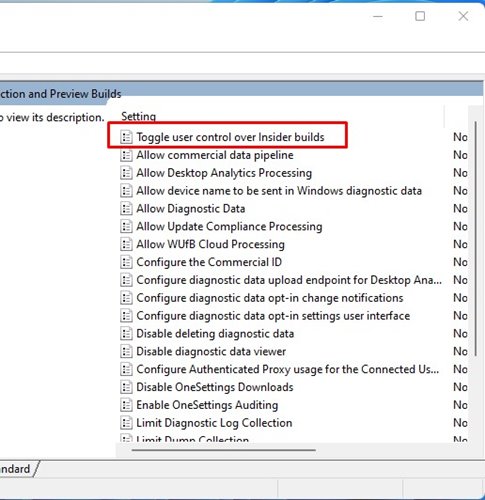
3. On the right pane, find and double-click the Toggle user control over Insider builds Policy.
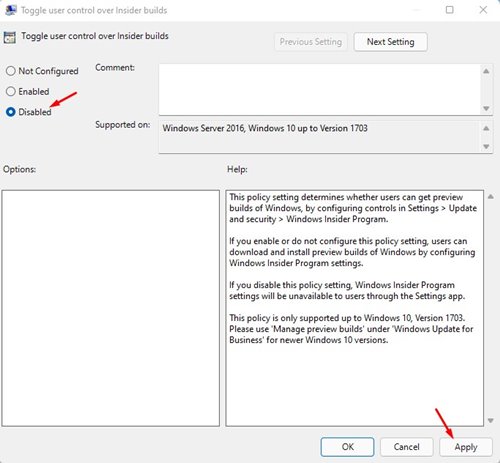
4. On the Toggle user control over Insider builds policy, select Disabled and click Apply.
5. Open Windows Search and type in CMD. Open Command Prompt from the list.
6. In Command Prompt, enter ‘gpupdate /force‘ and hit the Enter button.
7. This will make Windows Insider Program Settings unavailable to users through the Settings app. If you wish to revert the changes, choose the Enabled radio option in Step 4. The rest of the steps are the same.
2. Using Registry Editor
In this method, we will use the Windows Registry to prevent users from getting Windows Insider Preview Build updates.
1. Open the Windows 11 search and type in ‘regedit‘. Open the Registry Editor from the list.

2. In the Registry Editor, navigate to the path shared below:
HKEY_LOCAL_MACHINE\SOFTWARE\Policies\Microsoft\Windows
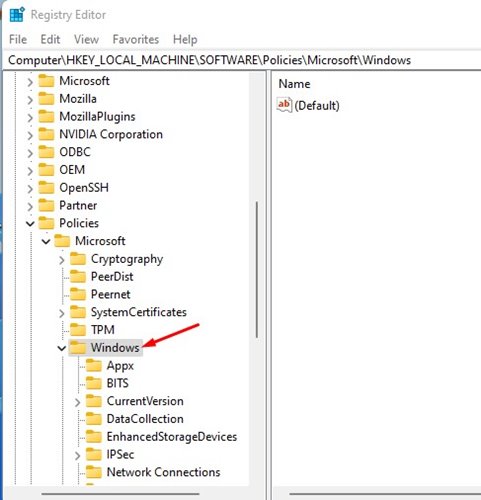
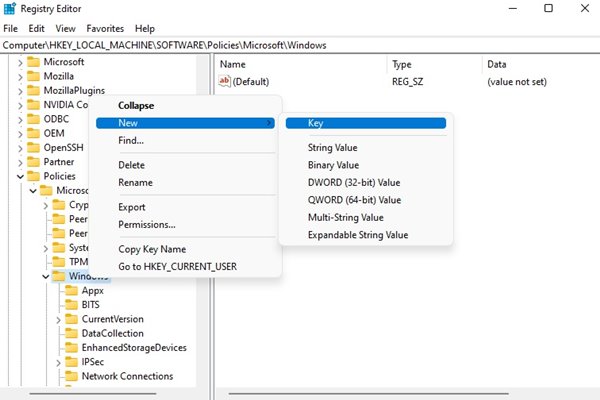
3. Right-click on the Windows folder in the left pane and select New > Key.
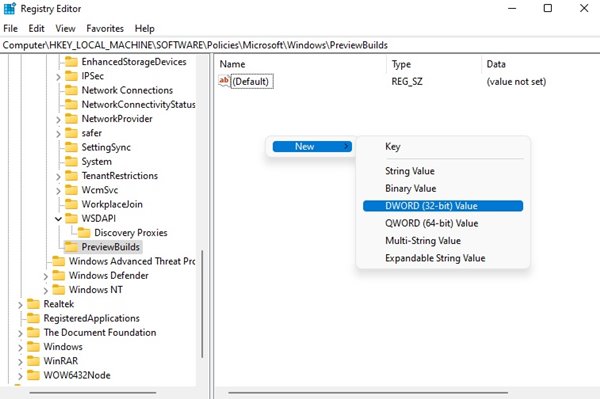
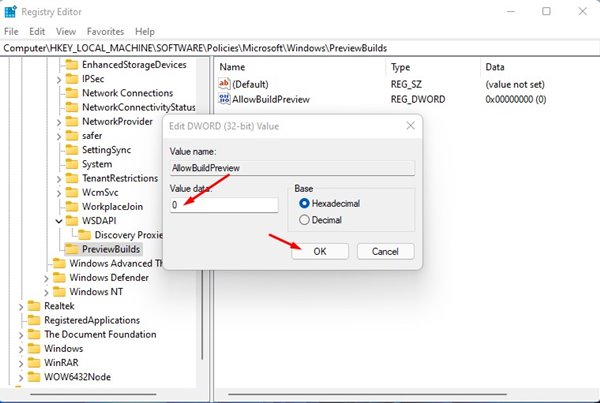
4. Name the new key PreviewBuilds. On the right pane, right-click and select New > DWORD (32-bit) Value.
5. You need to rename it to AllowBuildPreview.
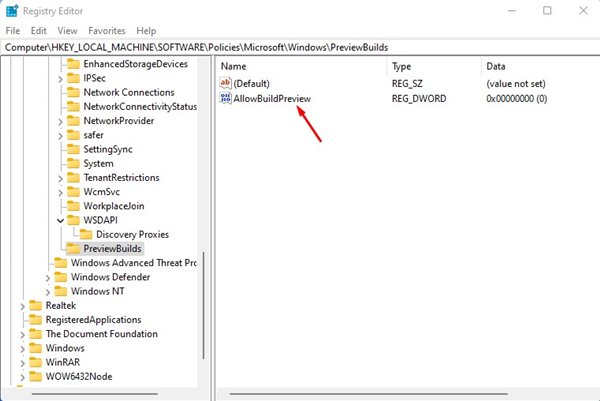
6. Double-click on the AllowBuildPreview DWORD value and enter 0 in the Value data field. Once done, click Ok.
The above methods will prevent all users’ accounts on your Windows 11 from getting the insider preview build updates. I hope this article helped you! Please share it with your friends also. If you have any doubts related to this, let us know in the comment box below.

