

Last Updated on July 26, 2025 by Larious
Windows 11 changes the wallpaper automatically on the Lock Screen; every time you enter the lock screen, you are presented with a new wallpaper.
However, what if you want to manually change the Lock Screen wallpaper? For that, you will have to follow these steps.
Also Read: Download Windows 11 ISO File
How to Change Windows 11 Lock Screen Wallpaper
1. Press the Windows Key + I button to open the Settings.
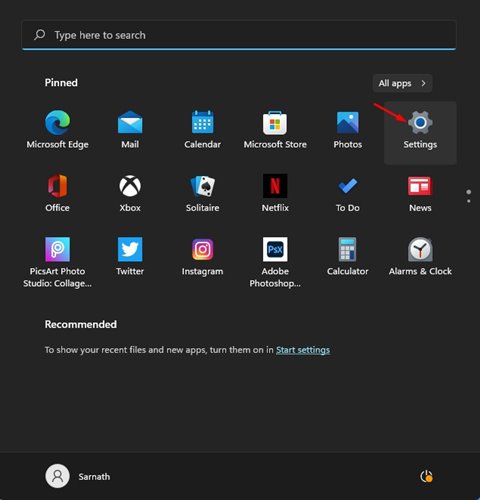
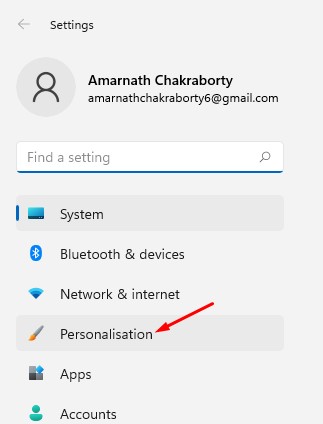
2. Click on the Personalization option.
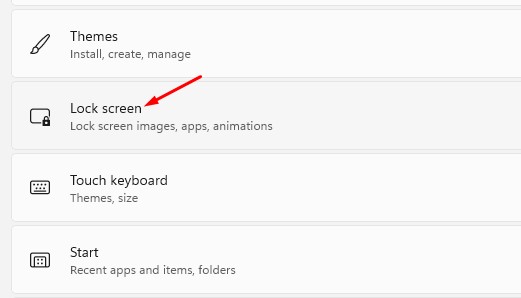
3. Click on the Lock Screen option on the right pane.
4. Under the Personalize your lock screen, you will find three different options.
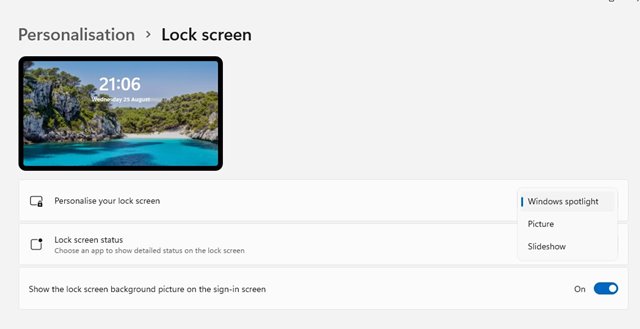
Windows Spotlight: Images were set automatically by Windows 11.
Picture: This option allows you to choose an image from Microsoft or a Photo from your collection.
Slideshow: This option lets you select a folder containing photos. This option also automatically changes the wallpapers at regular intervals.
5. If you want to use your photo as a lock screen wallpaper, select Picture and select the image.
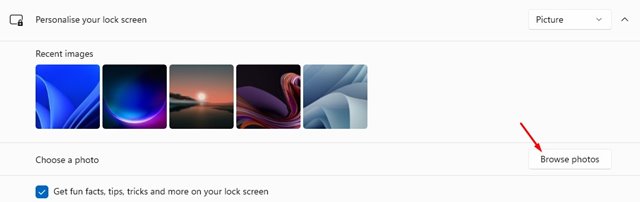
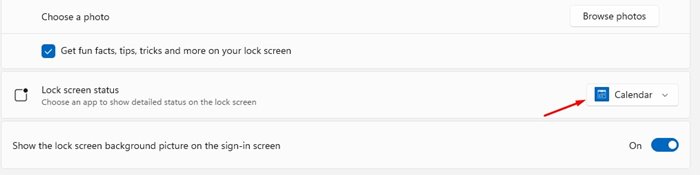
6. You can even pick apps that can show notifications on the Lock Screen. For that, select the apps on the Lock Screen Status.
This guide is all about how to change the Windows 11 Lock Screen Wallpaper. If you have any doubts related to this, let us know in the comment box below.

