

Last Updated on February 21, 2026 by Larious
Let’s be honest – Windows 11 comes loaded with lots of pre-installed apps. On top of that, there are hundreds of background services running behind the scenes, and some of them can slow down your device.
It’s impossible to pick them all individually and turn them off. So, what’s the easier way out to debloat Windows 11?
Table of Contents
Using Winhance to Debloat Windows 11
Winhance is a third-party tool that’s designed to debloat, optimize, and customize Windows 11 without performing a clean installation.
It brings a wide range of options for you, like uninstalling apps, improving system performance, and managing privacy settings – all from one place.
How to Debloat Windows 11 Using Winhance
1. To get started, download & install the Winhance tool on your Windows 11.
2. Once installed, open it.
3. Switch to the Software & Apps.
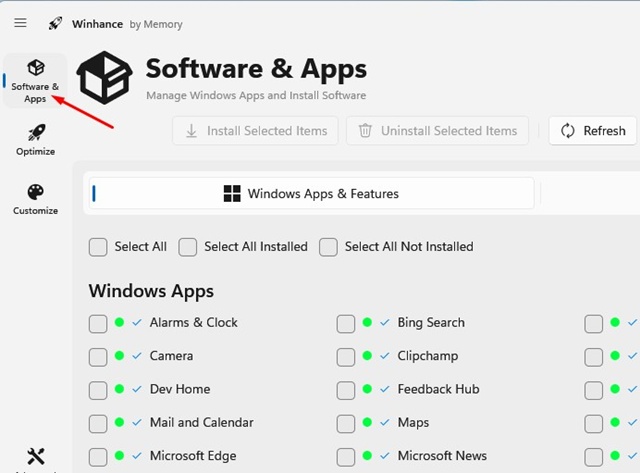
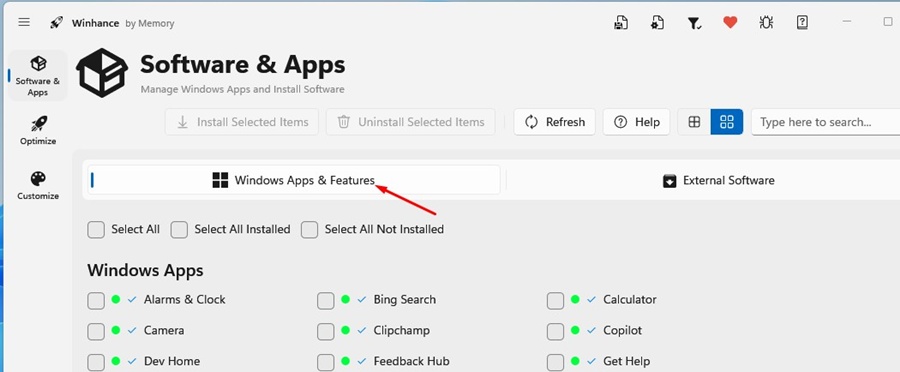
4. Click the Windows Apps & Features tab.
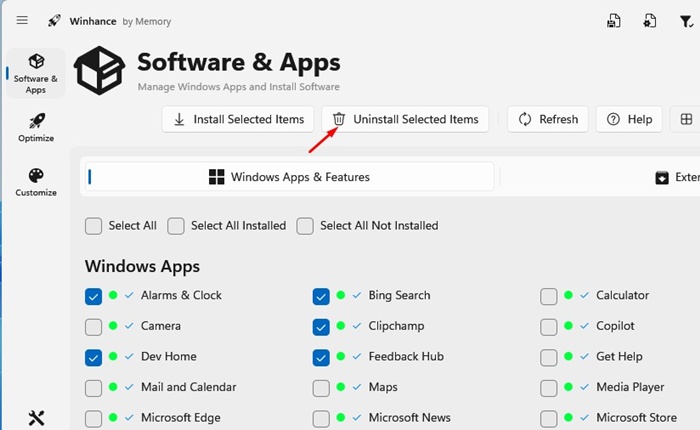
5. Select the bloatware you want to remove and click Uninstall Selected Items.
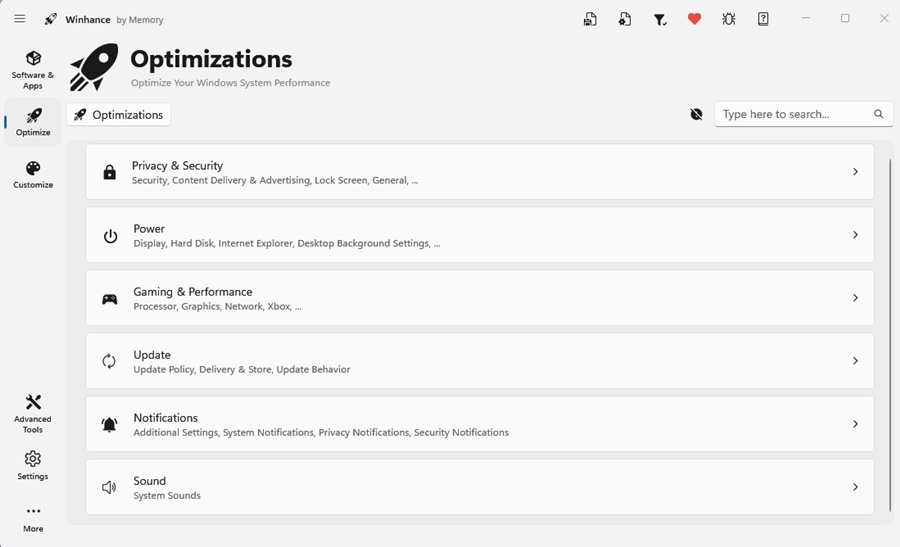
6. Switch to the Optimizations tab and control many other things. You can customize how you use the Account Control feature, disable Remote Assistance, and turn off telemetry collection, etc.
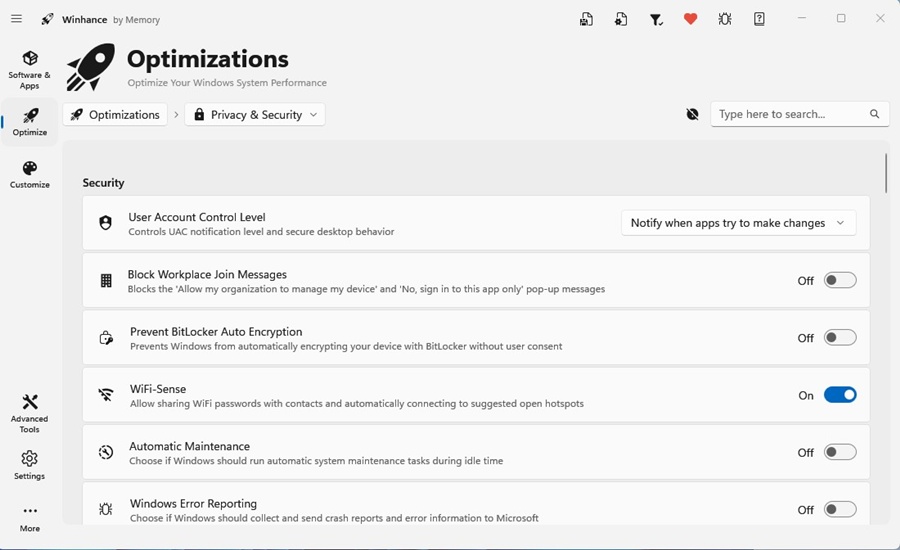
7. Winhance offers plenty of optimization settings, organized into six categories: Privacy & Security, Power, Gaming & Performance, Update, Notifications, and Sound.
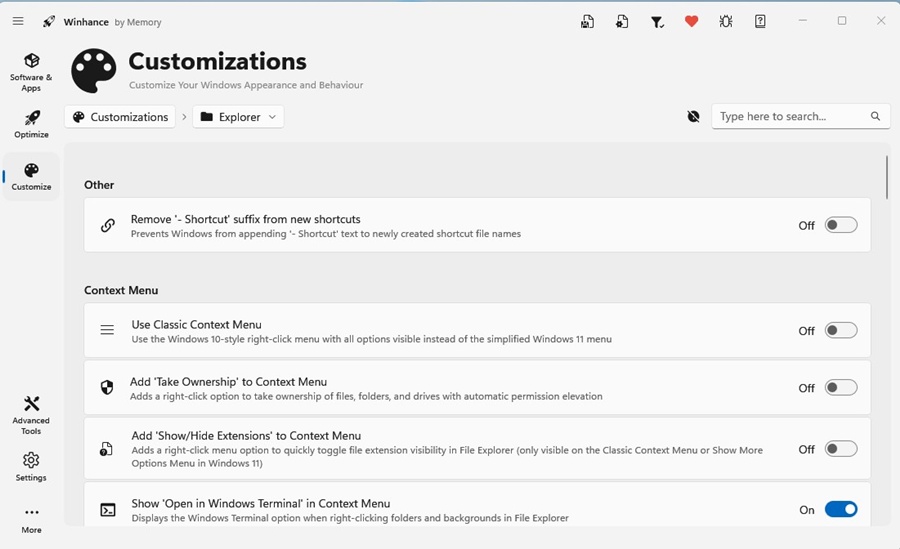
8. Next, switch to the Customization options and make the changes as per your needs.
Basically, Winhance is a free utility that lets you debloat, optimize, and customize Windows 11 as per your needs. You get to manage lots of things from a single panel. And the good part is that it also works with Windows 10.
So, what’s your take on the new Winhance debloat tool for Windows 11? Let us know in the comments.

