

Last Updated on August 1, 2025 by Larious
Many users find the ‘Let’s finish setting up your device’ screen irritating. The worst thing about the feature is that Windows 11 will show you the same screen when you restart your PC if you don’t complete the setup process.
So, if you find this notification annoying, here’s how you can get rid of it.
Table of Contents
1. Disable Windows 11 Welcome Experience via Settings
We will use the Windows 11 Settings app to disable the Welcome Experience in Windows 11.
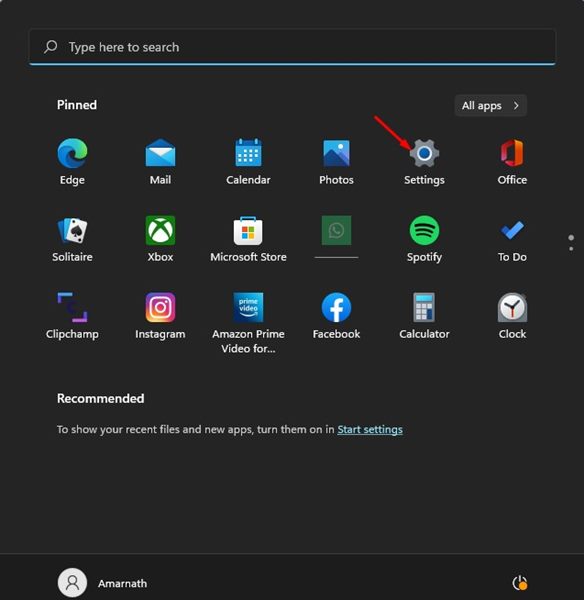
1. Click on the Windows Start button and select Settings.
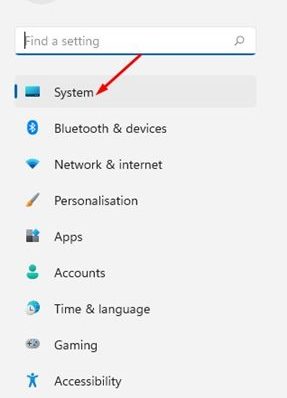
2. Click on the System option on the left pane.
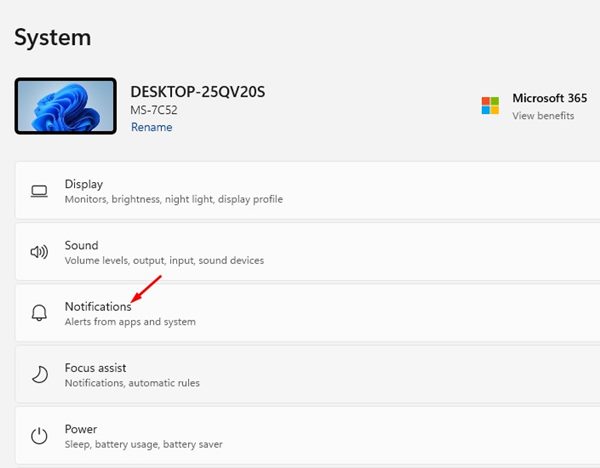
3. Scroll down and click on the Notifications.
4. Scroll down and click on the Additional settings option.
5. Uncheck the two options as shown in the screenshot below and close the Settings app.
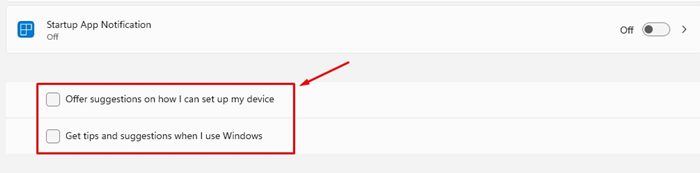
You can turn off the ‘Let’s finish setting up your device’ screen on Windows 11 via Settings.
2. Turn off ‘Let’s finish setting up your device’ via Registry Editor
We will use the Registry Editor of Windows 11 to turn off the ‘Let’s finish setting up your device’ screen.
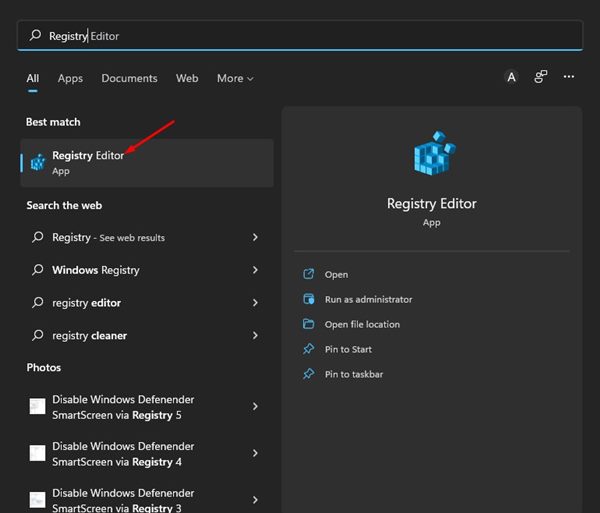
1. Click on the Windows 11 search and type in Registry. Next, open the Registry Editor from the list of options.
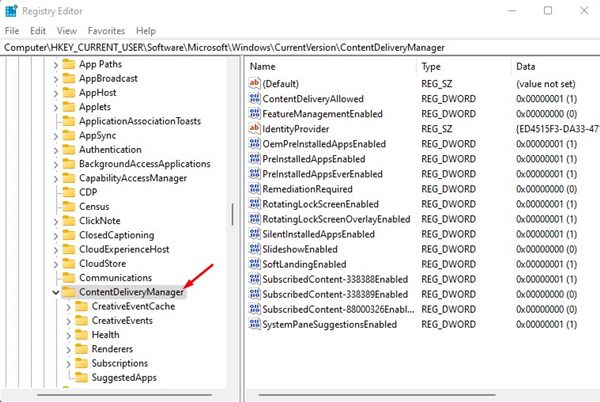
2. In the Registry Editor, navigate to the following path:
HKEY_CURRENT_USER\SOFTWARE\Microsoft\Windows\CurrentVersion\ContentDeliveryManager
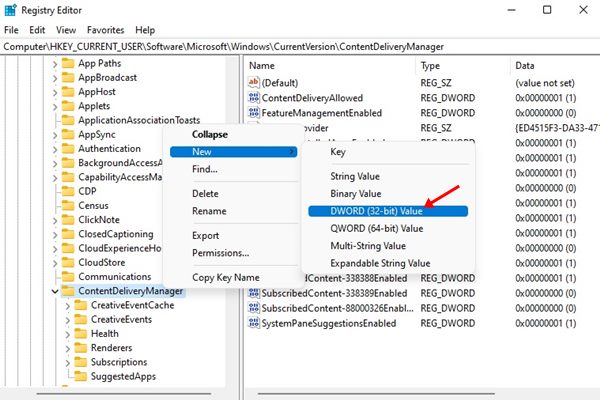
3. Right-click on the ContentDeliveryManager folder and select New > DWORD (32-bit) value.
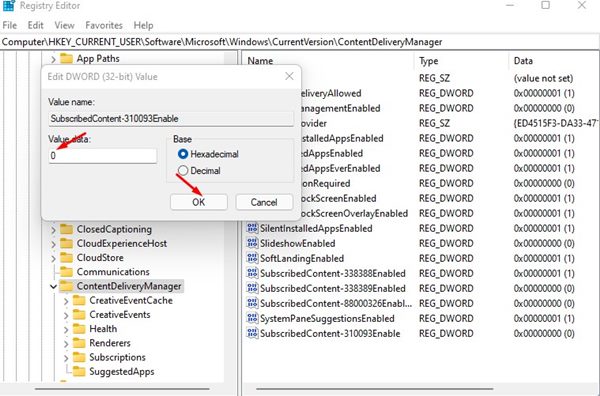
4. Name the newly created key as SubscribedContent-310093Enable
5. Double-click on the SubscribedContent-310093Enable. Enter 0 to disable the Welcome Experience on the value data field and 1 to enable the Welcome Experience. Once done, click on the Ok button and close the Registry editor.

3. How to Disable ‘Let’s Finish Setting Up Your Device’ on Windows 10?
The steps will be different if you’re using Windows 10. To disable the Let’s finish setting up your device’ screen on Windows 10, follow these steps.

- Launch the Settings app.
- Switch to the System > Notifications & actions.
- Uncheck the ‘Suggest ways i can finish setting up my device to get the most out of Windows’ option.
This will disable the Welcome Experience screen while setting up a new account on your Windows computer. If you wish to enable the Welcome Experience screen, you need to revert the changes you have made.

