

Last Updated on November 7, 2025 by Larious
If you’re a Google Gemini user, you may know about its Deep Research tool. Gemini Deep Research lets you conduct in-depth and real-time research on any subject.
The tool automatically browses up to hundreds of websites and presents you with useful information.
Table of Contents
Gemini’s Deep Research can look into your emails, drives, and chats
We are discussing the Deep Research tool because Google recently made Gemini AI’s Deep Research more powerful.
Gemini can now draw from your emails and documents while performing deep research queries.
It can now access information from your Gmail, Google Drive, and Chat, and incorporate those details in the chat.
How to make Gemini’s Deep Research scan Gmail, Drive, and Chat?
It’s pretty easy to pull information directly from your Gmail, Drive, and Google Chat; just follow these simple steps.
1. Open your favorite web browser and visit this webpage.
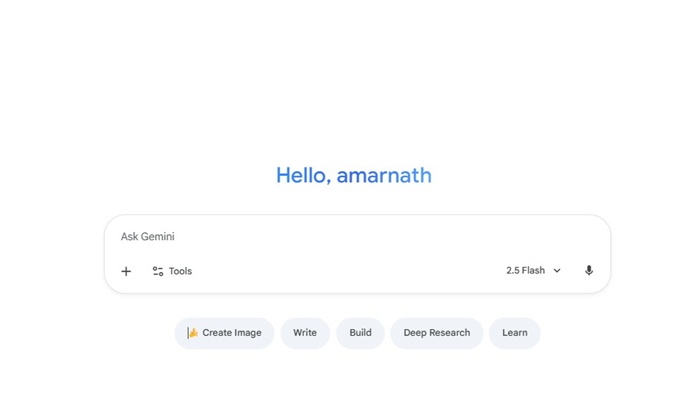
2. Log in to your Google Account and start a new chat on Gemini.
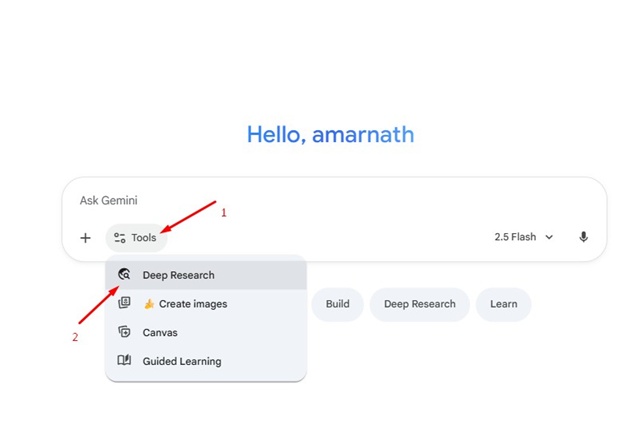
3. Click Tools and select Deep Research.
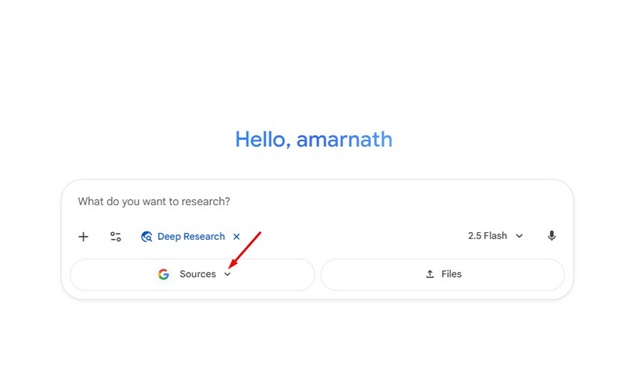
4. Click the Sources drop-down.
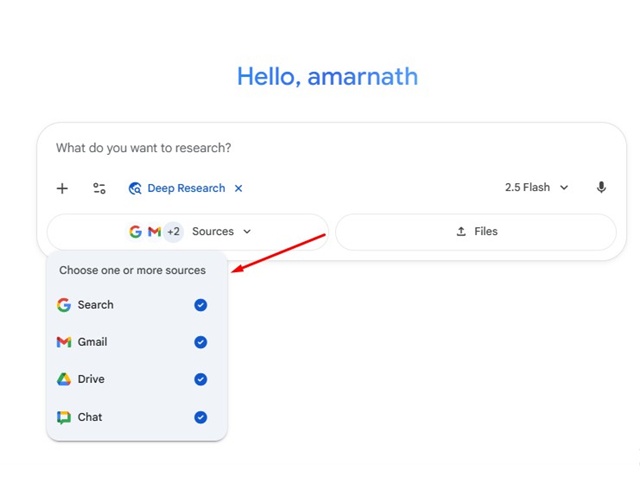
5. Select the sources as per your need. You can select from Gmail, Drive, or Chat.
6. Now you can perform deep research by entering the prompts.
Google Deep Research with workspace integration is a great feature since it generates a report that blends internal data with publicly available information.
So, what do you think about this new feature? Let us know in the comments. Also, if you find this guide helpful, don’t forget to share it with your friends.

