

Last Updated on February 15, 2026 by Larious
Snipping Tool provides various modes to capture a screenshot, but it can’t capture scrolling screenshots in Windows 11. You must use third-party apps or browser extensions to capture a scrolling screen. Below, we have shared a few best ways to capture scrolling screenshots on Windows 11.
Table of Contents
1. Capture Scrolling Screenshots using Chrome Browser
You need to rely on Chrome extensions if you want to capture a scrolling screenshot of your favorite webpage. GoFullPage is a Chrome extension that can capture full-page screenshots of any webpage.
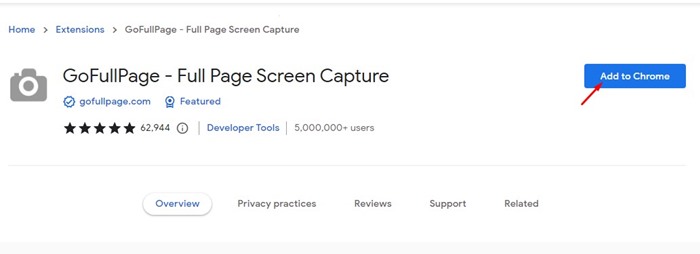
1. Open the GoFullPage Chrome extension page and click Add to Chrome.
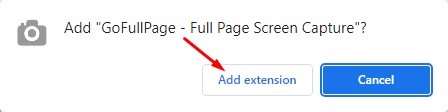
2. On the confirmation prompt, click on the Add extension.
3. Wait until the GoFullPage extension installs on your Chrome browser. Once installed, you will find a new icon in the extension bar.
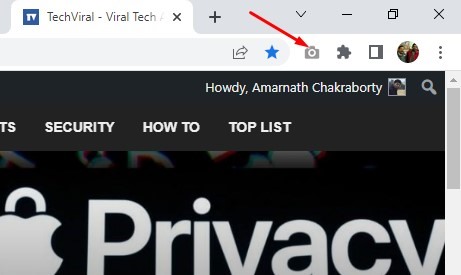
4. Open the webpage where you want to capture a scrolling screenshot. Next, click on the GoFullPage extension icon.
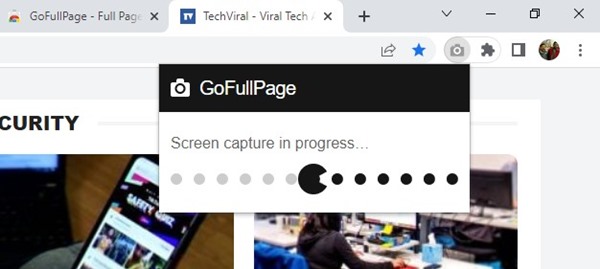
5. The extension will automatically scroll through the webpage and capture a full-page screenshot.
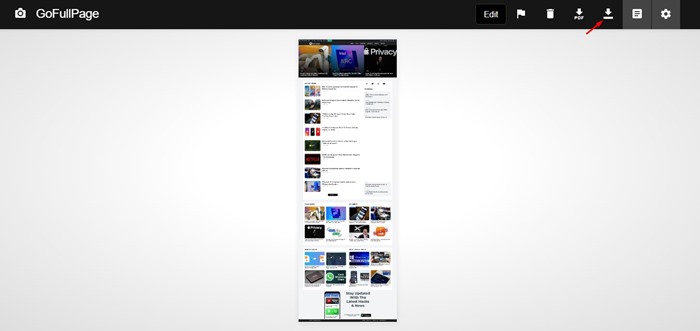
6. You will see the captured screenshot in a new tab. Simply click on the Download icon to download the full-page screenshot on your computer.
2. Capture Scrolling Screenshots on Windows 11 with PicPick
PicPick is an image editor that can capture scrolling screenshots on Windows 11. The application is free to download and use and is also compatible with older versions of Windows.
1. Download & install PicPick on your Windows 11 computer.
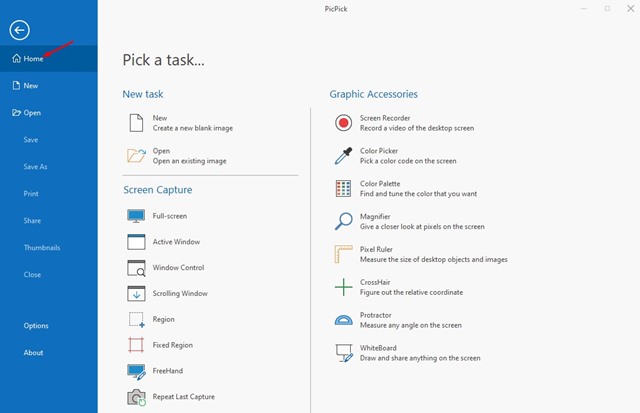
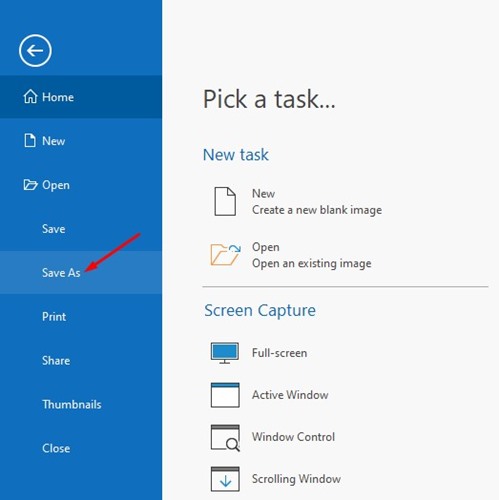
2. Open the program and switch to the Home menu on the left side.
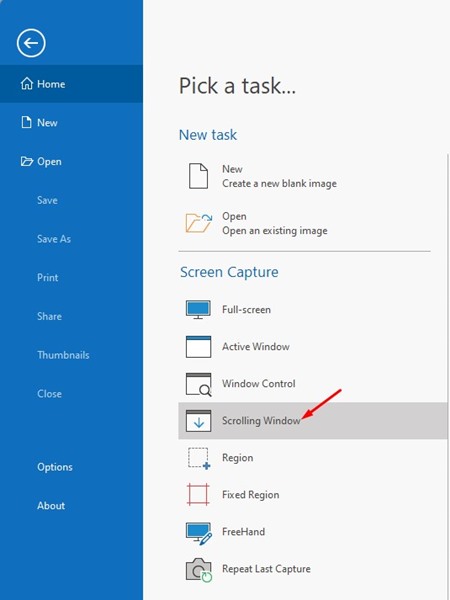
3. Click on the Scrolling Window under Screen Capture.
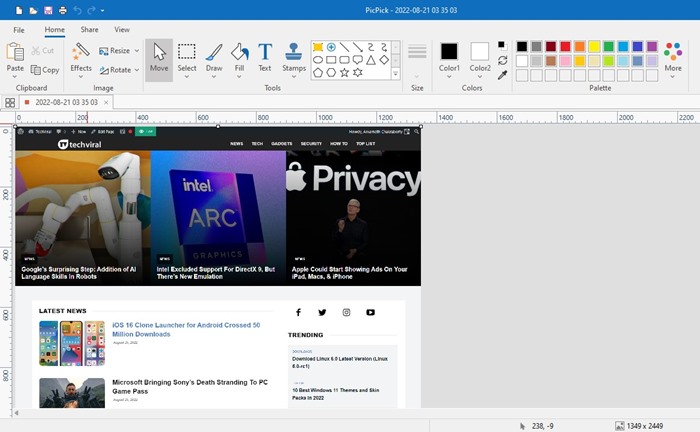
4. This will immediately capture a scrolling screenshot of your open apps or Window.
5. Once captured, you will have the option to resize, crop, or annotate the screenshots.
6. Click on the File menu and select Save As. Next, select the save location and click on Save.
3. Capture Scrolling Screenshots using ShareX
ShareX is one of the best and most popular screen capture, file sharing, and productivity tools available for Windows. You can also use ShareX to capture scrolling screenshots in easy steps.
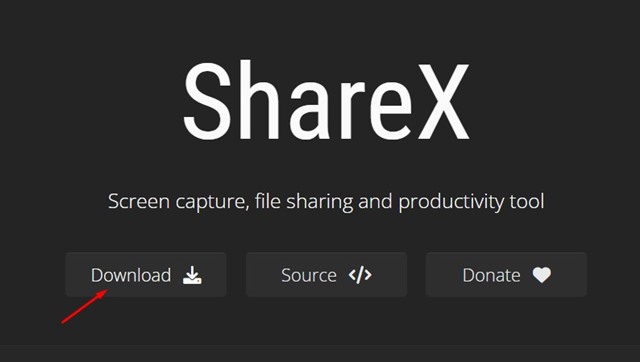
1. Download & install ShareX on your Windows 11 computer.
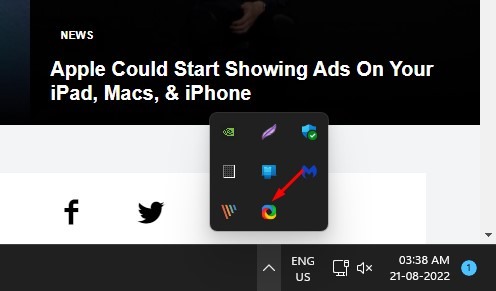
2. You will find a new ShareX icon in your system tray. Open the webpage or app window where you want to capture a scrolling screenshot.
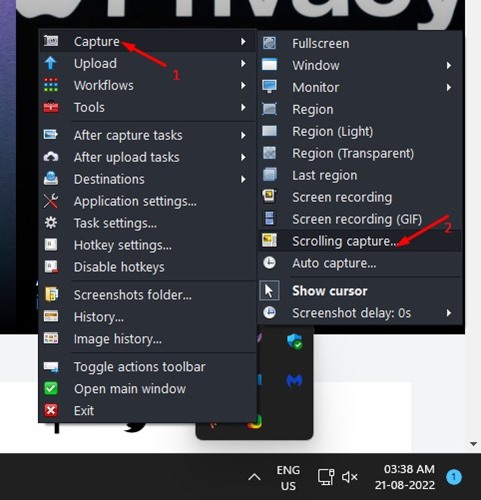
3. Right-click the ShareX icon on the system tray and select Capture > Scrolling Capture.
4. ShareX will ask you to select a window to capture a full screenshot.
5. ShareX will open the Capture Window. Here, you need to make adjustments and click the Start Capture button.
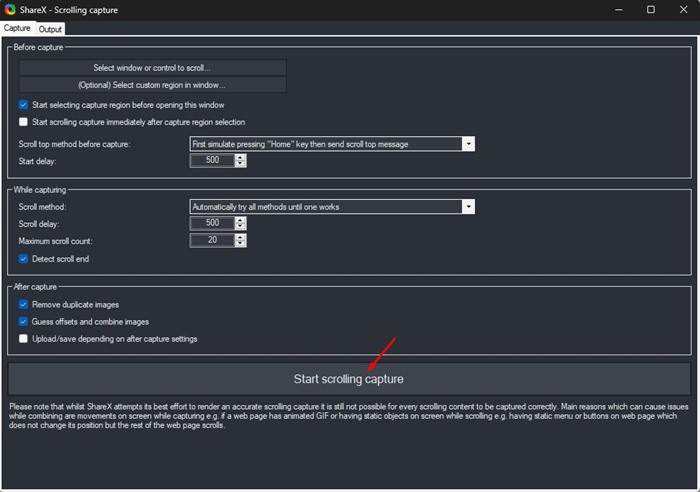
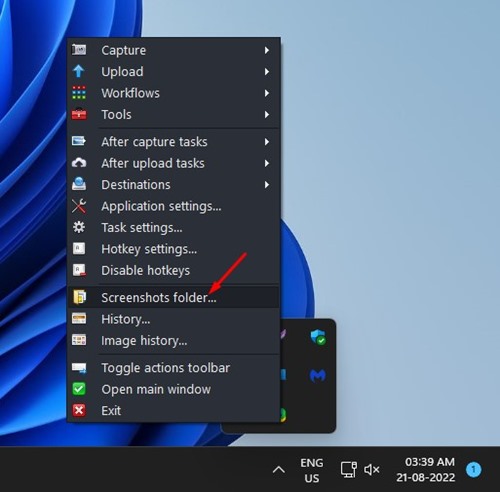
This will capture a scrolling screenshot on your Windows 11. To access the screenshot, right-click on the ShareX icon on the system tray and select the Screenshots folder
Also read: Windows 11 ISO Free Download Full Version (3 Methods)
These are the three best ways to capture scrolling screenshots on a Windows 11 pc. You can easily capture scrolling screenshots by following these three methods. Also, if you know any other ways to capture scrolling screenshots in Windows.

