

Last Updated on July 27, 2025 by Larious
YouTube just introduced a few AI features for the Shorts videos. Most features are under testing and will take a few months to arrive.
Among all the eye-catching features, one that’s pushed deep inside the Settings is the option to view Shorts in landscape mode.
Table of Contents
Watching YouTube Shorts in Landscape
The feature to turn on YouTube Shorts in Landscape mode hides under the Accessibility settings of the YouTube app.
This means the feature is intended for people with some disabilities who find watching videos in portrait mode problematic.
How to View YouTube Shorts in Landscape Mode
Before you proceed with the steps, you need to take care of a few things. The Rotate Shorts feature wasn’t available for all devices.
As of now, it’s only available on certain Pixel smartphones. Even if you have a Google Pixel device, you will have to update the YouTube app from the Google Play Store.
- Launch the YouTube app on your phone.
- Press the You tab at the bottom right corner.
- On the next screen, tap the Settings gear icon.
- Scroll down to the Video and audio preferences and tap Accessibility.
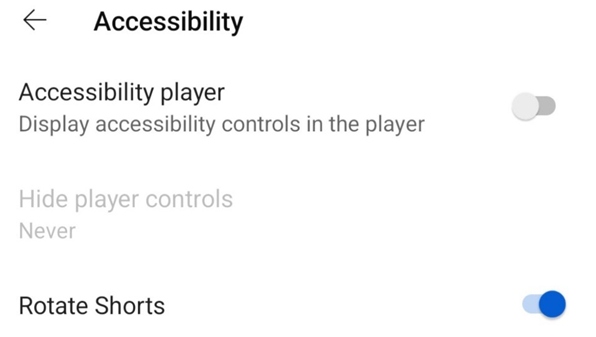
- On the Accessibility screen, turn on the toggle next to ‘Rotate Shorts’.
The feature is slowly rolling out to users; the ‘Rotate Shorts’ option may not be available on your YouTube app.
Anyways, if your phone has this feature, you need to open any YouTube Shorts and change the orientation to landscape. You will be able to view the video in Landscape mode.
This guide explains how to view YouTube Shorts in Landscape mode. If you need more help on this topic, let us know in the comments.

