

Last Updated on August 23, 2026 by Larious
By default, Windows 11 handles driver installation through Windows Update. However, many users want to prevent automatic driver installation to avoid stability and compatibility issues, as well as unwanted performance drops.
So, if you prefer manual driver installation, you should prevent Windows 11 from installing the driver automatically. There are several ways to stop Windows 11 from automatically installing or updating drivers. Here are all of them.
Table of Contents
1. Change the Device Installation Settings
This is the first thing you should try if you want to prevent driver updates from being installed through Windows Update.
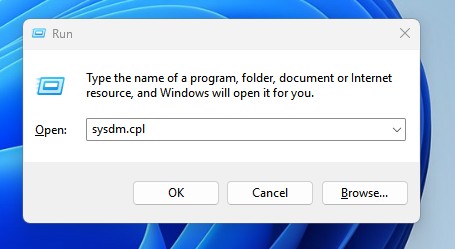
1. Press Windows Key + R. On the RUN dialog, type sysdm.cpl and press Enter.
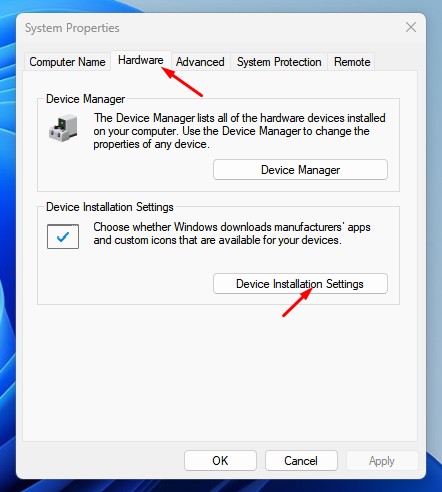
2. Switch to the Hardware tab and click Device Installation Settings.
3. Then select No (your device might not work as expected).
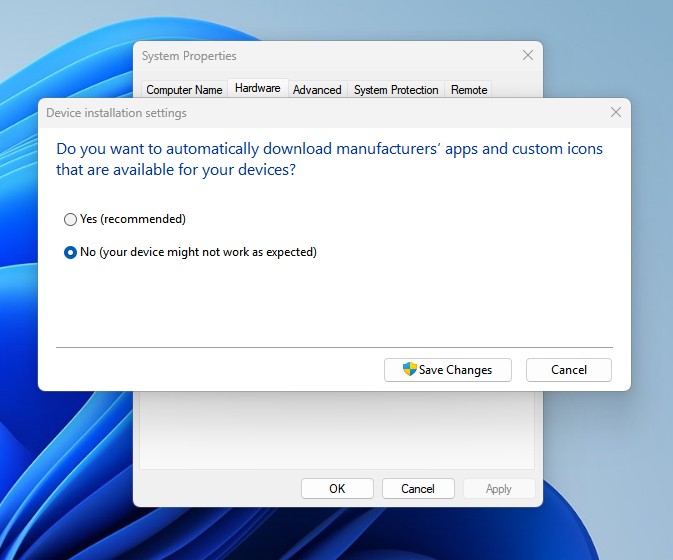
4. After making the changes, click Save Changes and restart your PC.
Note: To enable the driver updates, select ‘Yes’ on the Device Installation Settings.
2. Disable Driver Updates via Group Policy
You can make a few changes to the Group Policy to prevent driver updates.
1. Open Group Policy Editor from the Windows Search.
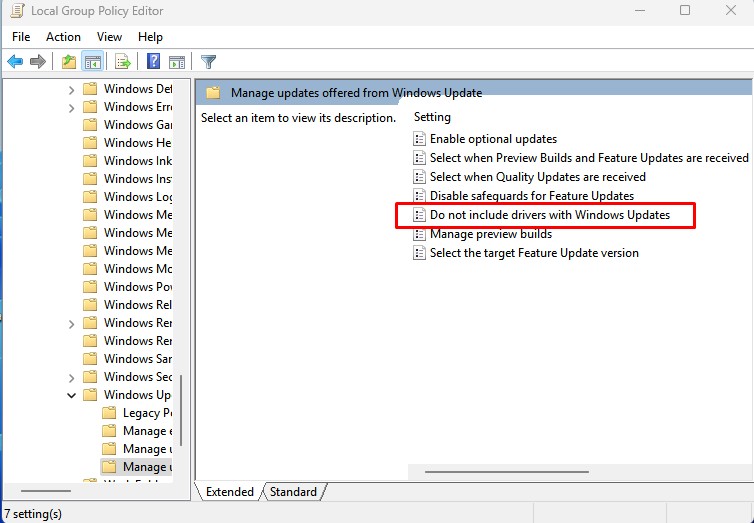
2. Next, navigate to the Computer Configuration > Administrative Templates > Windows Components > Windows Update > Manage Updates offered from Windows Update.
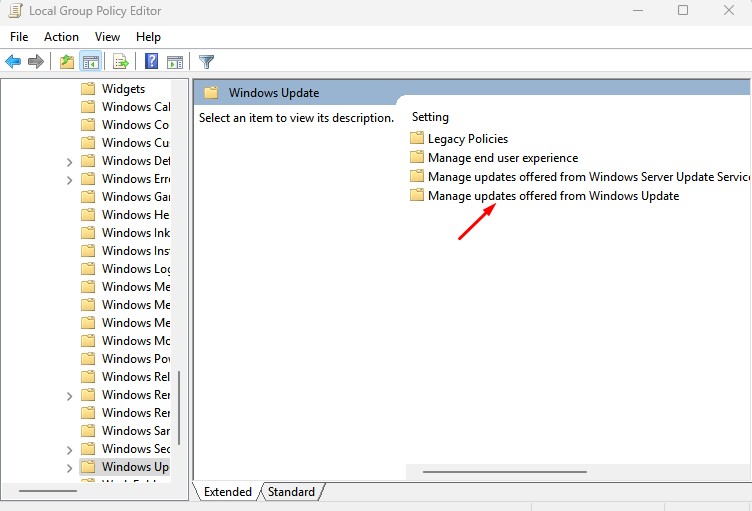
3. Double-click ‘Do not include drivers with Windows Updates’.
4. Select Enabled to disable the driver updates.
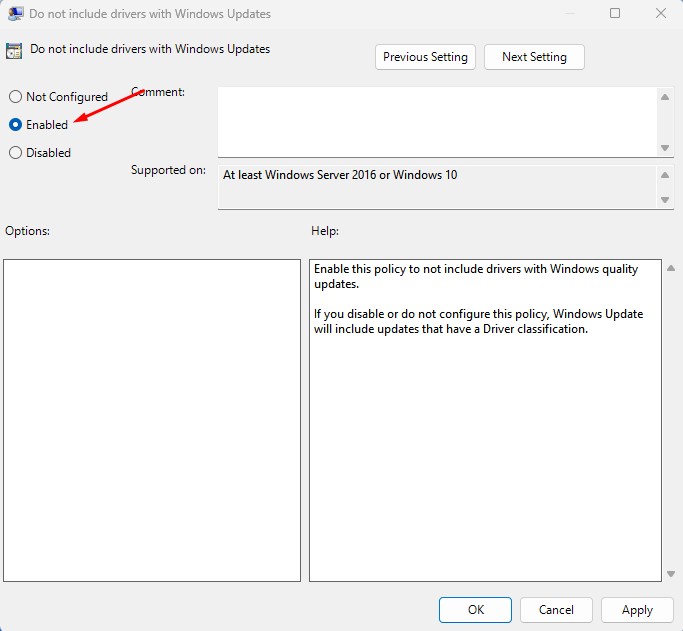
5. Then, click Apply and close the Group Policy Editor.
Note: If you want Windows 11 to include the driver updates, you should double click the ‘Do not include drivers with Windows Updates’ and then select either Disabled or Not Configured.
3. Disable Driver Updates by Modifying the Registry Editor
If you’re comfortable working with the Registry, you can make some changes to prevent automatic driver updates on Windows 11.
1. Open the Registry Editor from the Windows Search.
2. Then, navigate to this path:
HKEY_LOCAL_MACHINE\SOFTWARE\Policies\Microsoft\Windows\WindowsUpdate
3. If Windows Update is not available, create a new path for it. New > Key > WindowsUpdate.
3. Right click in the right pane and select New > DWORD (32-bit) Value.
4. Name the new value as ExcludeWUDriversInQualityUpdate
5. Double click on it and set its value to 1 to disable driver updates.
After making the change, make sure to restart your computer.
Note: If you want to restore driver updates, delete the ExcludeWUDriversInQualityUpdate you created, then restart your computer. Or else, select ‘0’ as the value for the ExcludeWUDriversInQualityUpdate key.
These are the three best ways to prevent Windows Updates from including drivers. If you want to get the driver updates, you need to revert the changes you’ve made. If you need more help with this topic, let us know in the comments.

