

Last Updated on August 13, 2026 by Larious
Windows 11 users have been facing an unusual problem. According to them, the taskbar icons are available, but the images are missing. So, basically, what they see is just blank tiles on the taskbar.
If you’ve been facing a similar problem, you can do a few things to fix this problem. Here’s how you can fix the Taskbar icons are available, but images are missing problem on Windows 11.
Table of Contents
1. Restart the Windows Explorer Process
Windows Explorer basically manages the graphical part of the interface. If it’s experiencing a problem, the images on the Taskbar icons won’t load. You will also face other issues like desktop icons not appearing.
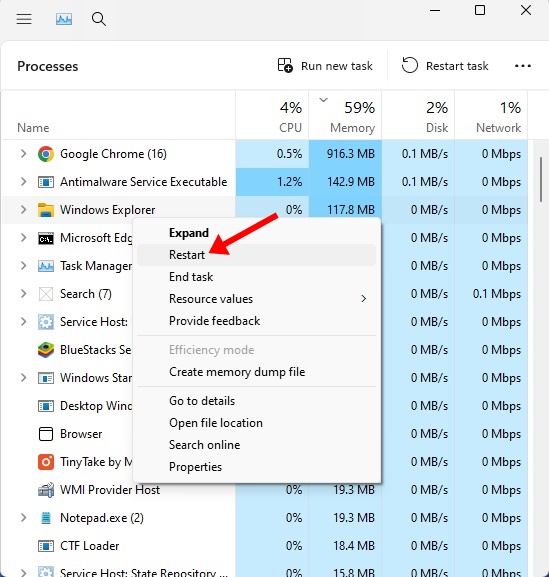
To resolve such problems, the only thing you often have to do is to restart the Windows Explorer Process. So, open the Task Manager and find Windows Explorer. Right-click on Windows Explorer and select Restart.
Your desktop will go blank for a second. This confirms the action. Now check whether you are able to see the images for the taskbar icons.
2. Restart your computer
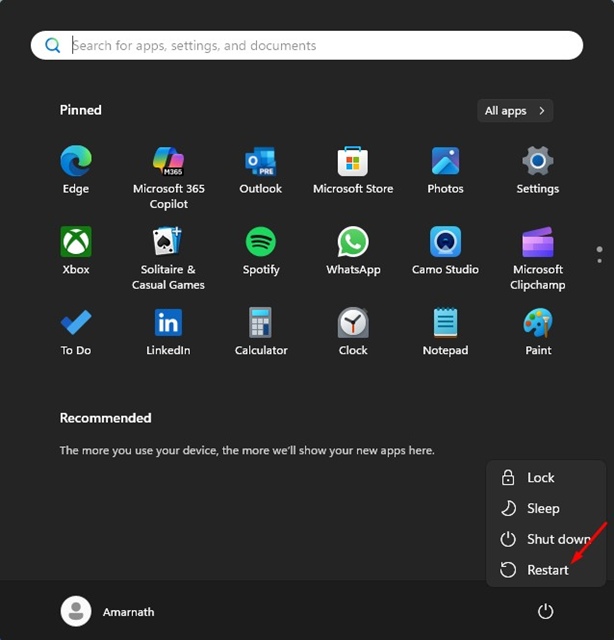
If restarting the Windows Explorer process didn’t help, you should restart your Windows 11 PC.
Restarting will remove the bugs & glitches that may be conflicting with the Taskbar’s functionality and preventing the images from loading.
To restart Windows 11, click on the Start button > Power Menu and select Restart.
3. Uninstall the Recent Updates
Many Windows 11 users have been facing the problem only after installing the latest updates. So, if you’ve just installed the pending updates, you need to uninstall them from the Control Panel. Here’s how to uninstall the Recent Updates.
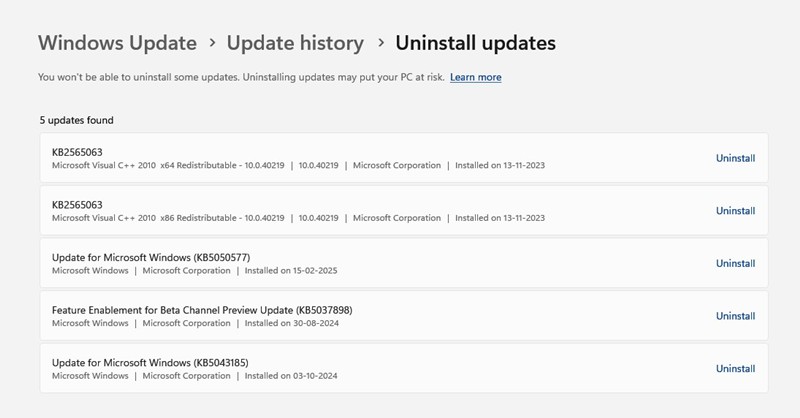
- Open Windows Settings and go to Windows Updates.
- Click on Update History > Uninstall Updates.
- Uninstall the recently installed Updates.
Uninstalling the recent updates should fix the problem.
4. Run the System File Checker Utility
Corrupted system files are one of the prominent reasons for Taskbar icon images missing on Windows 11. You can fix corrupted system files by running the System File Checker utility from the Command Prompt. Here’s what you need to do.
1. Launch Command Prompt with admin rights.
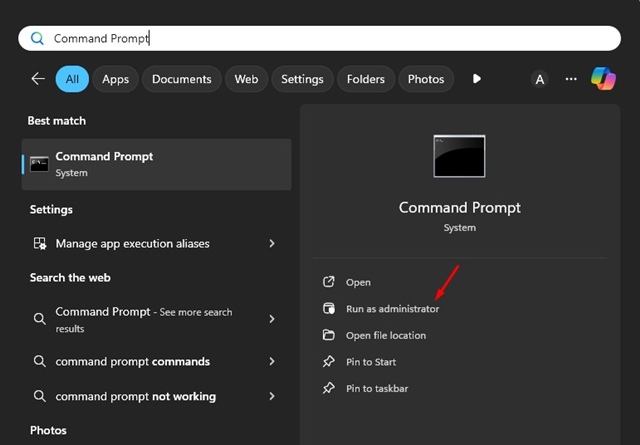
2. When the Command Prompt opens, type sfc /scannow and press Enter.
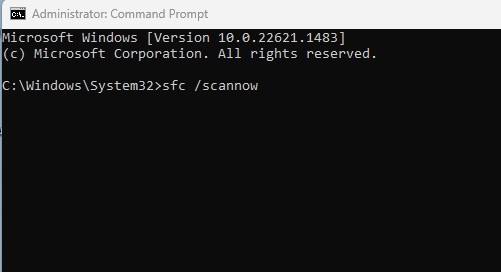
3. Now you need to wait until the scan completes.
These are the four best ways to fix Taskbar icons are available, but the thumbnails are missing problem. If you need more help resolving this problem, let us know in the comments. Also, if you find this guide helpful, share it with others.

