

Last Updated on November 10, 2026 by Larious
If you are not a gamer, you might want to keep the Xbox Game Bar disabled all the time. If Xbox Game Bar is enabled on your device, it will run in the background and use your resources without your consent. So, if you don’t use the feature, it’s best to disable it permanently. Below, we have shared the steps to disable Xbox Game Bar on Windows 11.
1. Click on the Windows 11 Start button and select Settings.
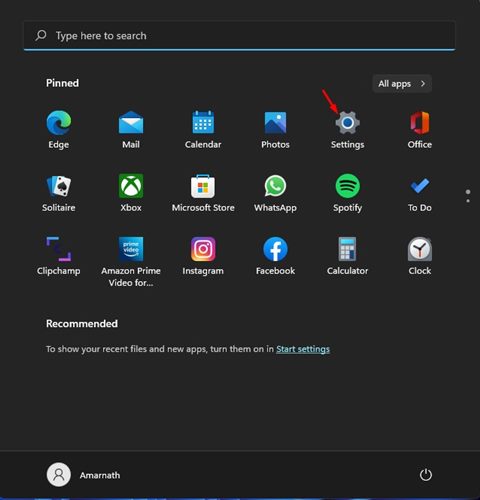
2. On the Settings page, click on the Gaming section.
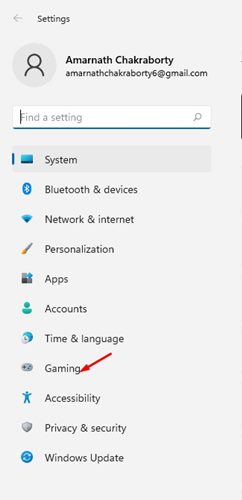
3. On the right pane, click on the Xbox Game Bar option.
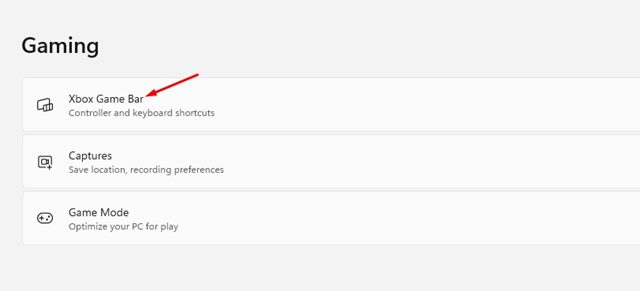
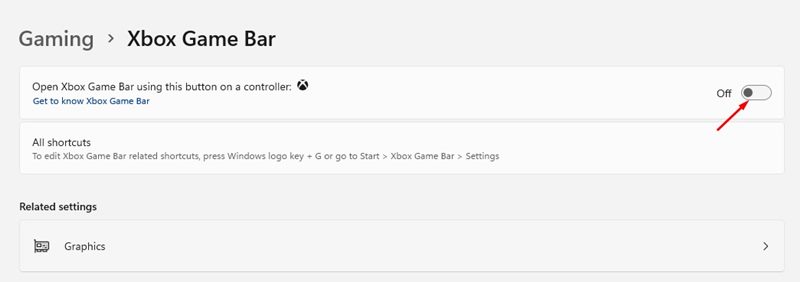
4. On the next screen, turn off the toggle for Open Xbox Game Bar using this button on a controller.
How to Terminate Xbox Game Bar
The above steps will disable the Xbox Game Bar, but it will still run in the background until you restart your PC. To terminate the Xbox Game Bar process, follow these steps.
1. Click on the Windows 11 Start button and select Settings.
2. On the Settings page, click on the Apps option.
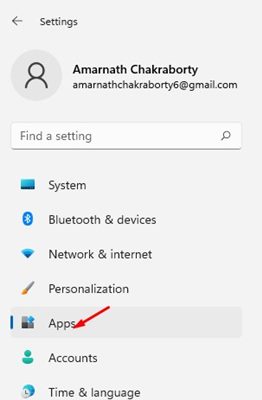
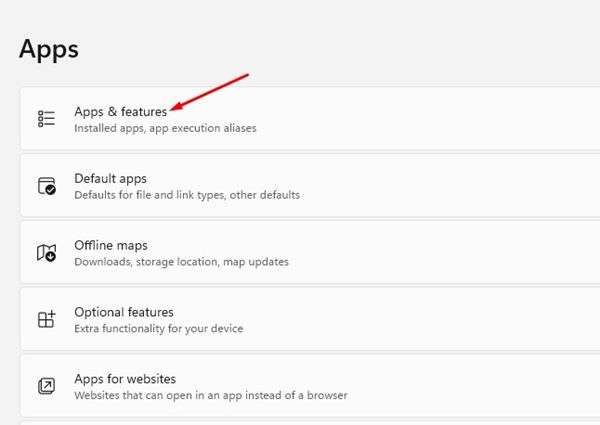
3. Next, click on Apps & features.
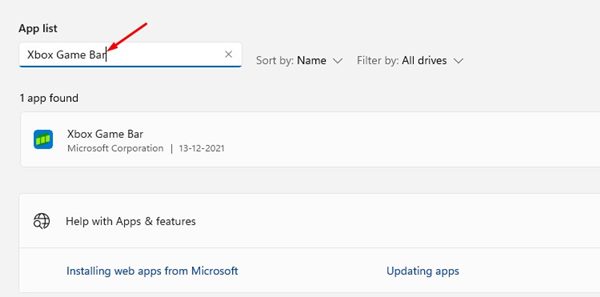
4. Use the search box for the App list and search for Xbox Game Bar.
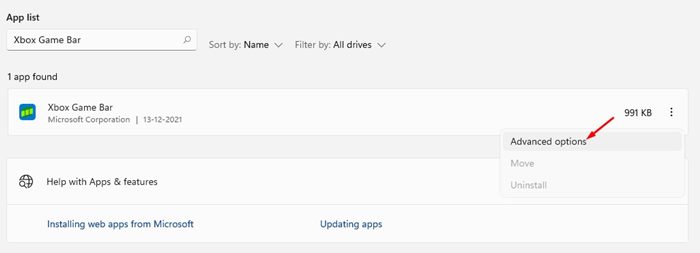
5. Click on the three dots beside the Xbox Game Bar app and select Advanced options.
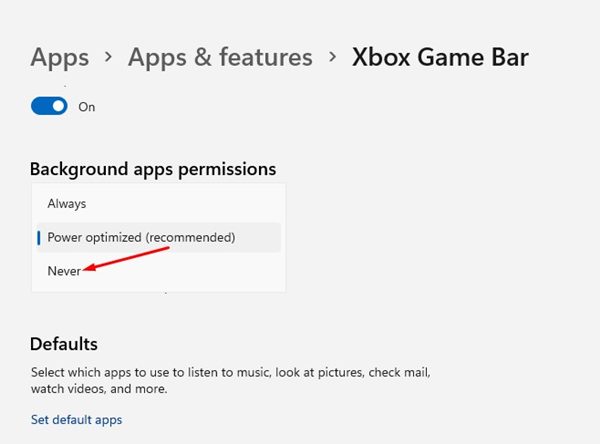
6. Scroll down and find the Background apps permissions section. Now change the dropdown menu option to Never.
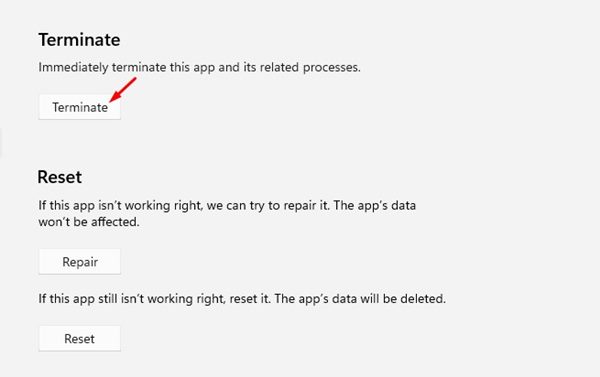
7. Scroll down a bit and, on the same page, click on the Terminate button to stop the process.
Xbox Game Bar is a great feature, but if you don’t use it, it’s best to disable it permanently. I hope this article helped you! Please share it with your friends as well. If you have any doubts about this, let us know in the comment box below.

