

Last Updated on November 11, 2026 by Larious
In Windows 11, Recycle Bin is the only icon displayed on the desktop by default. Other legacy icons like This PC, Network, Control Panel, User’s Files, etc., aren’t displayed on the desktop by default. However, you can easily restore legacy icons to your desktop screens.
So, if you want to show legacy desktop icons on Windows 11, here’s what you should do.
Table of Contents
1. Show Legacy Desktop Icons on Windows 11
In this method, we will learn how to show legacy desktop icons on Windows 11.
1. Click on the Windows Start button and select Settings.

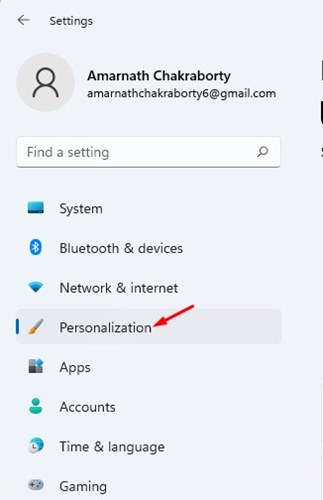
2. On the Settings page, click on Personalization.
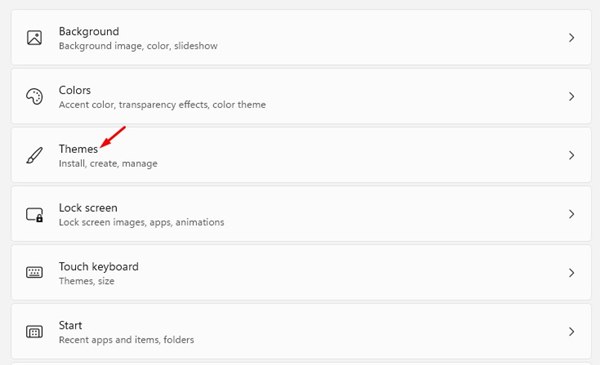
3. On the right pane, click on the Themes option.
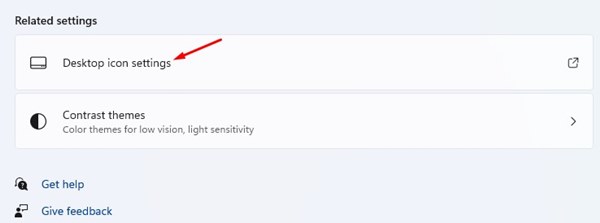
4. Under Themes, scroll down and click on the Desktop Icon Settings option.
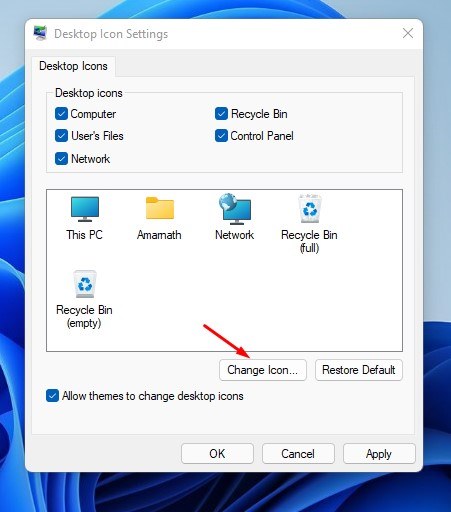
5. On the Desktop Icon Settings pop-up, select the desktop icons you want to show and click on the Ok button.

2. How to Customize Legacy Desktop Icons
On Windows 11, you can also customize the legacy desktop icons. To customize the icons, follow some of the simple steps below.
1. Click on the Windows Start button and select Settings.
2. Click on Personalization.
3. In the right pane, click on the Themes option.
4. Under the Themes page, click on the Desktop icon settings.
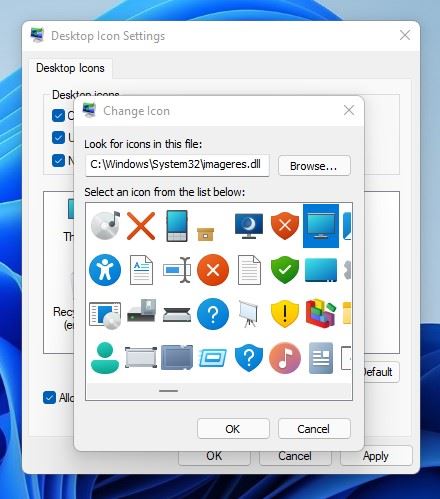
5. Now, highlight the icon you want to change and click on the Change icon.
6. In the Change icon window, select the new icon and click Ok.
Showing legacy desktop icons in Windows 11 is pretty easy. The operating system even allows users to customize the icons. I hope this article helped you! Please share it with your friends as well. If you have any doubts related to this, let us know in the comment box below.

