

Last Updated on November 11, 2026 by Larious
On Windows 11, the old Windows vertical Volume Mixer is no longer available. Selecting the Volume Mixer option on the system tray opens the Sound settings page, where you can adjust the sound of apps, which is less accessible.
There are ways to restore the classic volume mixer in Windows 11. Here are the two best ways to bring it back.
Table of Contents
1. Using Classic Volume Control
We will use the Classic Volume Control tool to restore the classic volume mixer in Windows 11. This tool restores the old volume mixer functionality on Windows 11.
1. Download Classic Volume Control on your device.
2. Once downloaded, right-click on the Classic Volume Control ZIP file and extract it.
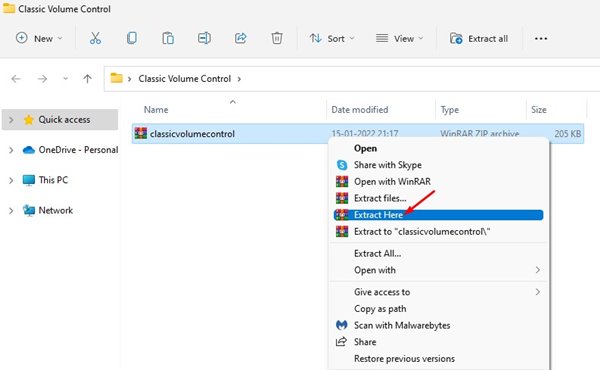
3. Now open the extracted folder and double-click on the ClassicVolumeControl executable file.
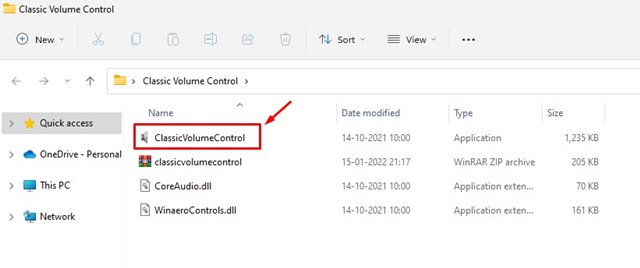
4. Once installed, you will notice a new Sound icon in the system tray.
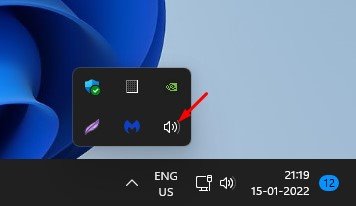
5. Click on the icon, and it will open the old vertical sound control.
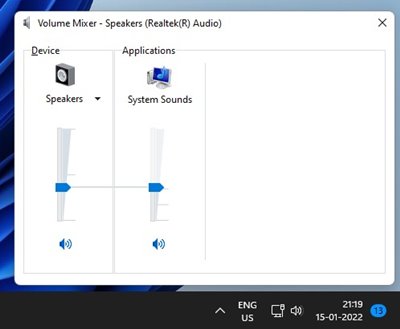
2. Open the Old Volume Mixer with the Run Command
In this method, we will use the RUN dialog box to open the old Volume Mixer.
1. Press the Windows Key + R on your keyboard. This will open the RUN dialog box.
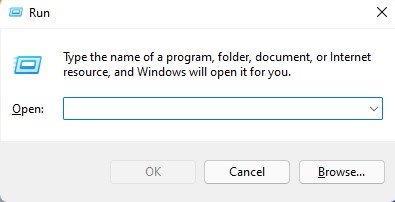
2. On the RUN dialog box, you need to type sndvol.exe and press Enter.
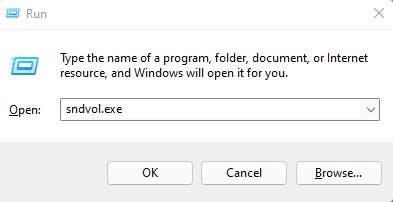
3. This will open the classic Volume Mixer on Windows 11.
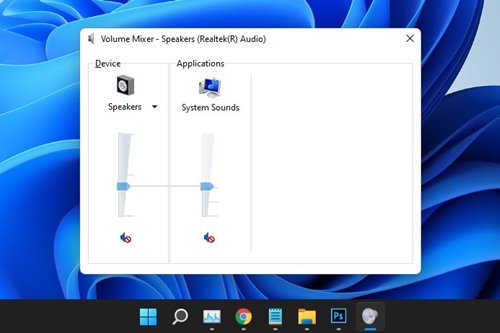
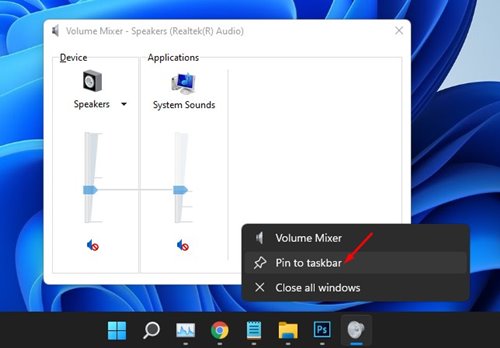
4. You need to right-click on the Volume Mixer icon on the Taskbar and select the Pin to Taskbar option.
These are the best methods to restore the classic volume mixer in Windows 11. I hope this article helped you! Please share it with your friends also. If you have any doubts related to this, let us know in the comment box below.

