

Last Updated on October 12, 2026 by Larious
Since WhatsApp for desktop doesn’t offer any troubleshooting options, the only thing you can do is repair/reset the application. Hence, if you face problems with WhatsApp for Desktop, you need to follow these simple methods to repair and reset the application on Windows 11.
Also read: How to Make and Receive Android Phone Calls from Windows 11
Table of Contents
How to Repair the WhatsApp Desktop App
If you cannot sign in to WhatsApp Desktop, or if the app is not opening, you need to repair its files.
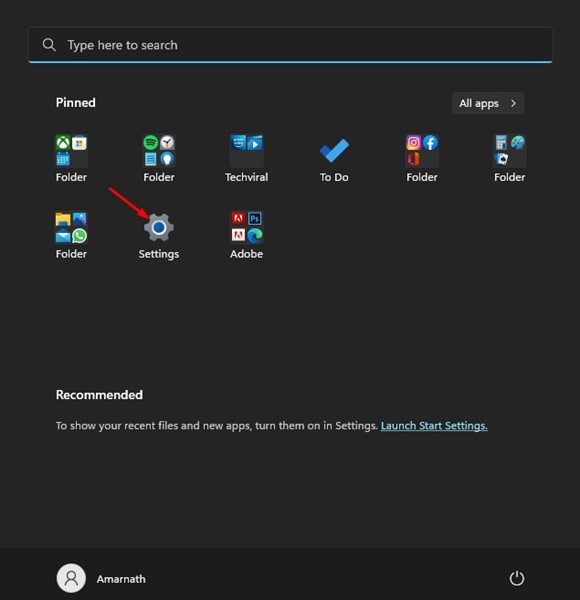
1. Click on the Windows 11 search and select Settings.
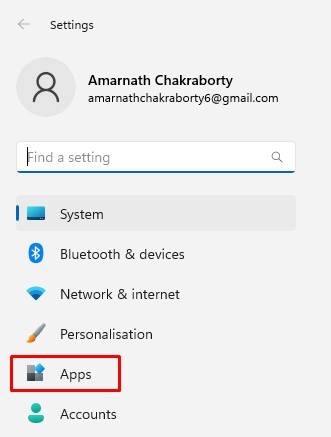
2. Switch to the Apps section on the left pane.
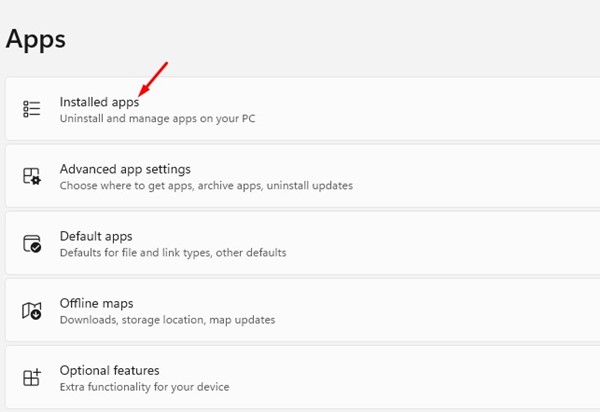
3. On the right pane, click on Installed apps.
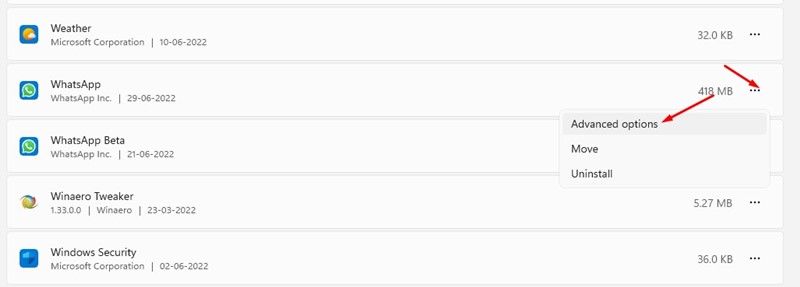
4. Next, in Installed apps, search for WhatsApp. Click on the three dots beside WhatsApp and select Advanced options.
5. On the WhatsApp app page, click on Repair.
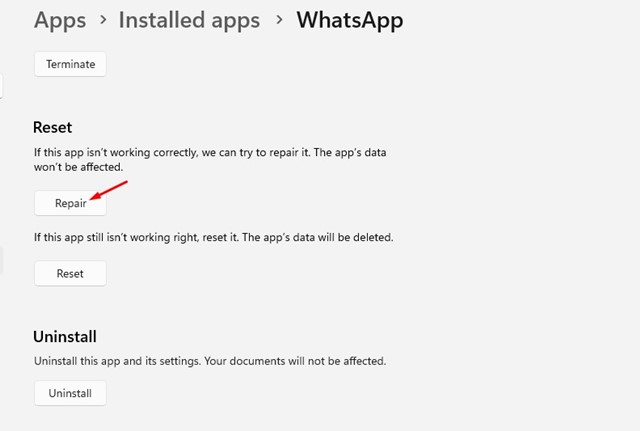
This will start the repair process. You must follow the on-screen instructions to repair the WhatsApp desktop app.
How to Reset WhatsApp Desktop app in Windows 11
If the above method fails to fix the WhatsApp desktop problem, you need to reset the WhatsApp desktop app.
- Click on the Windows 11 search and select Settings.
2. In the Settings app, switch to the Apps section on the left pane. On the right pane, click on the Installed apps section.
3. In Installed apps, search for WhatsApp. Next, click on the three dots beside WhatsApp and select Advanced options.
4. Click on the Reset button on the next screen.
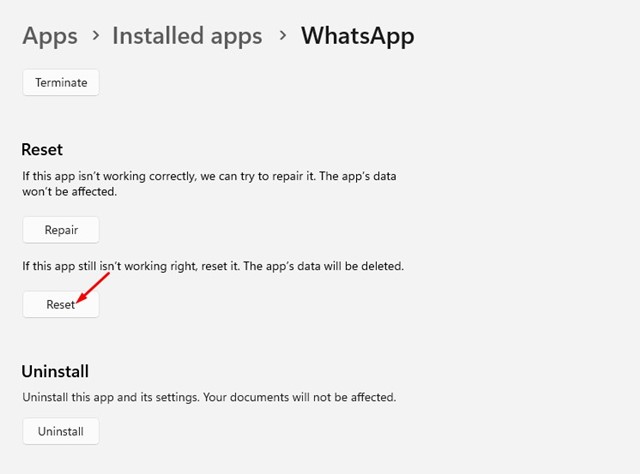
5. You will see a confirmation prompt. You need to click on the Reset button again.
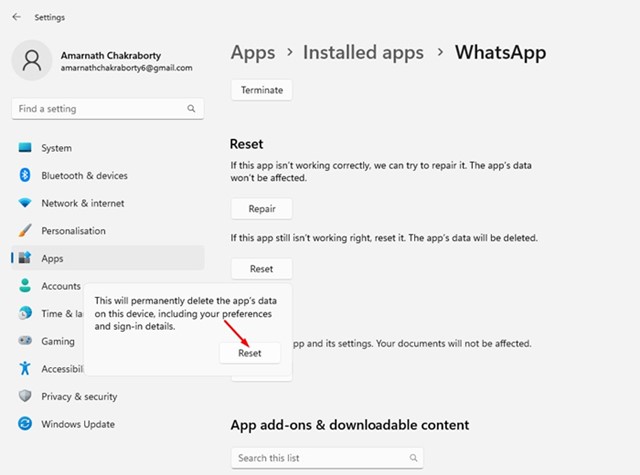
This will reset your WhatsApp desktop app on Windows 11. After the reset, open the WhatsApp desktop app and link your account again.
These are the only ways to deal with WhatsApp desktop problems on Windows 11. If you still face issues while using the desktop app for WhatsApp, you need to reinstall the app again. If you know any other ways to fix WhatsApp desktop app problems on Windows 11 & Windows 10, let us know in the comments.

