

Last Updated on October 18, 2026 by Larious
Location services on Windows 11 are essential, especially if you use apps that require location access to serve you relevant information. Popular apps like Google Maps, Shopping apps, Weather apps, etc., require your location information to show you relevant and accurate results.
Also, Microsoft tracks your location to provide you with a few useful services such as Find My Devices. But if you don’t use Microsoft’s Find My Devices service, nor do you use location-based apps, it’s a good idea to turn off location tracking completely. Below, we have shared a step-by-step guide on disabling location tracking in Windows 11.
Table of Contents
1. Disable Location Access Completely
In this section, we will know how to disable location access on Windows 11 completely.
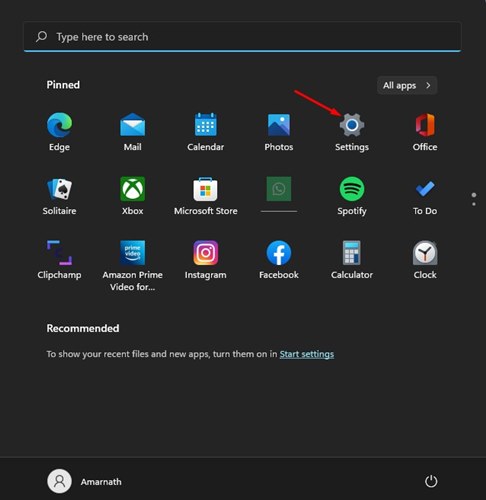
1. Click on the Windows 11 Start button and select Settings.
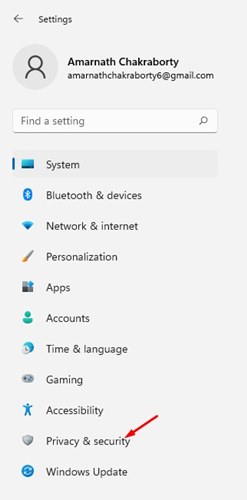
2. Click on the Privacy & Security tab.
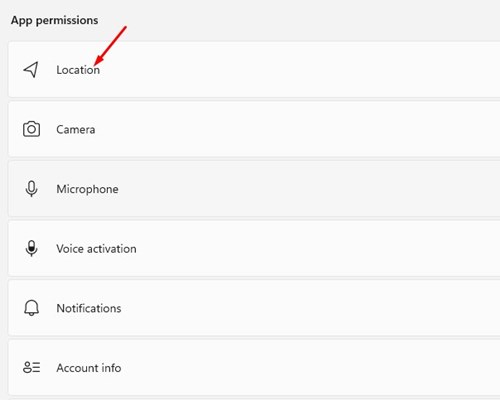
3. Scroll down and click on the Location option under App permissions.
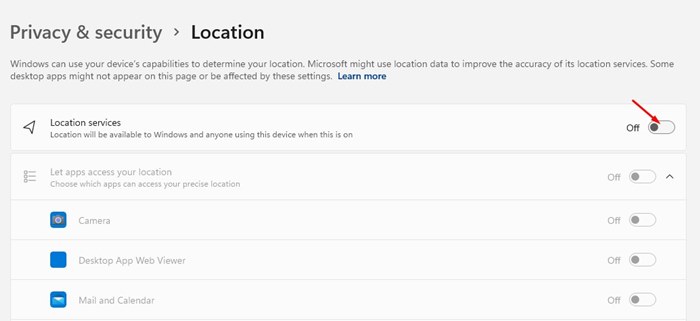
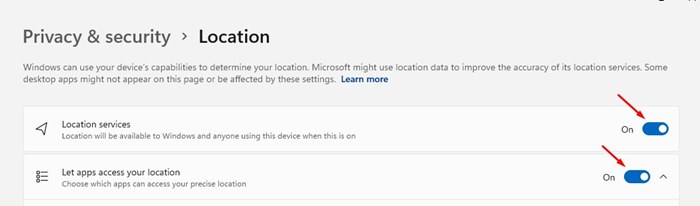
4. Turn off the toggle switch for Location Services.
2. Disable Location Tracking on Windows 11 Per-App Basis
If you don’t want to completely turn off location tracking, you can disable location services per app.
1. Click on the Windows 11 Start button and select Settings.
2. Click on the Privacy & Security tab.
3. Scroll down and click on the Location option under App permissions.
4. On the Location page, turn on the toggle switch for Location Services.
5. Turn on the toggle for Let apps access your location.
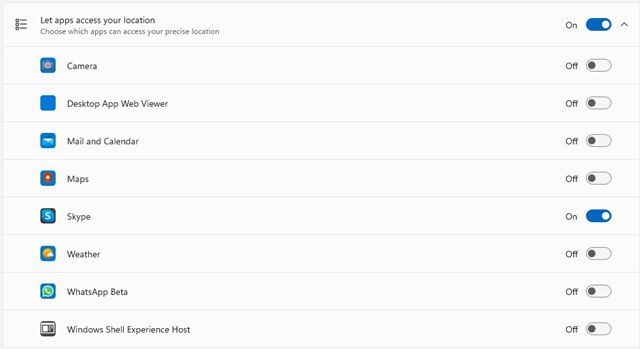
6. You will find all the apps that rely on location information. You can manually turn on or turn off the location access of the apps.
3. How to Clear Location History on Windows 11
The above two methods will help you disable location tracking on Windows 11. However, Microsoft can still use your existing location data to show you relevant information. Hence, you need to clear the location history as well.
1. Click on the Windows 11 Start button and select Settings.
2. Click on the Privacy & Security tab.
3. Scroll down and click on the Location option under App permissions.
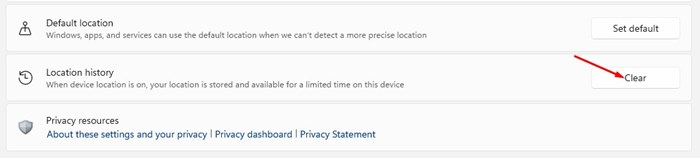
4. Scroll down and click on the Clear button behind the Location history.
These are a few of the best ways to disable location tracking on Windows 11 devices. I hope this article helped you! Please share it with your friends also. If you have any doubts related to this, let us know in the comment box below.

