

Last Updated on October 17, 2026 by Larious
Registry Editor is for power users who know what to do when things go wrong; however, if you are going to edit it to access some hidden feature, and that’s without any knowledge, it’s best to safely back up the Registry file on Windows 11.
Below, we have shared a step-by-step guide on how to back up & restore the Registry on Windows 11.
Table of Contents
1. Backup Registry via System Restore
A system restore point is a backup utility that backs up all Windows files and settings to a different drive. If you want to back up the registry, the easiest option is to create a system restore point.
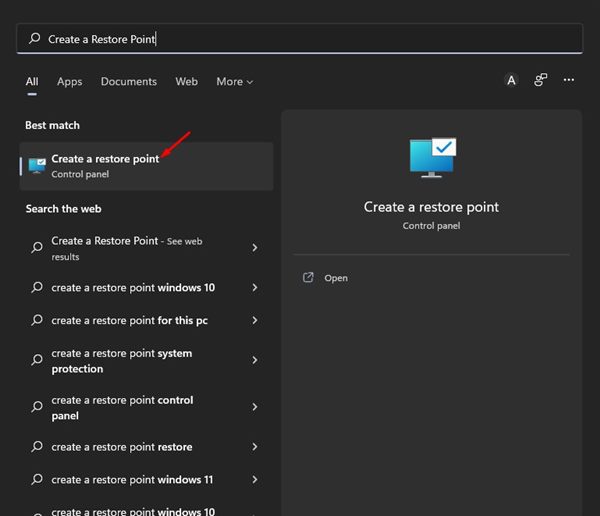
1. Click on the Windows 11 search and type in Create a restore point. Next, open the Create a restore point app from the list.
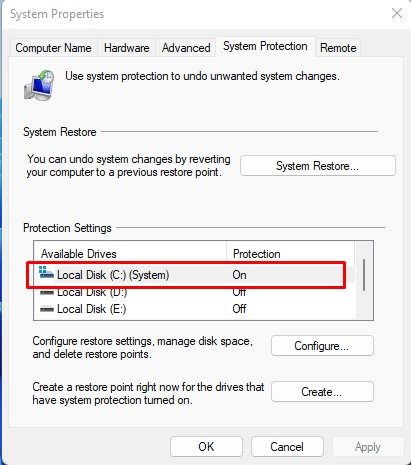
2. In System Properties, select your system installation drive.
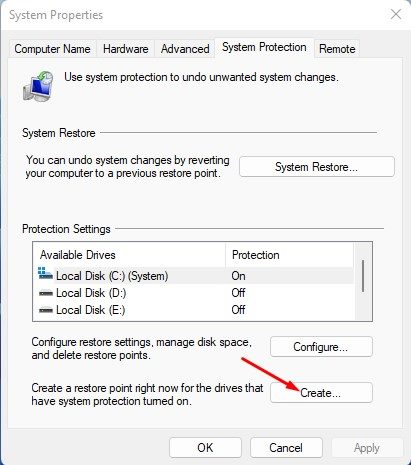
3. Click on the Create button.
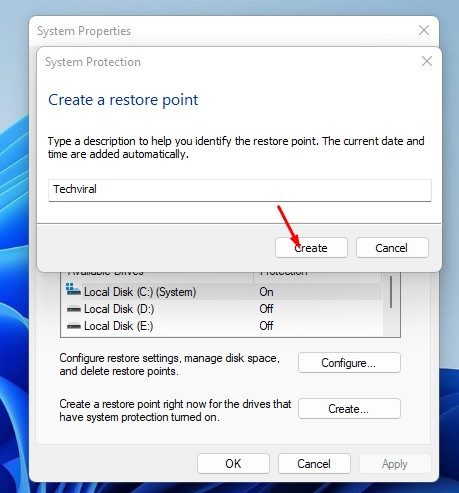
4. You will be asked to type the description to help you identify the restore point. Type a description and click on the Create button.
Restore the registry from the Backup
You can restore Windows 11 to its previous state during the registry editing if anything goes wrong. This will also revert the changes you made to the Registry.
1. Click on the Windows 11 search and type in Create a restore point. Next, open the Create a restore point app from the list.
2. In System Properties, click on the System Restore option.
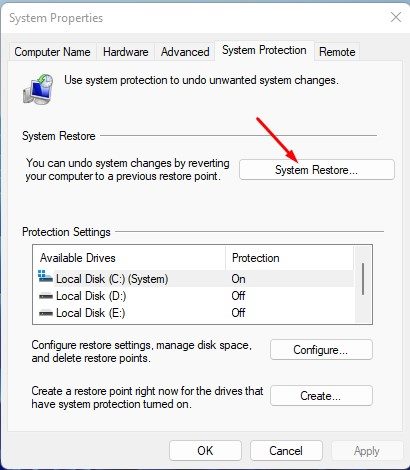
3. On the System Restore window, click Next.

4. Select the restore point you created before and click Next.
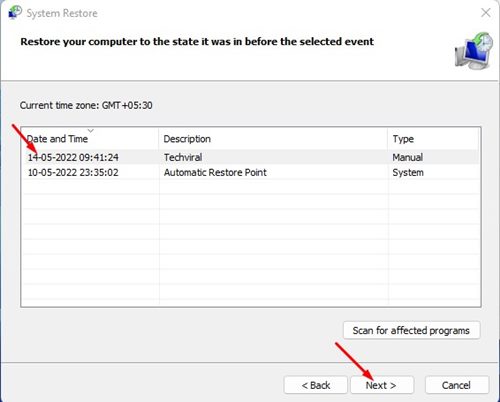
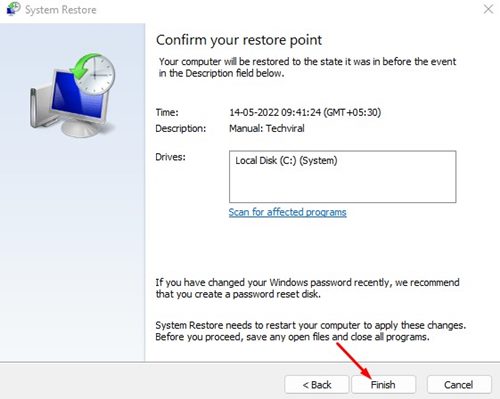
5. On the final page, click Finish.
2. Backup & Restore Registry via Registry Editor
The Registry Editor on Windows 11 provides you with an option to backup and restore the Registry file. Here’s how you can back up & restore the registry in Windows 11.
1. Click on the Windows 11 search and type in Registry Editor. Next, open the Registry Editor app from the list.
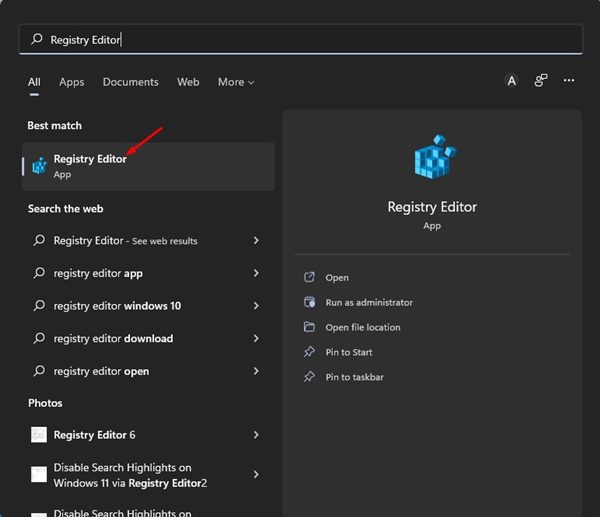
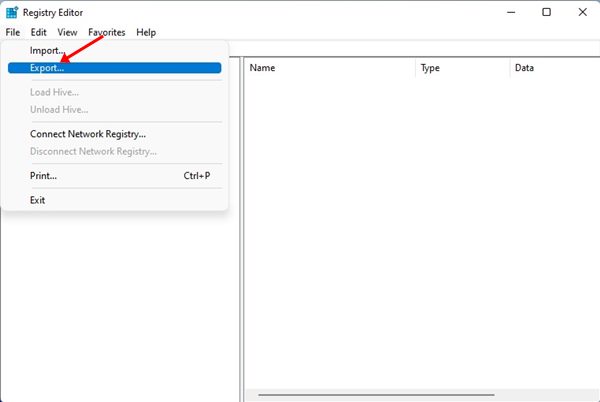
2. In Registry Editor, click on the File button and select Export.
3. Now select the save location and click Save.
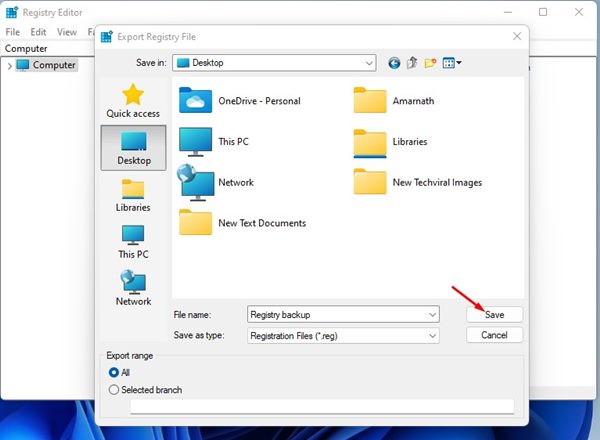
4. This will back up the Registry settings on your Windows 11.
5. If you wish to restore the Registry, open Registry Editor and select File > Import.
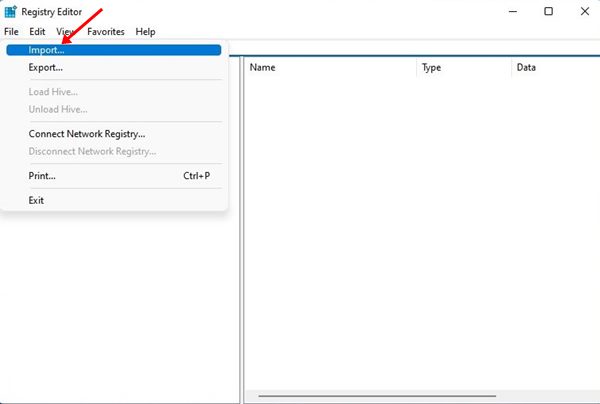
6. Select the Registry backup file you have exported in the file picker.
Also Read: How to Backup/Restore Drivers in Windows 11 using CMD (Command Prompt)
A Registry backup can help you restore the original PC settings if anything goes wrong. So, these are the two best ways to safely back up and restore the Registry on Windows 11. If you know any other ways to backup & restore the registry, let us know in the comments.

