

Last Updated on November 8, 2026 by Larious
Depending on your needs, you can change the power settings to enhance your PC’s performance. Below, we share a step-by-step guide on how to change Power Mode Settings in Windows 11.
Table of Contents
1. Change Power Mode
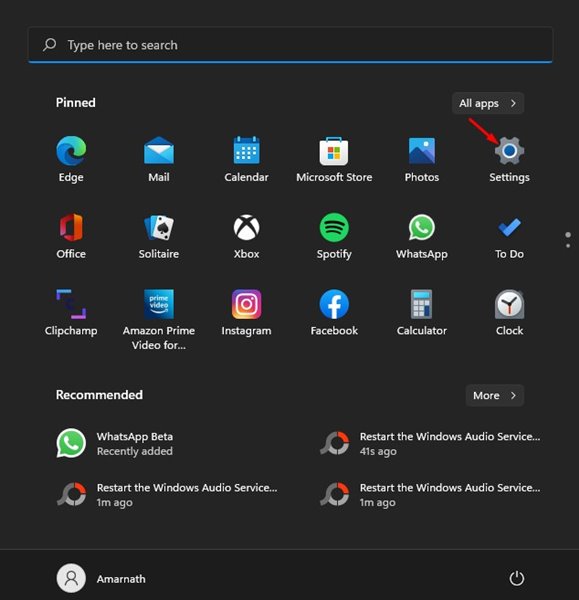
1. Click on the Windows 11 Start button and select Settings.
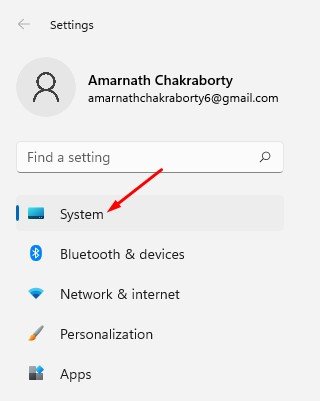
2. On the Settings page, click on the System tab.
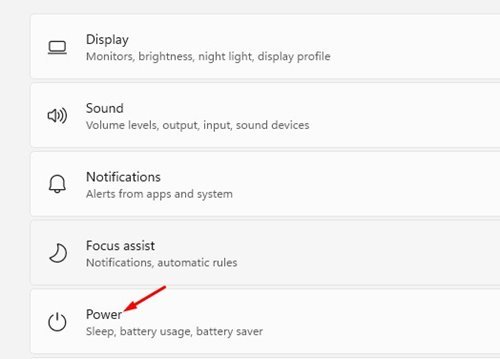
3. Click on the Power & battery settings option.
4. On the next screen, scroll down to the Power Mode and click on the drop-down arrow.
5. You will find three options: Best power efficiency, Balanced, and Best Performance. Here’s what each power option means:
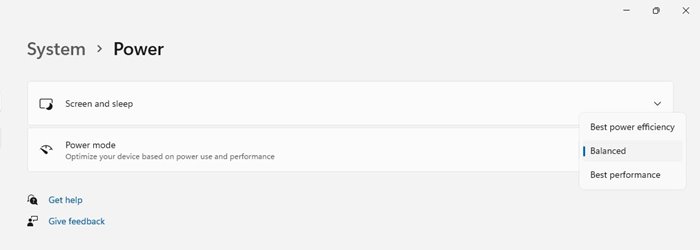
Best power efficiency: This option saves energy by reducing the device’s performance whenever possible.
Balanced: This option automatically adjusts your PC’s performance with energy consumption on supported hardware.
Best Performance: This one optimizes your PC for best performance at the cost of energy consumption.
6. Depending on your needs, you need to select the Power mode.
2. Change Power Mode via Control Panel
In this method, we will use the Control Panel to change the power mode.
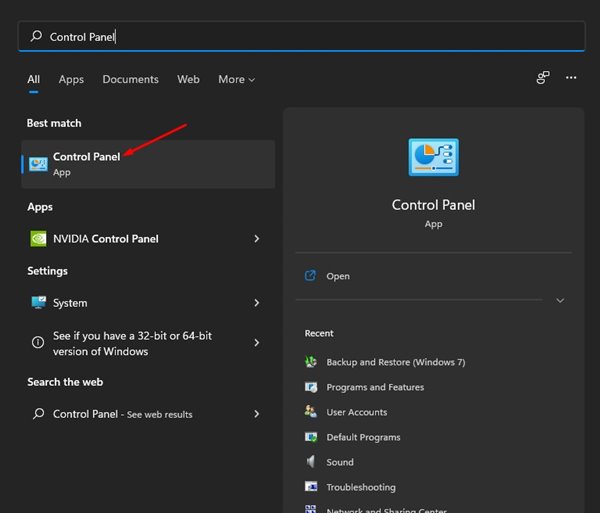
1. Click on the Windows 11 search and type in Control Panel. Then, open Control Panel from the list.
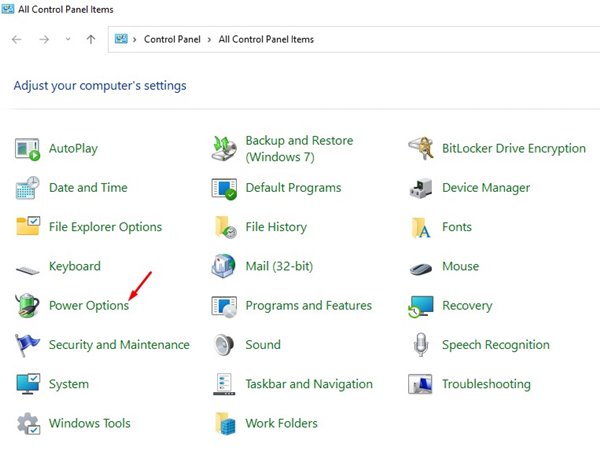
2. In Control Panel, click on Power Options.
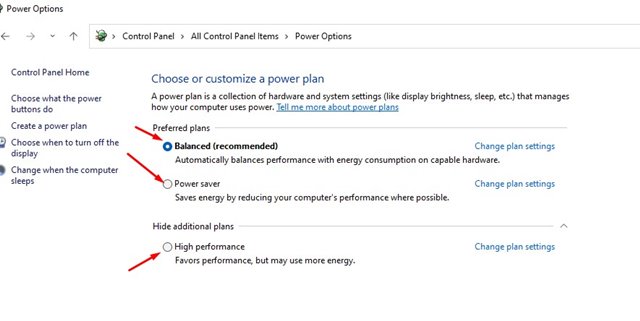
3. Now, you will be able to see the Power Modes. The default Power Plan is set to Balanced. You can change it to Power Saver or High performance.
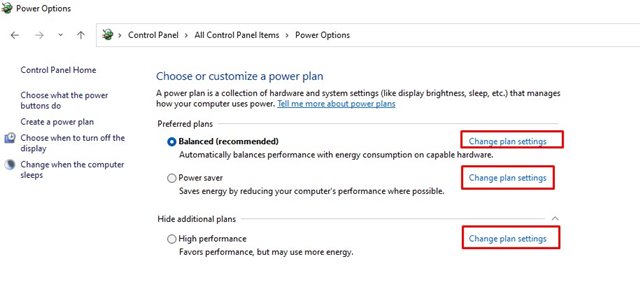
4. To customize the Power plans, you need to click on Change plan settings and make the appropriate changes.
It’s pretty easy to change the power mode on Windows 11. You can use either of the two methods to change the Power mode settings. I hope this article helped you! Please share it with your friends as well. If you have any doubts related to this, let us know in the comment box below.

