

Last Updated on October 19, 2026 by Larious
Although the security suite is mostly free of bugs, sometimes it blocks legitimate and safe apps from accessing your storage. If this often happens to you, you need to view the Protection history page of Windows Security and manually undo the actions.
With the Protection history page, you can easily view the latest protection actions & recommendations and revert the actions taken by the Windows Security application.
Table of Contents
Steps to View Threat Protection History on Windows 11
We have shared a step-by-step guide on how to view the Protection history of the Windows Security app on Windows 11.
1. Click on the Windows 11 Start button and select Settings.
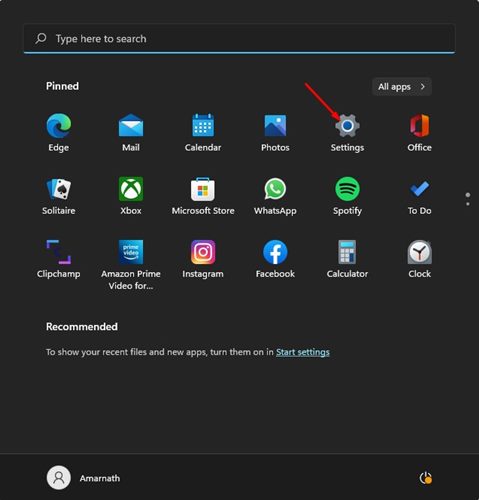
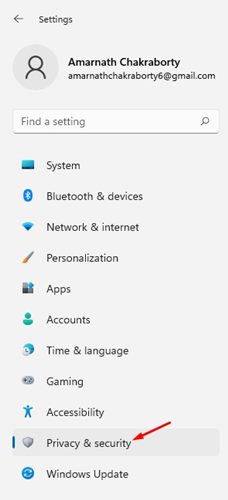
2. Click on the Privacy & Security option.
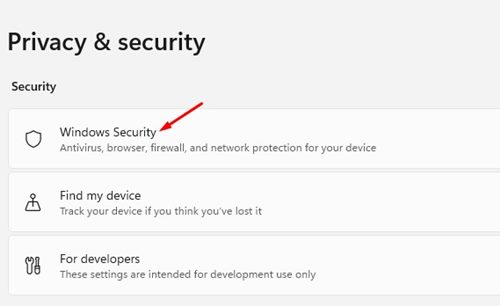
3. Click on the Windows Security option.
4. Click on Open Windows Security.
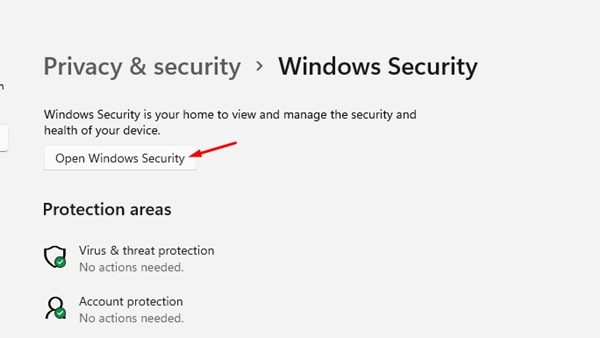
5. This will open the Windows Security app. Now click on Protection history.
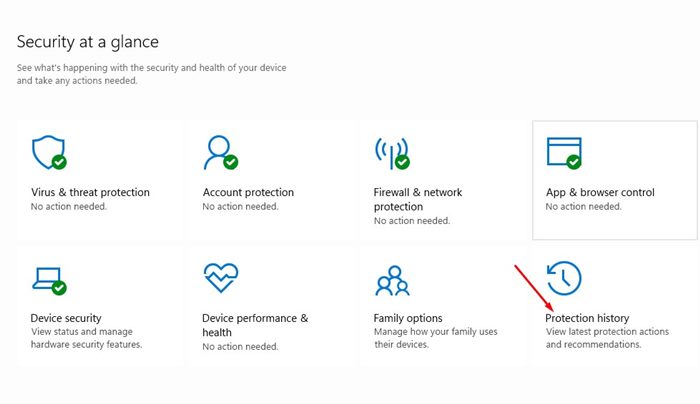
6. Now, you will be able to see the latest protection actions and recommendations from Windows Security.
How to Use the Protection History Page
The Protection history page will display all actions taken by the Windows Security app. You can use the Filter to select the threat type.

If you want to revert any action, select the detection type and select the appropriate action from the Actions drop-down.
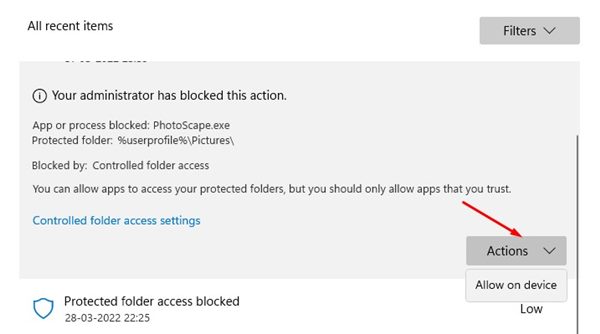
Also, you can use the Protection history page to remove files stored in the Quarantine folder. You just need to explore the Windows Security protection history page and go through all the options.
This guide is all about how to view the Protection history page of Windows Security. I hope this article helped you! Please share it with your friends also. If you have any doubts related to this, let us know in the comment box below.

