

Last Updated on October 20, 2026 by Larious
The Login after sleep is a great security feature, mainly if your family members use your PC. This makes sure that the user who owns the PC is the one trying to access it. However, if you only use the PC, the same security feature can become irritating.
If you feel there’s no need for the Login after sleep feature on your PC, you can disable it from the Settings app easily.
Steps to Disable Login After Sleep in Windows 11
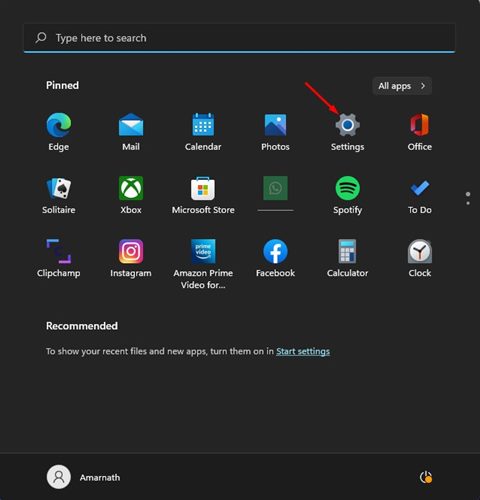
1. Click on the Windows 11 Start button and select Settings.
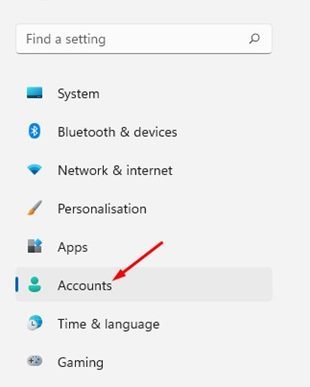
2. Click on the Accounts option located on the left pane.
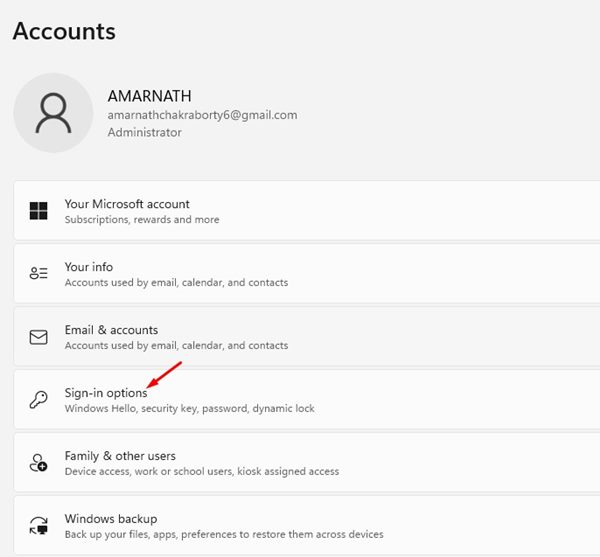
3. Scroll down and click on the Sign-in options.
4. Expand the Additional Settings.
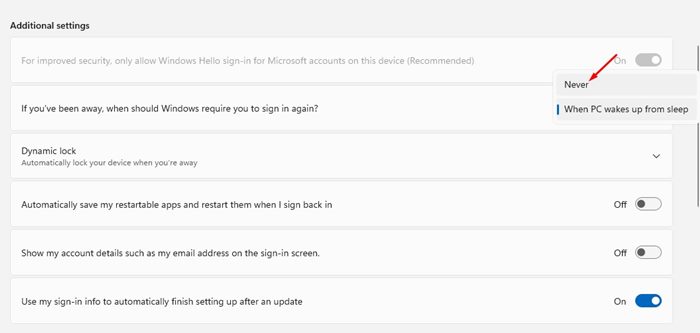
5. Find the option ‘If you’ve been away, when should Windows require you to sign in again?’
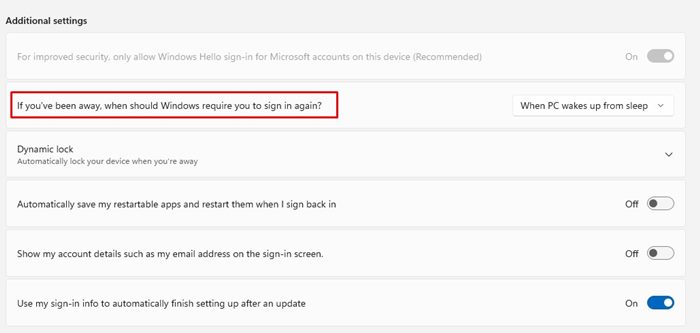
6. To disable the Login after sleep feature, select the drop-down menu for ‘If you’ve been away, when should..’ and pick ‘Never’.
Although disabling the feature is easy, you shouldn’t disable it if your PC is used by anyone else in your family. If you wish to enable this feature again, you need to revert your changes.

