

Last Updated on October 20, 2026 by Larious
Windows 11 has a feature that lets you save network bandwidth by playing video at a lower resolution. Windows 11 will force apps to play videos at a lower resolution if you enable this feature.
If you are interested in changing the video playback settings on Windows 11 to save internet bandwidth, here’s what you should do.
Table of Contents
Change Video Playback Settings to Save Internet in Windows 11
Important: Not every app and game will follow the new video playback rule. Only the Universal Windows Platform (UWP) apps such as Edge browser, Photos, Movies & TV, and video apps downloaded from the Microsoft Store will follow the new video playback rule.
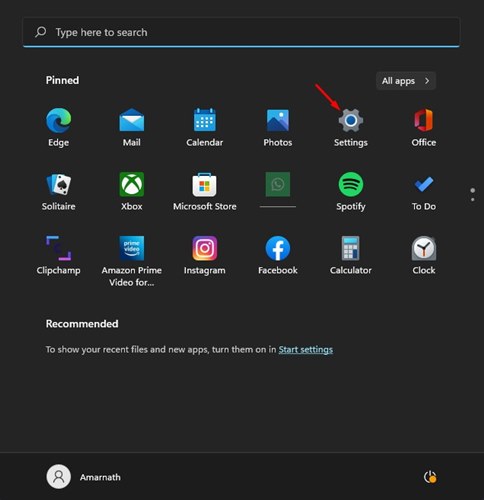
1. Click on the Windows 11 Start button and select Settings.
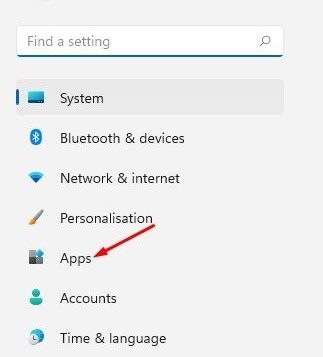
2. Click on the Apps option located on the left pane.
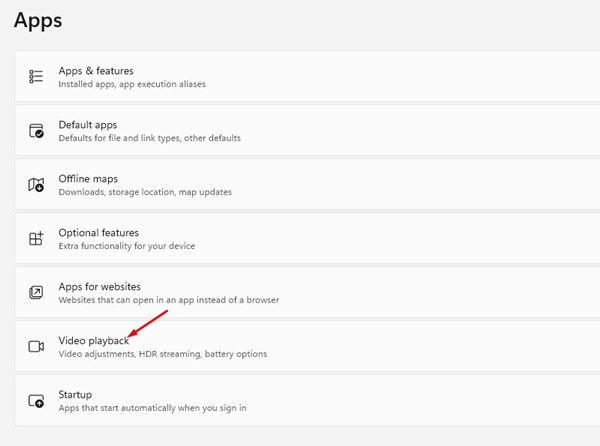
3. Click on the Video Playback option.
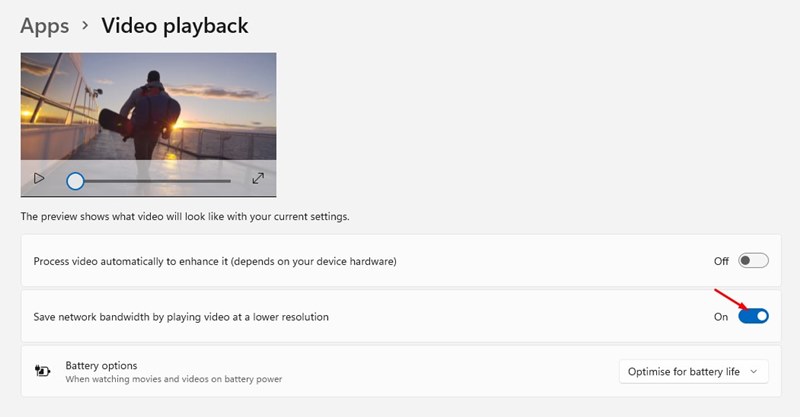
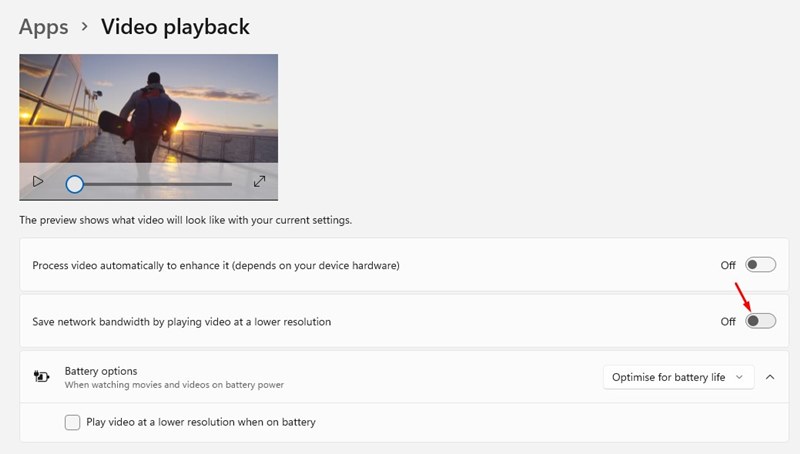
4. On the Video Playback page, scroll down and enable the toggle for Save network bandwidth by playing video at a lower resolution.
How to Disable the Video Playback Optimizations
If you don’t want apps and games to play videos in lower resolution, you need to turn off this feature.
1. Click on the Windows Key and select Settings.
2. Navigate to Apps > Video Playback.
3. Scroll down and disable the toggle for Save network bandwidth by playing video at a lower resolution.
Also Read: How to Change Playback Settings to Enhance Videos in Windows 11
This is how you can change the video playback settings to save internet bandwidth in Windows 11. I hope this article helped you! Please share it with your friends also. If you have any doubts about this, let us know in the comment box below.

