

Last Updated on October 24, 2026 by Larious
You get the option to change the time/date format, change themes, change folder colors, and more. Changing the text size is also possible on Windows 11, and that’s too without installing any third-party app.
So, if you are unsatisfied with the text size on Windows 11, or you cannot read the text clearly, here’s how you can change the text size on Windows 11.
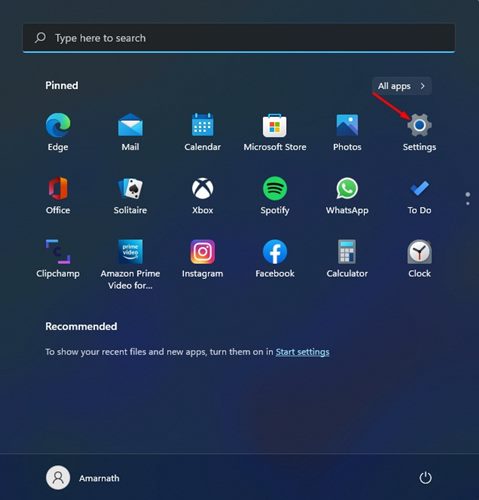
1. Click on the Windows 11 Start Button and select Settings.
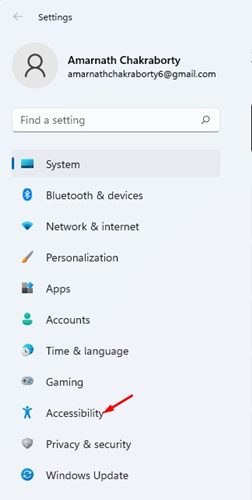
2. Click on the Accessibility option.
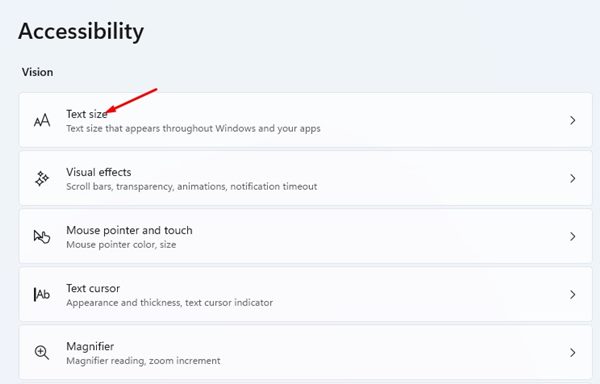
3. Click on the Text Size option in the right pane.
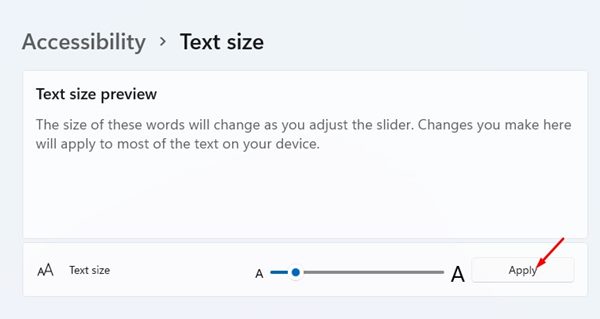
4. On the next page, you will be able to adjust the text size.
5. You need to use the text size slider to increase or decrease the text size on the screen.
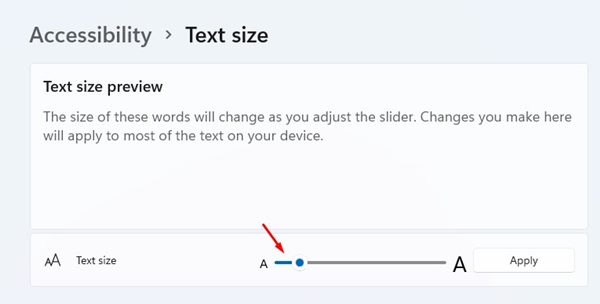
6. The text size preview box at the top shows how your new text size would look.
7. When you are satisfied with the text size, click Apply.
8. Open your File Explorer; you will find the new text size applied everywhere.
Adjusting text size is an accessibility feature that might help lots of users. I hope this article helped you! Please share it with your friends as well. If you have any doubts related to this, let us know in the comment box below.

