

Last Updated on October 24, 2026 by Larious
The high contrast theme or the high contrast mode is a part of the Ease of Access option of Windows 11, and it allows people with vision disabilities to conveniently read the screen. If you have vision deficits or have low vision, you may find certain apps or websites difficult to read.
When this happens, you can apply these high-contrast modes or themes to make the screen content more convenient to read. If you are a regular user and free from vision problems, you might find these high-contrast themes useless, but they’re there for a purpose. High-contrast themes on Windows 11 use brighter colors to make the text and interface more visible.
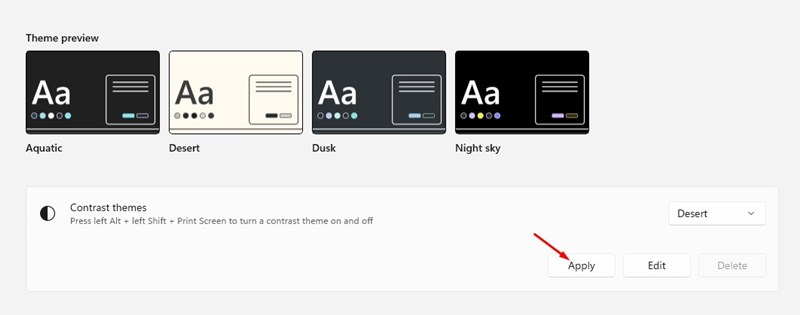
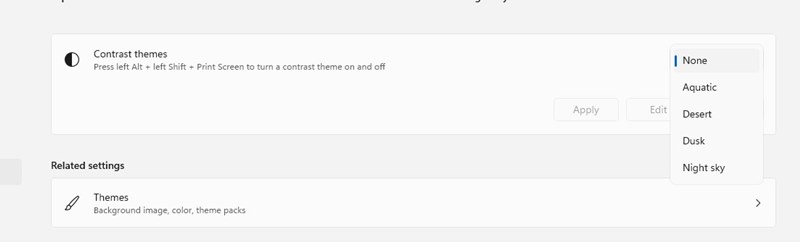
On Windows 11, you get four different contrast themes, namely Aquatic, Desert, Dusk, and Night Sky. Each of the themes uses brighter colors variation to satisfy users. Here’s how you can enable and use them.
Table of Contents
1. Enable High Contrast Theme via Settings
We will use Windows 11’s Settings app to enable the high contrast mode.
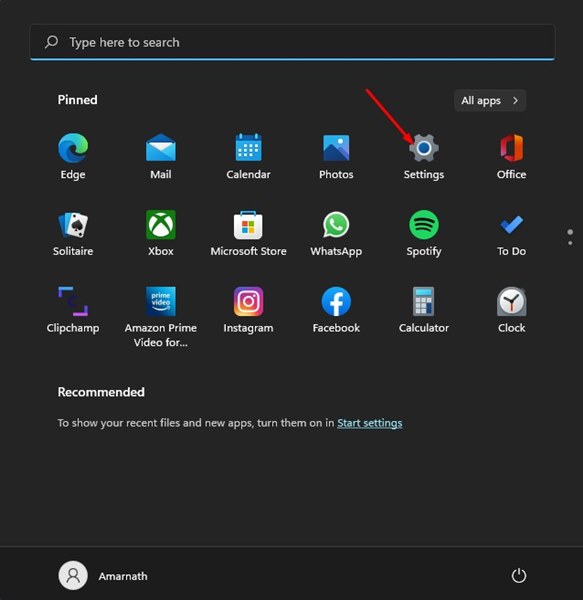
1. Click on the Windows 11 Start button and select Settings.
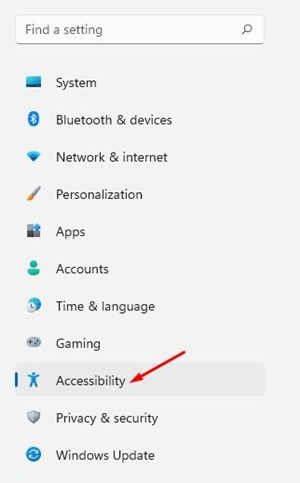
2. Click on the Accessibility tab.
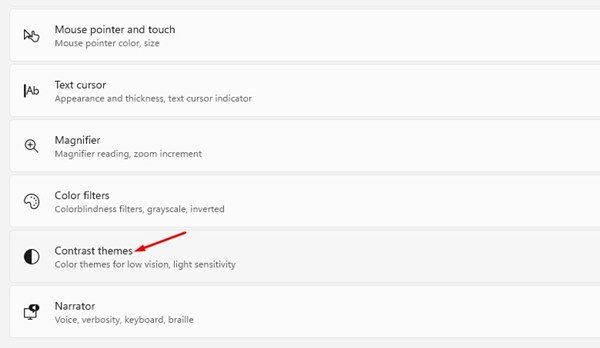
3. On the right pane, click on Contrast themes.
4. On the drop-down menu beside Contrast Themes, select the theme you want to apply. Once done, click Apply.
5. If you are unsatisfied with the theme, you need to select the None option in the Contrast theme drop-down.
2. Enable High Contrast Theme via Control Panel
In this method, we will use the Classic Control Panel to enable the high-contrast theme on Windows 11.
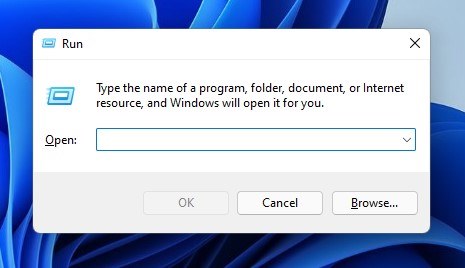
1. Press the Windows Key + R to open the RUN dialog box.
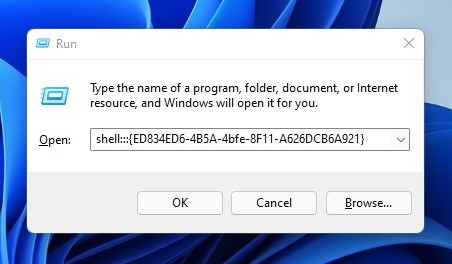
2. Type in shell:::{ED834ED6-4B5A-4bfe-8F11-A626DCB6A921} and press Enter.
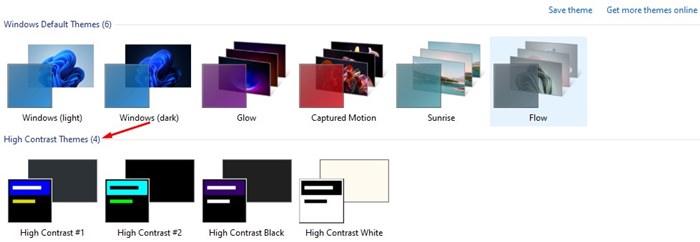
3. The above run command will open the Personalization Window. You will now see all themes available on Windows 11.
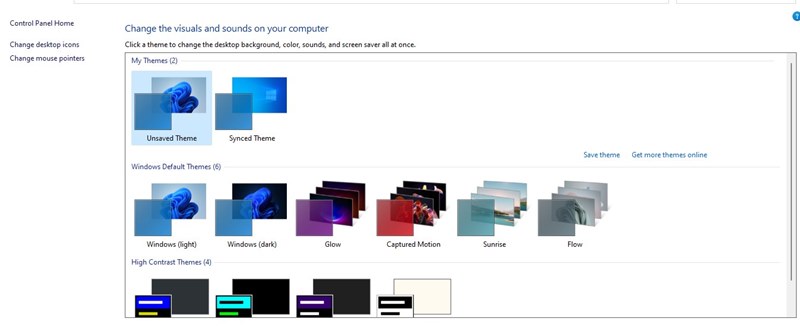
4. You need to scroll down to the High Contrast Themes section and pick the theme you want to use.
These are the two best methods to enable high-contrast themes on Windows 11. I hope this article helped you! Please share it with your friends as well. If you have any doubts related to this, let us know in the comment box below.

