

Last Updated on October 30, 2026 by Larious
When a removable drive is write protected, nobody can create or delete files/folders on that drive. Hence, denying write access is a good idea if you don’t want to password-protect your removable drives via BitLocker. Below, we have shared some simple methods to allow or deny write access to removable drives in Windows 11.
Table of Contents
1. Allow or Deny Write Access to Removable Drives via Group Policy
This method will use the Local Group Policy Editor to allow or deny write access to removable drives.
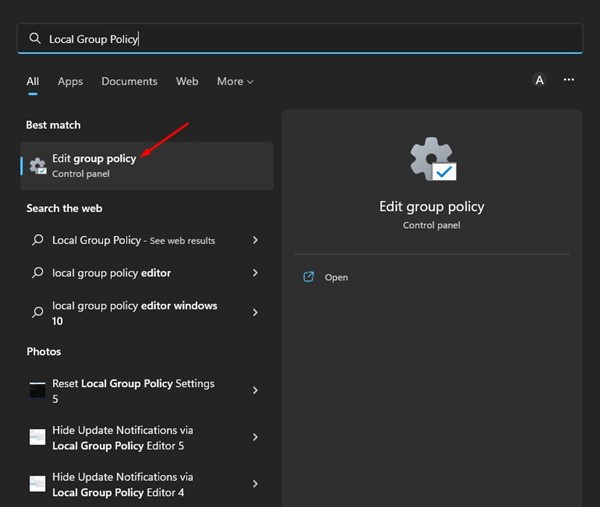
1. Click on the Windows 11 search and type in Local Group Policy Editor. Next, open the Local Group Policy Editor from the list.
2. In the Local Group Policy Editor, navigate to the given path:
Computer Configuration > Administrative Templates > Windows Components > BitLocker Drive Encryption > Removable Data Drives

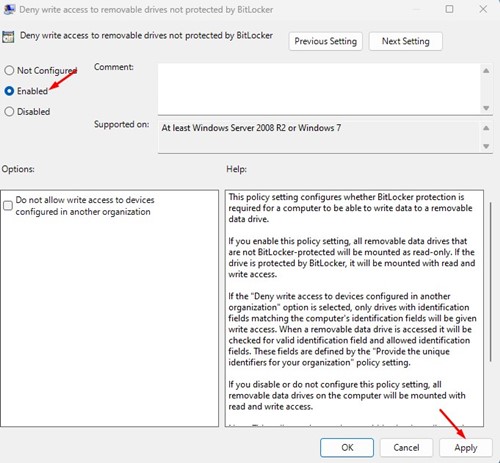
3. Double click on Deny write access to removable drives not protected by BitLocker policy.

4. On the Window that appears next, select Enabled. This will mount all removable data drives as read-only. Once done, click on the Apply button and then on Ok.
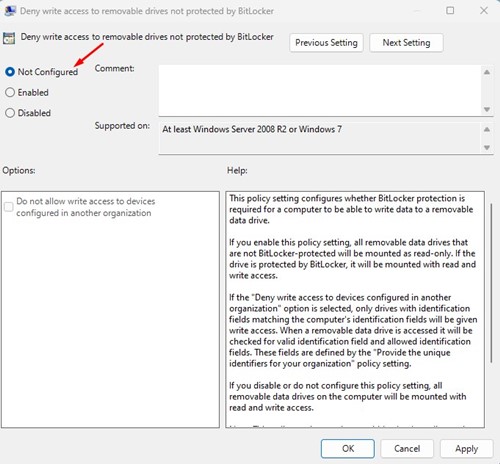
5. If you want to regain write access, select ‘Disabled‘ or ‘Not Configured‘ and click on the Apply button.
2. Allow or Deny Write Access via Registry Editor
You can also use the Registry Editor of Windows 11 to allow or deny write access to removable drives.
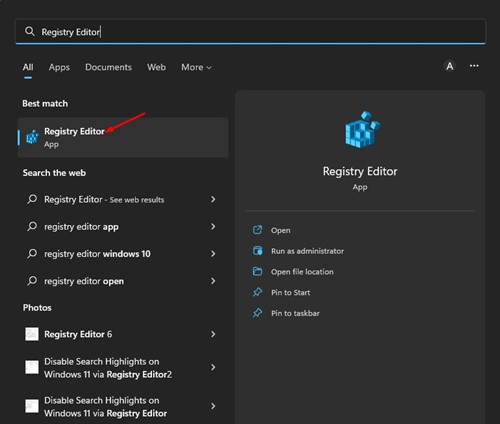
1. Click on the Windows 11 Search and type Registry Editor.
2. In Registry Editor, navigate to the following path:
HKEY_LOCAL_MACHINE\SOFTWARE\Policies\Microsoft
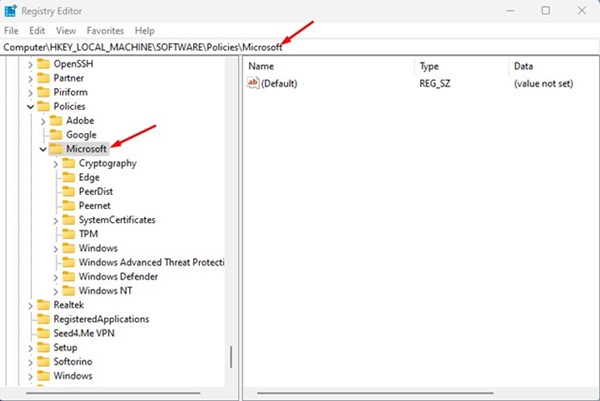
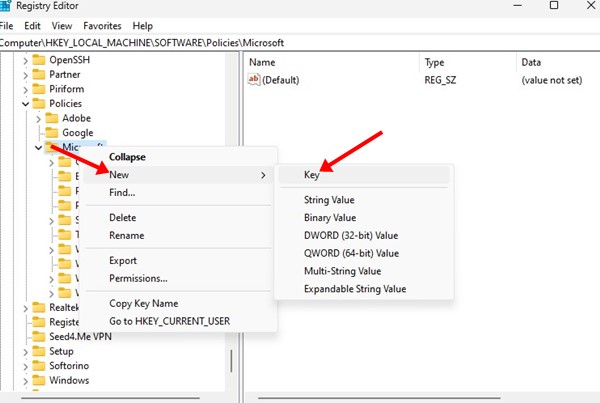
3. Right-click on the Microsoft folder and select New > Key.
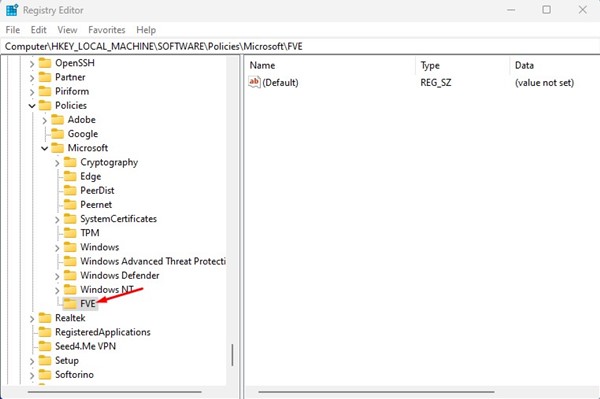
4. Name the newly created key as FVE.
5. Right-click on the FVE folder and select New > DWORD (32-bit) Value.
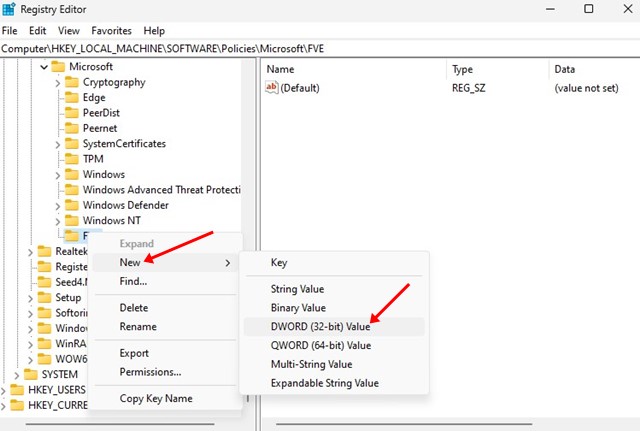
6. Name the newly created DWORD value as RDVDenyCrossOrg
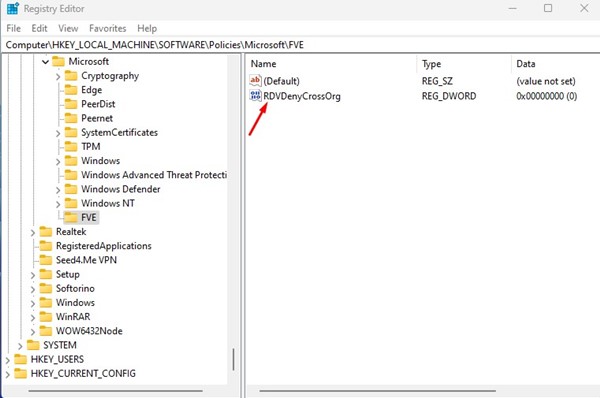
7. Double-click on RDVDenyCrossOrg, and in the Value data field, enter the following:
- 0: To deny write access to removable drives
- 1: To allow write access to removable drives.
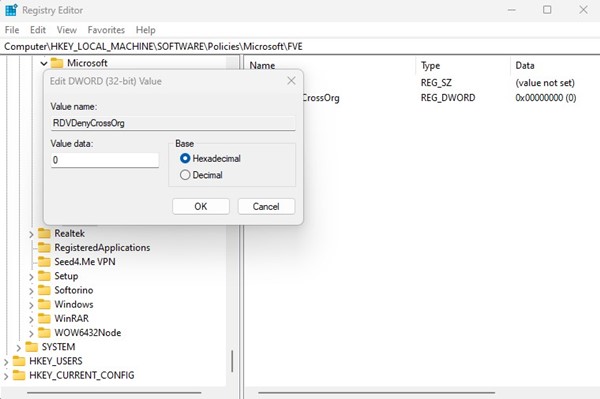
8. Once done, click the Ok button.
Also read: How to Update Drivers on Windows 11
These are the two best ways to allow or deny write access to removable drives in Windows 11. If you need more help disabling write access on Windows 11, let us know in the comments.

