

Last Updated on October 30, 2026 by Larious
Windows 11 lets you hide and unhide files and folders. So, if you are looking for ways to hide files and folders in Windows 11, you are reading the right guide. In this article, we will share a step-by-step guide on hiding files and folders on Windows 11. Not only that, but we will also share a method to hide drives in Windows 11.
Table of Contents
1. Hide Files & Folders in Windows 11
Hiding files & folders is pretty easy on Windows 11. You don’t need to use any third-party software or change the registry to hide specific files/folders. Instead, you need to open File Explorer, select the files, and make changes.
1. Open File Explorer and browse to the file or folder you want to hide.
2. Right-click on the file or folder and select Properties.
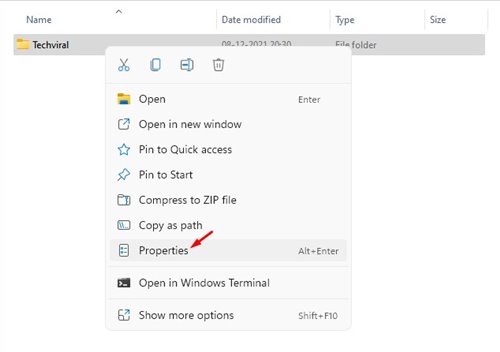
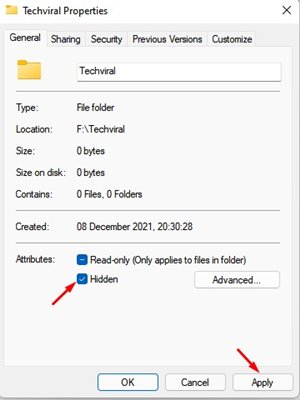
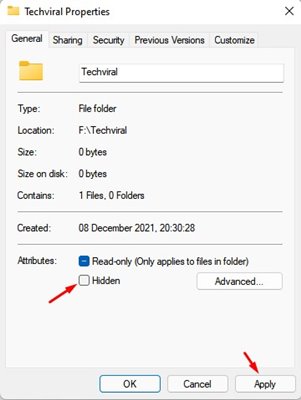
3. In Properties, check the Hidden box and click Ok.
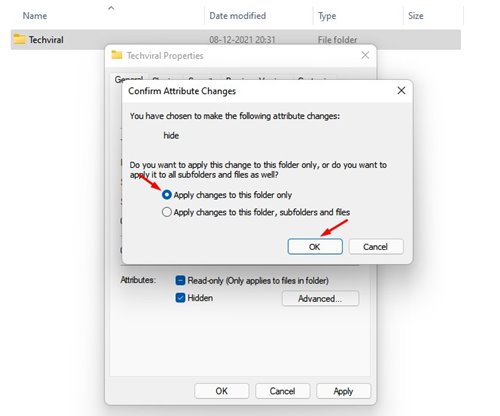
4. On the confirmation pop-up, click on the Apply changes to this folder only option and click Ok.
How to Show Hidden Files & Folders?
After hiding a file, if you wish to unhide it, you need to follow some of the simple steps below.
1. Open File Explorer and click on View > Show. On the Show menu, select the Hidden items option.
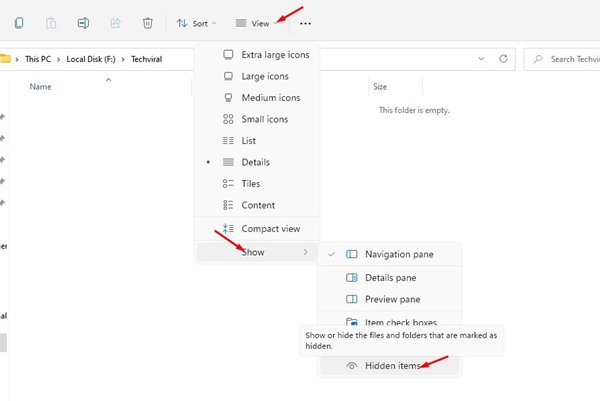
2. This will show all hidden files and folders. Right-click on the hidden file you want to unhide and select Properties.
3. On the file/folder Properties page, uncheck the hidden option and click OK.
2. How to Hide a Drive in Windows 11
Just like files and folders, you can choose to hide an entire drive in Windows 11. The hidden drive will not appear in File Explorer.
1. Open Windows Search and type in Disk Management.
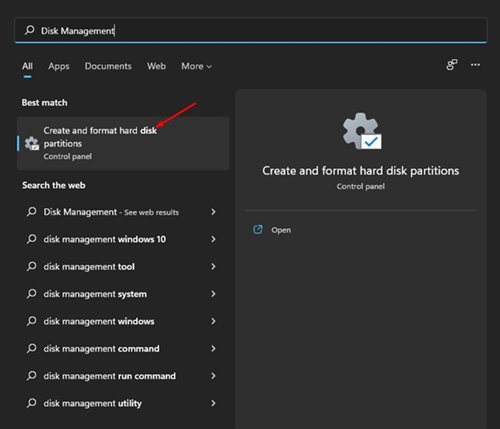
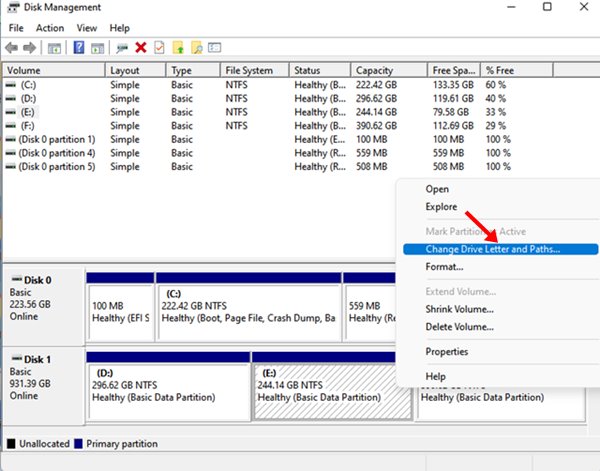
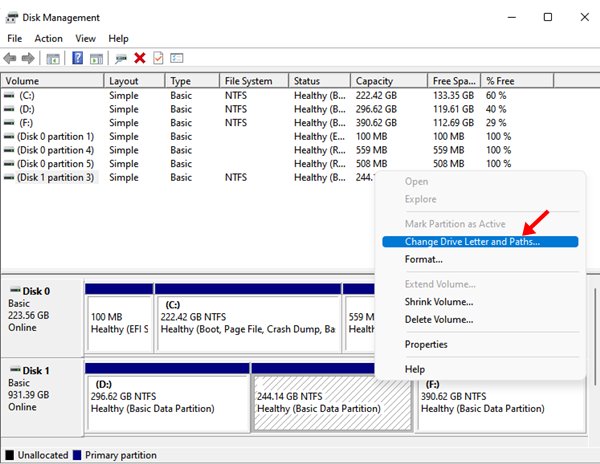
2. Open Disk Management from the list. In the Disk Management utility, right-click on the drive you want to drive and select the ‘Change Drive Letter and Paths..’ option.
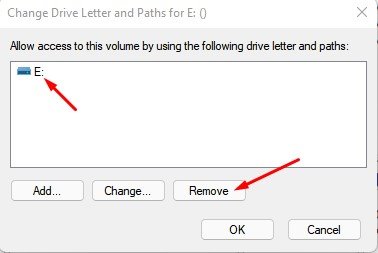
3. Select the drive letter and click on the Remove button. You may get a warning; click Yes.
4. Open File Explorer, and you will see the drive is no longer available.
5. To return the drive, open Disk Management again and right-click on the Disk with no name. Then, select the ‘Change Drive Letter and paths..’ option.
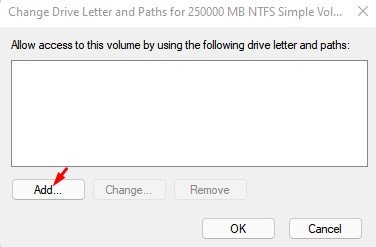
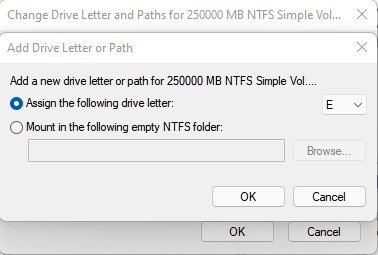
6. You just need to add a drive letter to the drive. Once done, click on the Ok button.
Also Read: How to Download & Install Fonts on Windows 11
Hiding files/folders and drives is pretty easy on Windows 11. You don’t need to rely on any third-party utilities to hide files on the new operating system.

