

Last Updated on October 31, 2026 by Larious
While we are usually comfortable with the default volume label, you can always change it. On Windows 11, you can easily change the volume label for connected drives and assign your own.
Please note that we are not talking about the drive letter. We are talking about the Volume Label that reads ‘Local Disk’. You can use File Explorer, Drive Properties, or Windows 11’s Settings app to change the drive or volume label.
Below is a step-by-step guide to renaming drive or volume labels in Windows 11.
Table of Contents
1. Change Volume Label using File Explorer
In this method, we will use Windows 11’s File Explorer to assign a different name to our connected drive.
1. Open File Explorer on your Windows 11 PC. Double-click This PC or press the Windows Key + I to open File Explorer.
2. In File Explorer, right-click on the drive whose volume label you want to change and select Rename.
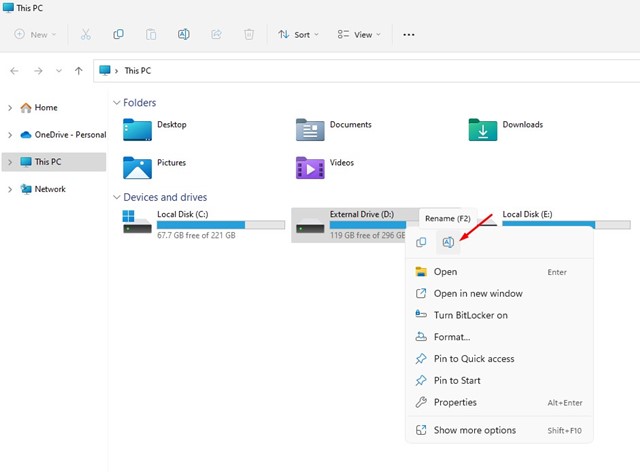
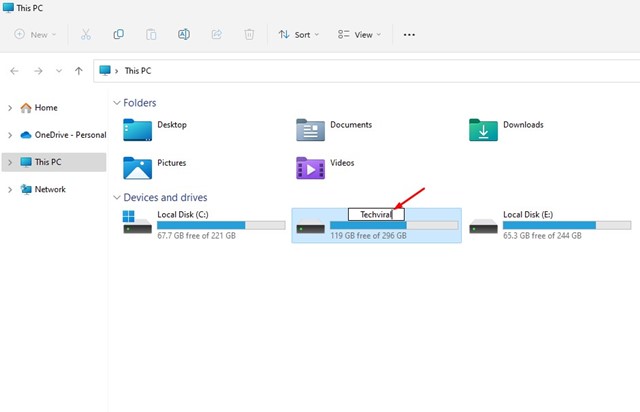
3. Enter the name you want to assign.
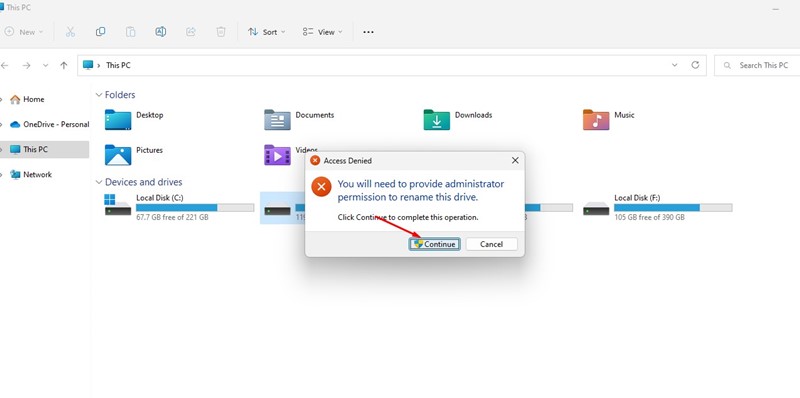
4. If you are not using the Administrator account, you will see an Access Denied prompt. Click the Continue button to change the name.
2. Change Volume Label via Drive Properties
This method will change the drive or volume label via the Drive Properties.
1. Open File Explorer on your Windows 11 PC.
2. Right-click on the drive whose name you want to change and select Properties.
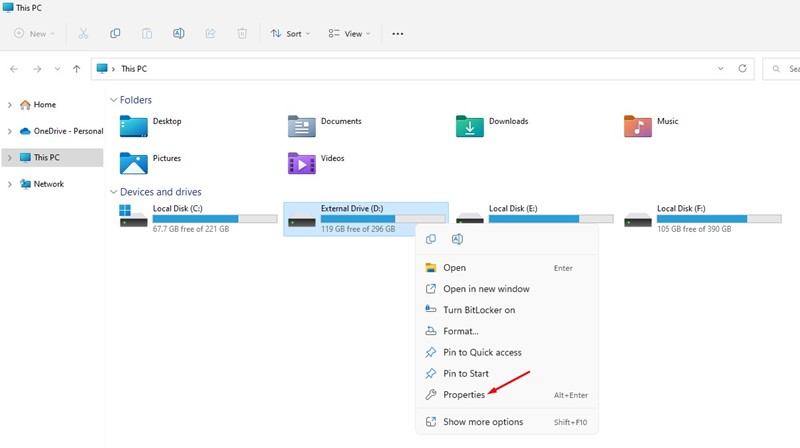
3. In the Drive Properties, switch to the General tab.
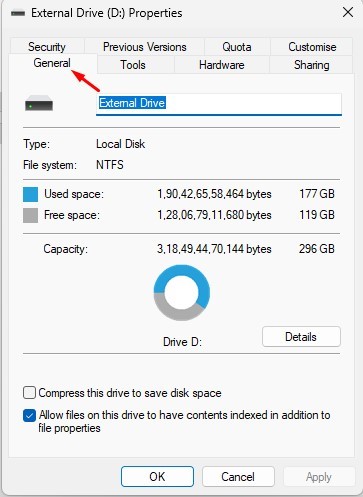
4. In the Name field, enter the name you want to set.
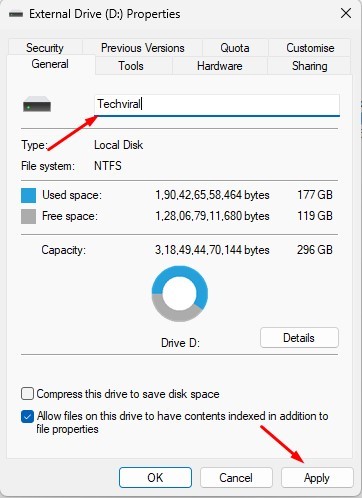
5. Once done, click on the Apply button, then on Ok.
3. Change Drive or Volume Label from Settings
This method will use Windows 11’s Settings app to change the drive or volume label.
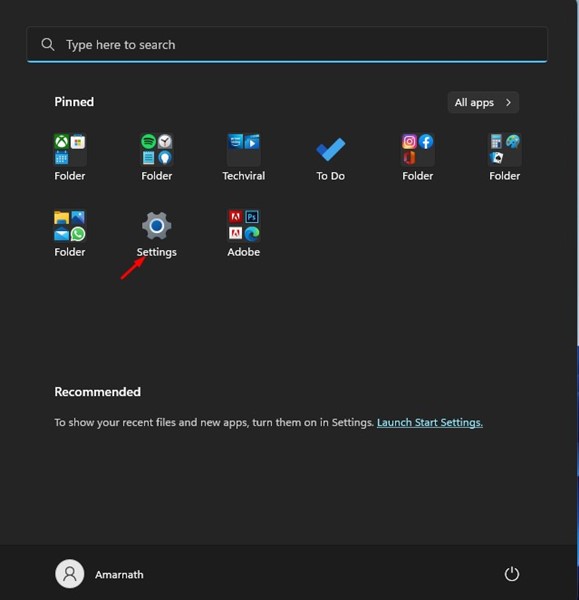
1. Click on the Windows 11 Start button and select Settings.
2. In the Settings app, switch to the System tab.
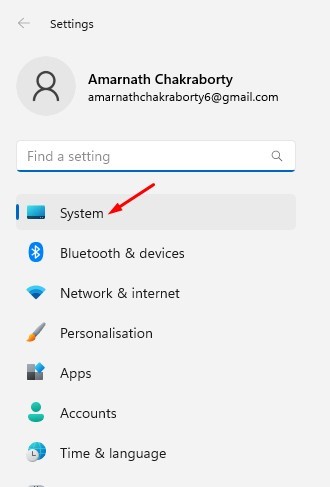
3. On the right, scroll down and click on Storage.
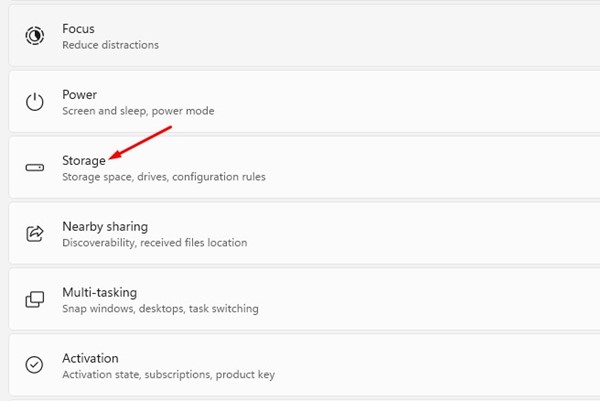
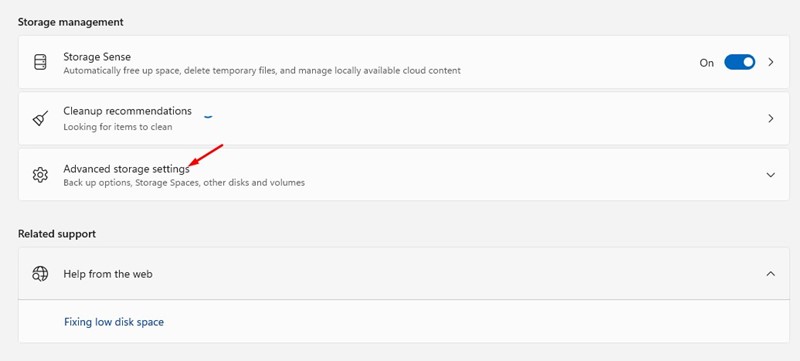
4. Now scroll down and expand the Advanced Storage settings option.
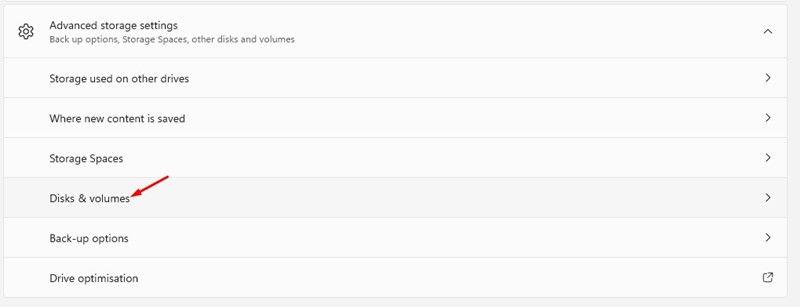
5. Click on Disks & Volumes.
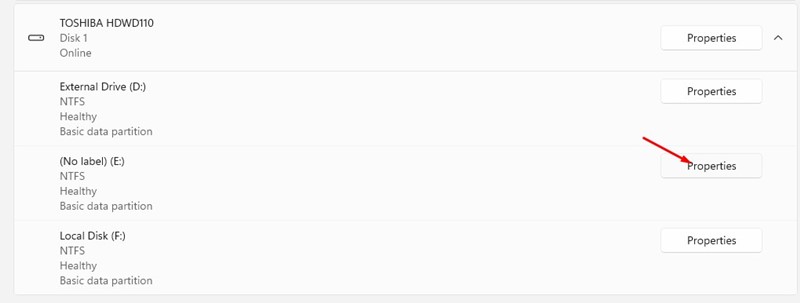
6. Click on the Properties button beside the volume where you want to assign a new name.
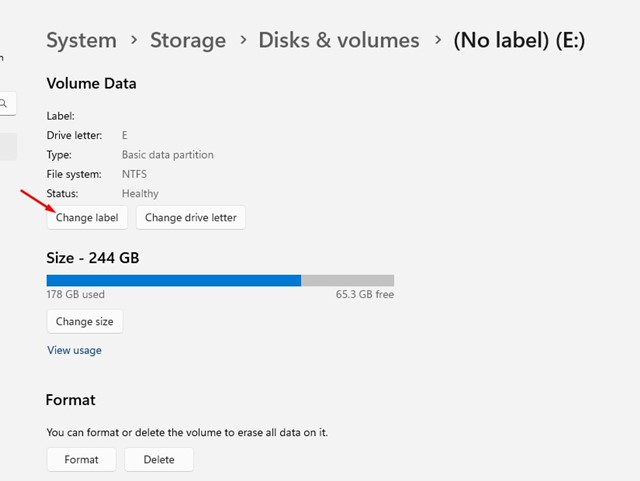
7. On the next screen, click on the Change Label button.
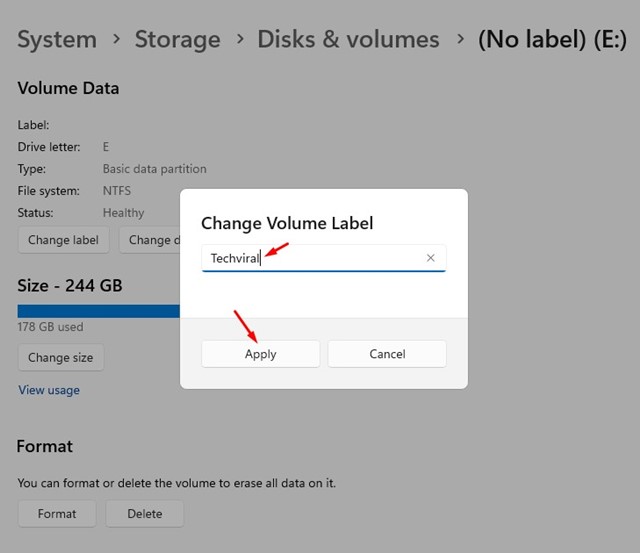
8. Type the new volume label and click the Apply button.
Also read: How to Mount Folder as Drive in Windows 11
These are the three best ways to change the volume label on a Windows 11 computer. If you know any other ways to change the volume label for connected drives on Windows 11, let us know in the comments below.

