

Last Updated on October 31, 2026 by Larious
Windows 11 not only sends you system notifications but also notifications from apps. Whether you like it or not, the apps you download from the Microsoft Store have the authority to send you notifications.
Windows 11’s app notifications usually land in the Notification Center, and you can easily dismiss them. You can also disable notifications from apps and other senders via Windows settings.
Table of Contents
1. Disable notifications from apps using Settings
This method will use Windows 11’s Settings to disable app notifications.
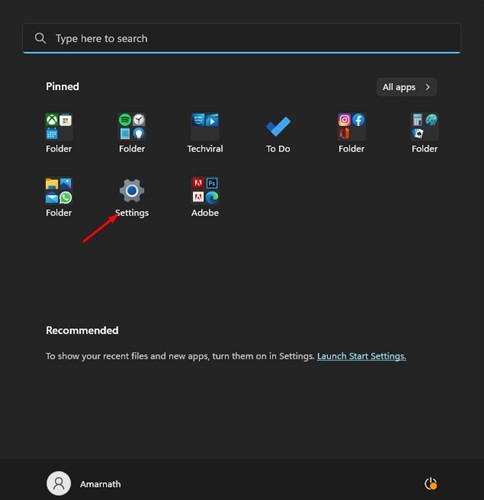
- Click on the Windows 11 Start button and select Settings.
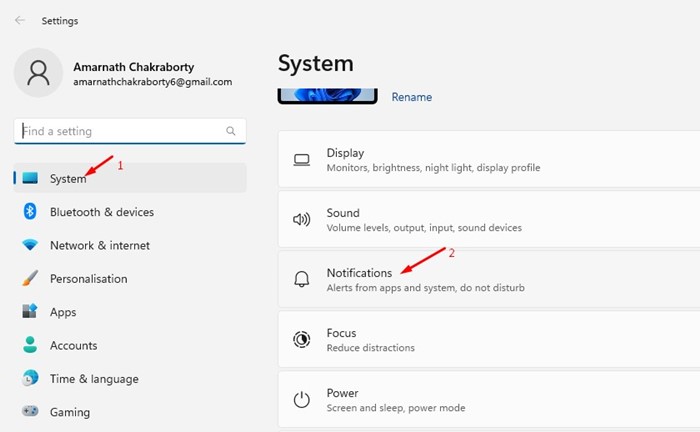
- In the Settings app, click on the System tab on the left, and on the right, click on Notifications.
- In Notifications, scroll down to the Notifications from apps and other senders section.
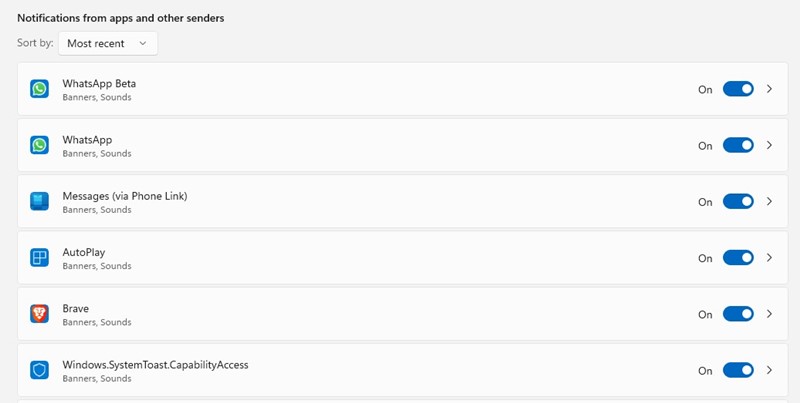
- You will find all apps that can send you Notifications. To turn off notifications from selected apps, turn off the toggle switch beside the app name.
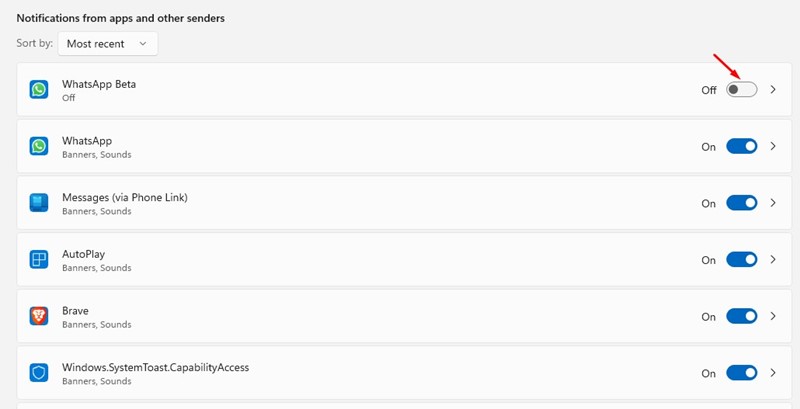
- You need to repeat the above step for every app you don’t want to receive notifications from.
2. How to Disable All Notifications on Windows 11
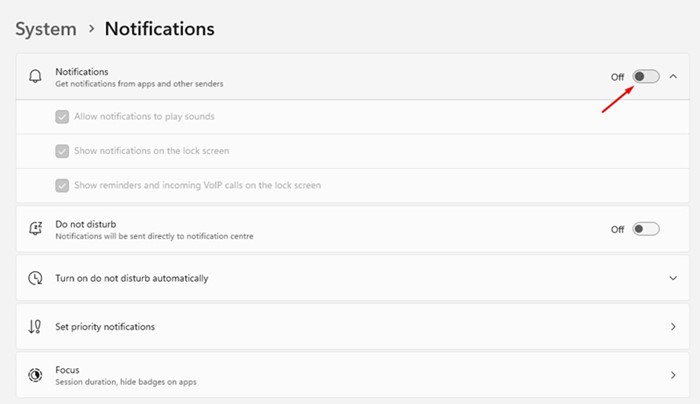
If you want, you can also disable all notifications on Windows 11. Here’s how you can disable all app and system notifications in Windows 11.
- Click on the Windows 11 Start button and select Settings.
- In the Settings app, switch to the System tab. On the right side, scroll down and click on Notifications.
- On the Notifications screen, turn off the toggle for Notifications.
Also read: How to Show Notification Badges on Taskbar Icons (Windows 11)
These are some of the simple steps to disable app notifications on the latest Windows 11 computer. If you need more help disabling notifications from apps and other senders in Windows 11, let us know in the comments below.

