

Last Updated on October 31, 2026 by Larious
While you don’t have any direct way of changing the desktop icon spacing, you can edit the Registry file to make the appropriate change. You can also use WinAero Tweaker to change icon spacing for the desktop icons in Windows 11. Below, we have shared the two best ways to change desktop icon spacing in Windows 11.
Table of Contents
1. Change Desktop Icon Settings in Windows 11 using Registry
This method will use Windows 11’s Registry Editor to change the desktop icon spacing.
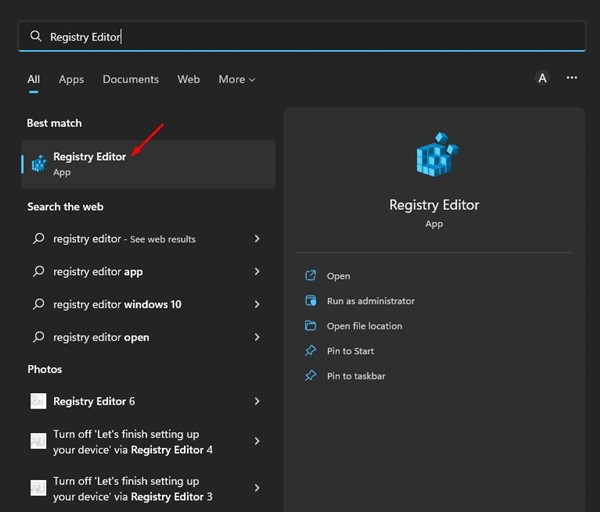
- Click the Windows 11 search and type Registry Editor. Next, open Registry Editor from the list of results.
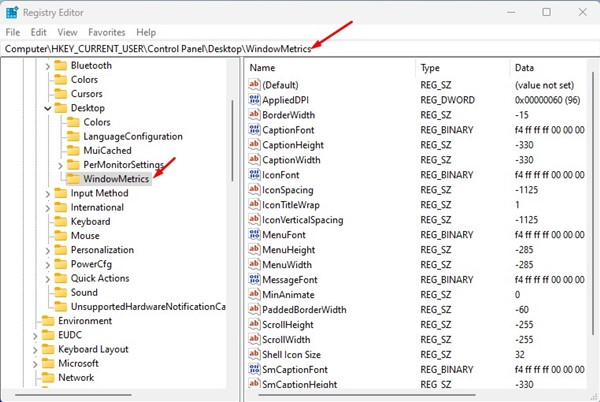
- In Registry Editor, navigate to the following path:
Computer\HKEY_CURRENT_USER\Control Panel\Desktop\WindowMetrics
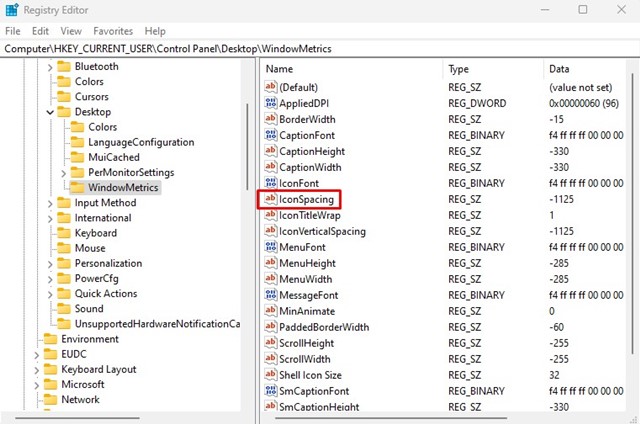
- Select the WindowsMetrics key and on the right side, scroll down and find the IconSpacing string.
- Double-click on the IconSpacing string and delete the -1125 from the value data field. The -1125 is the default spacing used in Windows 11 for desktop icons. You need to increase the number to increase the spacing. For example, entering -1170 will slightly increase the horizontal spacing for your desktop icons.
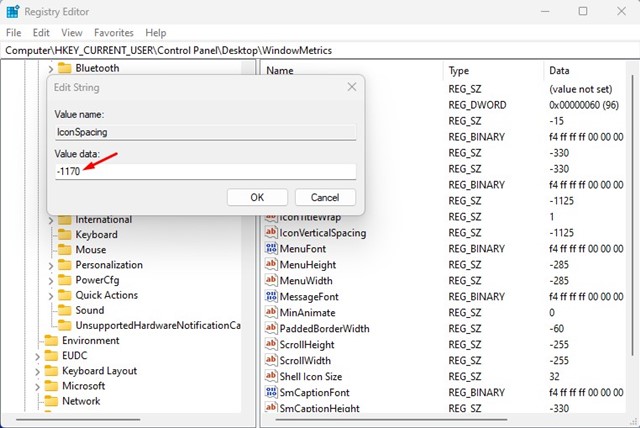
- Once done, click on the Ok button. Now, scroll down and double-click on the IconVerticalSpacing string.
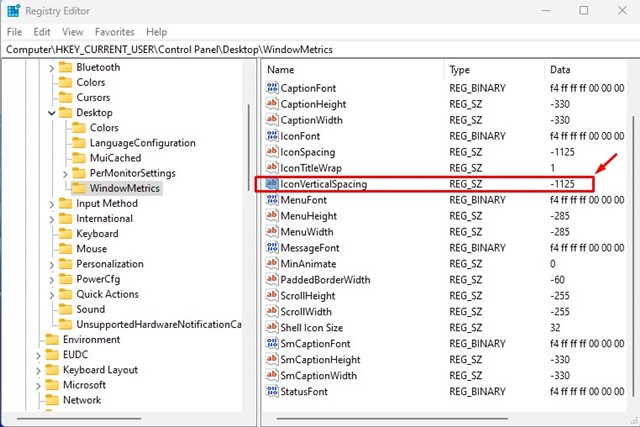
- In the Value data field for IconVerticalSpacing, delete the -1125, the default value, and set the same value you set for IconSpacing, i.e., -1170.
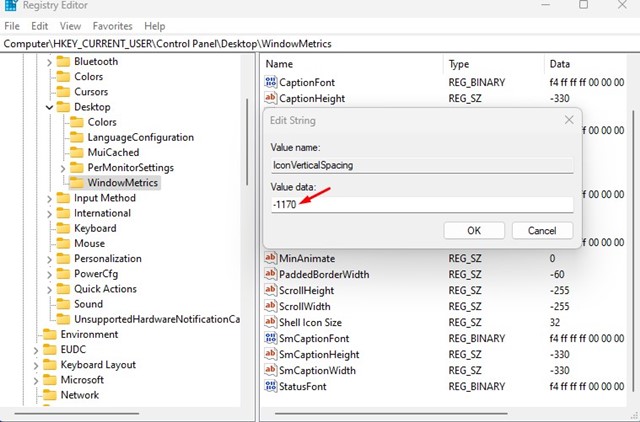
- Once done, click the Ok button and close the Registry Editor.
The change is not immediate; you need to restart your computer first. After the restart, you will find the icon spacing on your desktop has changed. If you are unhappy with the change, you must enter -1125 for both IconString and IconVerticalSpacing string values.
2. Change Desktop Icon Spacing with Winaero Tweaker
Winaero Tweaker is a customization tool available for the Windows operating system. The customization tool for Windows 11 can also change the desktop icon spacing.
- Download the Winaero Tweaker ZIP file to your computer and extract it.
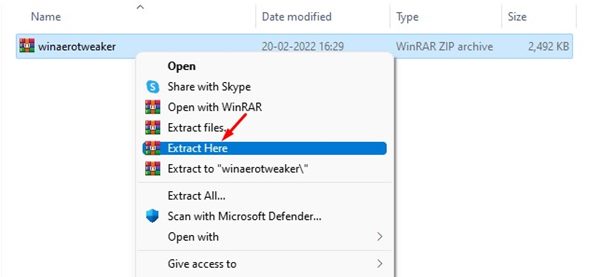
- Once extracted, double click on the Winaero Tweaker installer file and complete the installation process.
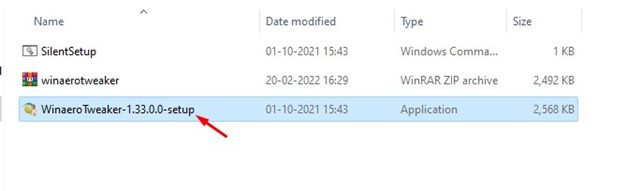
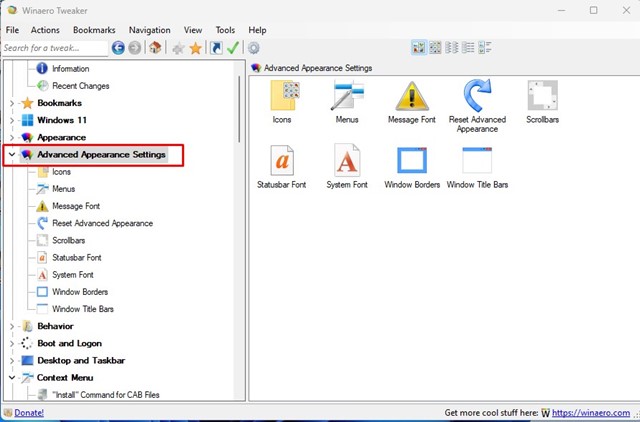
- Run the application and switch to the Advanced Appearance settings on the left sidebar.
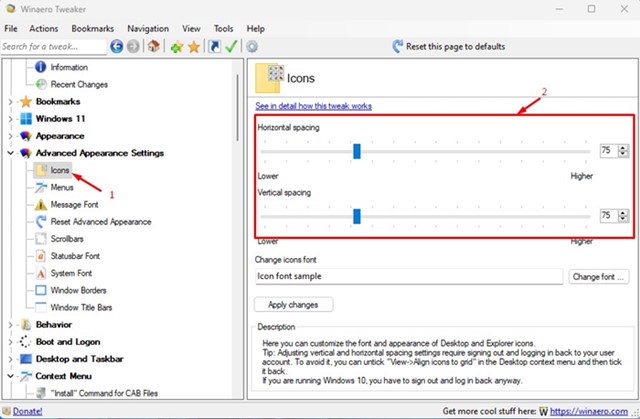
- Now select Icons and adjust the horizontal and vertical spacing on the right side. You can drag the slider to adjust the spacing. Once done, click on the Apply changes button.
- After making the changes, restart your Windows 11 PC.
As we mentioned, with proper tools, you can customize almost all visual elements of Windows 11. You can edit the registry file or use Winaero Tweaker to change the icon spacing. If you need more help changing the desktop icon spacing in Windows 11, let us know in the comments below.

