

Last Updated on November 4, 2026 by Larious
Consider this scenario: you’re working all day on a project due in the morning, and then just before adding the finishing touch, you accidentally press the power button. When your computer shuts down, you realize that you haven’t saved your work. In such a scenario, you have no option left apart from starting your work from the very start. If you habitually face such things, it’s best to change the power button action in Windows 11.
Change the Power Button Action in Windows 11
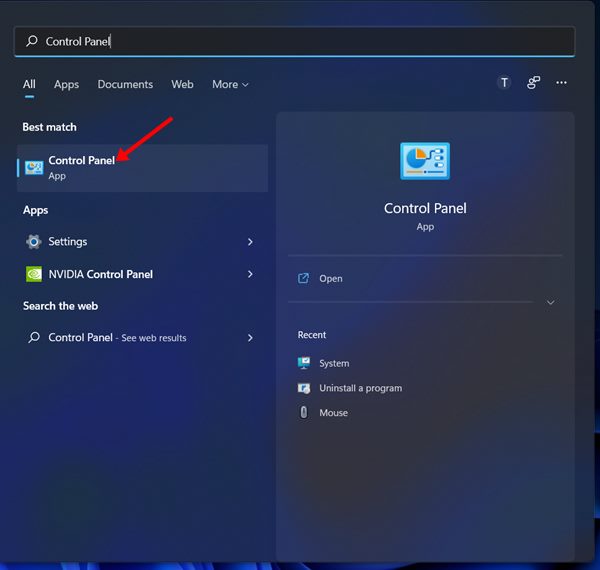
1. Click on the Windows 11 Search and type in Control Panel.
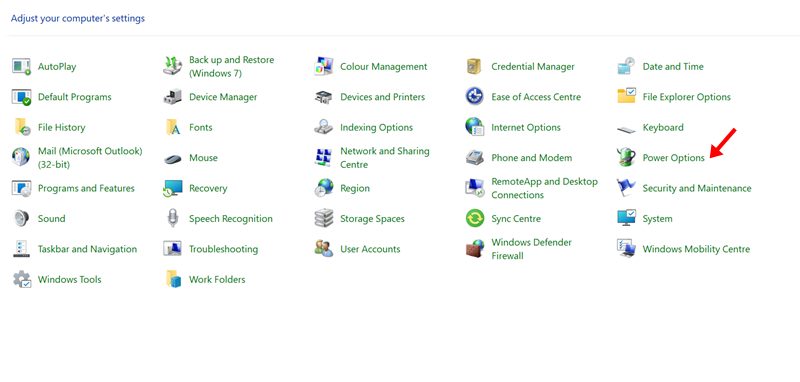
2. In Control Panel, click on Power Options.
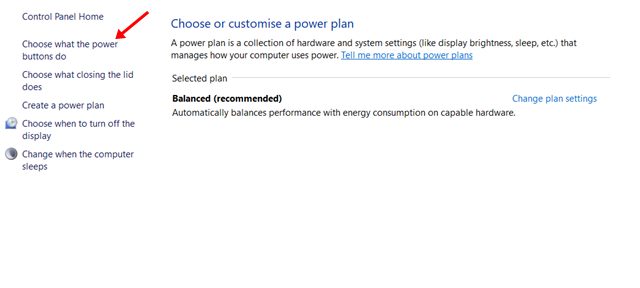
3. On the Power Options page, click on Choose what the power buttons do.
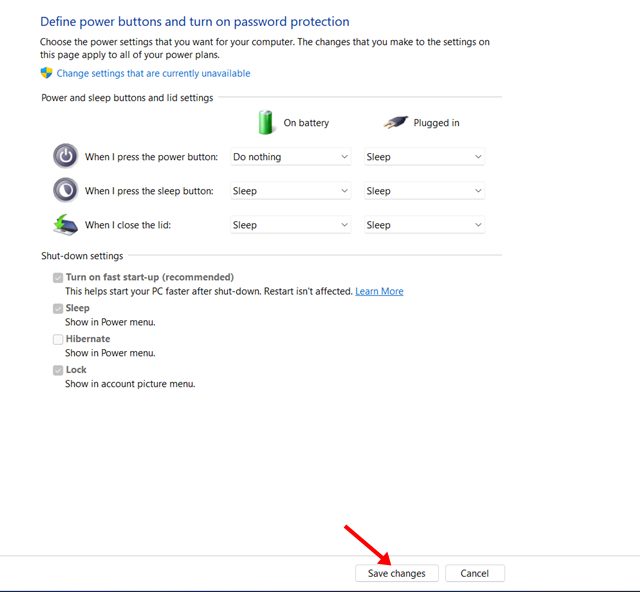
4. On the next page, select an action in the drop-down menu for both ‘On Battery’, and ‘Plugged in’. You will find five options on the drop-down.
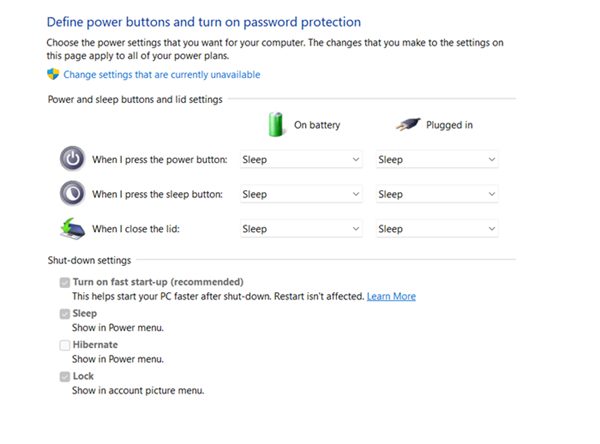
Do Nothing: When you select this option, the Power button will do nothing when it’s pressed.
Sleep: When you select this option, your PC will enter sleep when the Power button is pressed.
Hibernate: This one will save all sessions in memory and shut down your PC.
Shut Down: This option will turn off your PC when the Power button is pressed.
Turn off the Display: This option will just turn off the display when the Power button is pressed.
5. You need to select the option as per your requirement. Once done, click Save changes.

It’s pretty easy to change the Power button action in the Windows 11 operating system. I hope this article helped you! Please share it with your friends as well. If you have any doubts about this, let us know in the comment box below.

