

Last Updated on November 3, 2026 by Larious
While the default color scheme for highlighted text looks good and makes it easier to read, you can change it as you wish. To change the color of selected or highlighted text, you must do some hard work. You first need to get the RGB color value and add it to the Registry Editor.
Hence, if you want to change the color of highlighted or selected text in Windows 11, here’s what you should do.
Table of Contents
1. Get the RGB Color Value
Before modifying the highlighted text color, you first need to grab the RGB color value. You can grab the RGB Color value from Chrome by installing a color picker extension or using the Paint app.
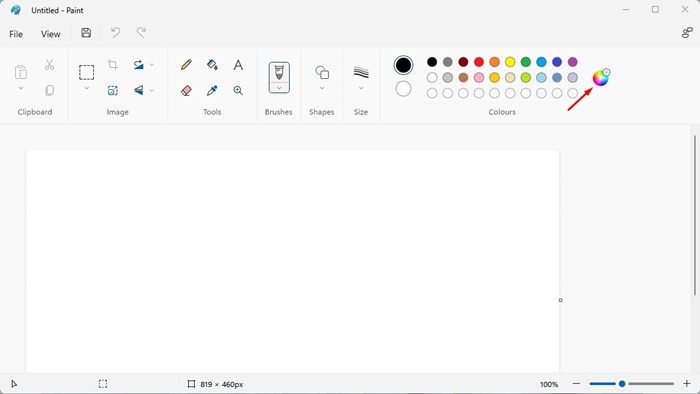
Getting RGB Color values from the Microsoft Paint app is pretty straightforward. You need to open the Paint app and click the color picker button.
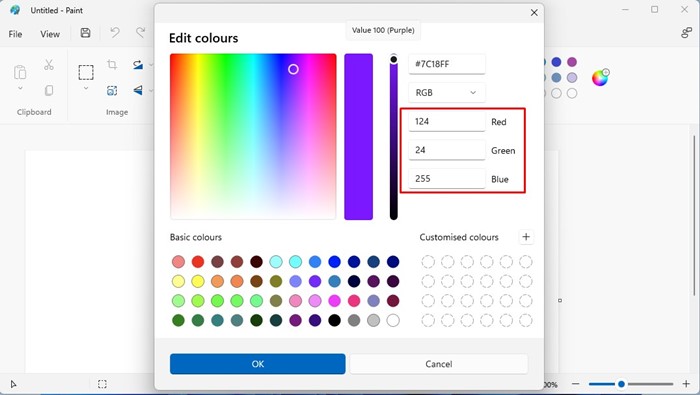
Now select the color that you want to set on the Color Picker. On the right pane, you will get the RGB Color value; copy and paste it into Notepad.
2. Change the Background Color of Highlighted Text in Windows 11
To change the background color of the highlighted text in Windows 11, you must use the Registry Editor.
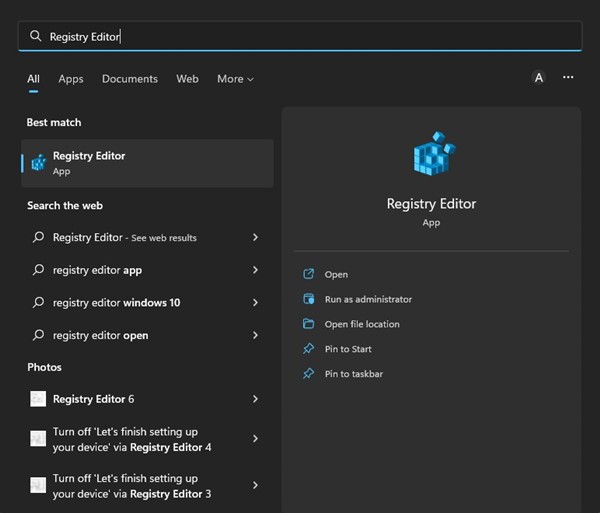
1. Click on the Windows 11 search and type Registry Editor. Next, open the Registry Editor app from the list of options.
2. In the Registry Editor, navigate to the following path:
HKEY_CURRENT_USER\Control Panel\Colors
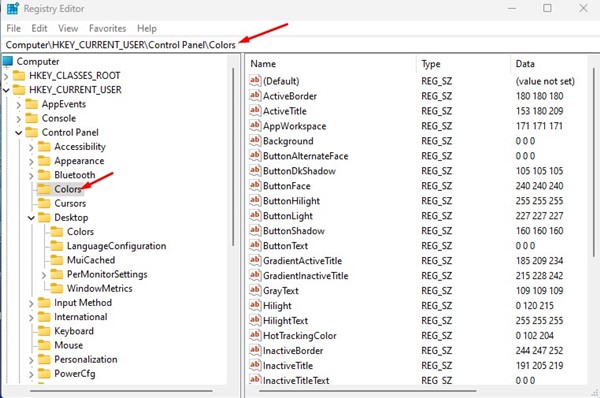
3. On the right pane, find and double-click on the Hilight REG_SZ key.
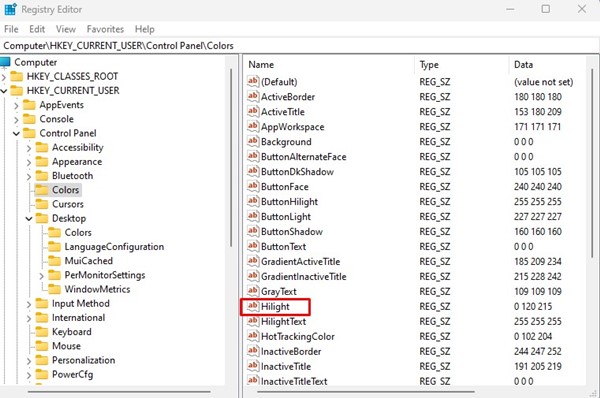
4. On the Edit String prompt, enter the RGB Color value and click OK.
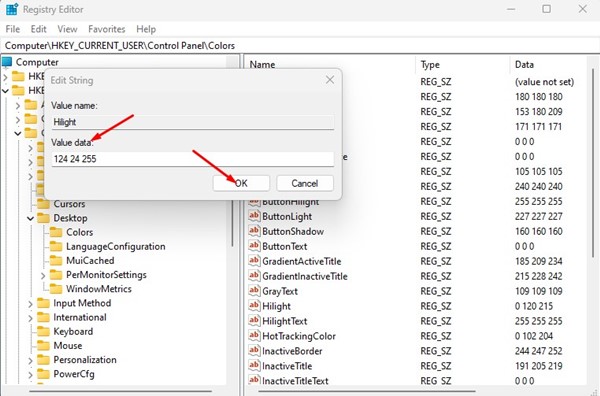
Important: The default RGB value of Highlighted Text Background is 0 120 215. If you ever wish to revert the changes, enter the default RGB value in Step 4.
3. How to Change the Color of Highlighted Text in Windows 11
Just like the background color, you can also change the color of the highlighted text.
1. Click on the Windows 11 search and type Registry Editor. Next, open the Registry Editor app from the list of options.
2. In the Registry Editor, navigate to the following path:
HKEY_CURRENT_USER\Control Panel\Colors
3. On the right pane, find and double-click on the HilightText REG_SZ key.
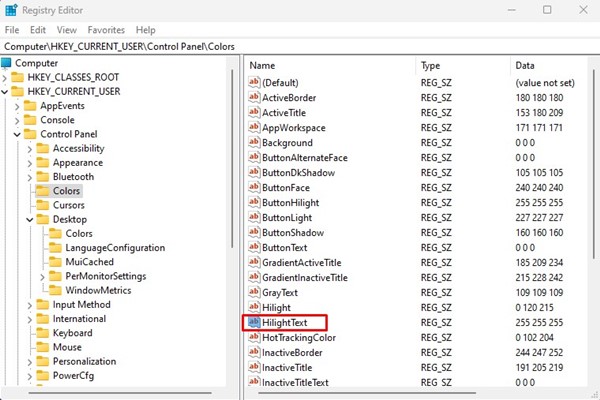
4. On the Edit String prompt for HilightText, enter the RGB color code in the Value Data field. Once done, click OK.
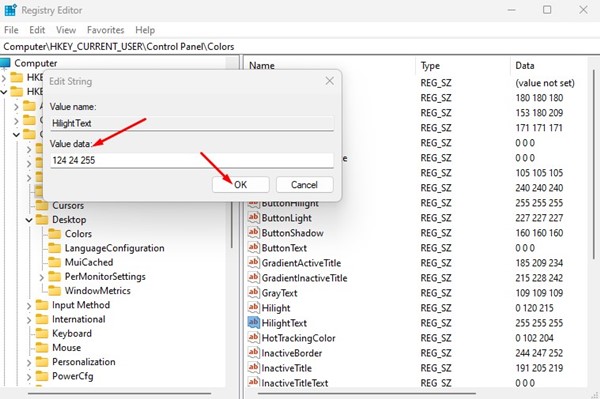
Important: The default RGB value of Highlighted Text is 255 255 255. If you ever wish to revert the changes, enter the default RGB value in Step 4.
You can also change the highlighted text color to fit with your theme. You can experiment with different colors until you find the one that best suits your needs.
Also read: How to Check DirectX Version on Windows 11
That’s all about changing the color of highlighted text and text background in Windows 11. You can change the color of highlighted text & background to improve readability. If you need more help, let us know in the comments below.

