

Last Updated on November 4, 2026 by Larious
Several Windows 11 users reported an unusual problem. According to the user, the Settings app shows a completely black screen. Now just Settings, the problem appears to affect lots of built-in Windows app as well.
If you’re dealing with the same or similar problem, here’s what you should do to resolve it.
Table of Contents
1. Restart Windows Explorer
Since you can’t access the Settings app because it’s all black, the ultimate option to fix this problem is to restart the Windows Explorer process from Task Manager.
Windows Explorer is the graphical interface part of your computer; it’s responsible for the visual parts of the operating system. Here’s how to restart it from the Task Manager.
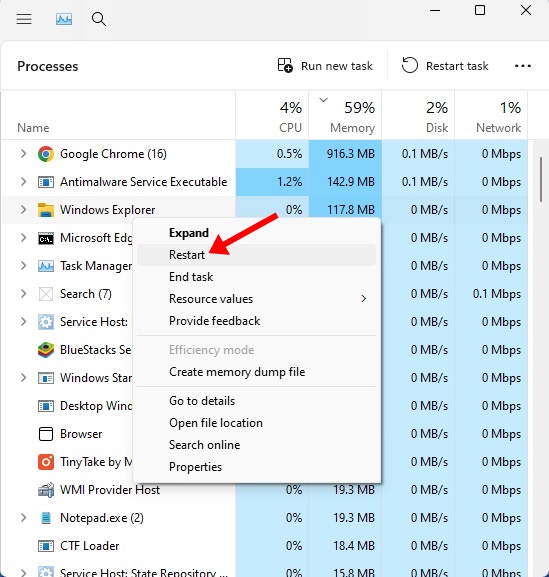
- Open Task Manager on Windows 11.
- Find the Windows Explorer Process.
- Right click on it and select Restart.
Your PC’s screen will go black for a second. This confirms that the Windows Explorer process has been restarted.
2. Restart your PC
If restarting the Windows Explorer Process didn’t help, you can try restarting your PC. Restarting will possibly eliminate the bugs and glitches affecting your PC’s functionality. Here’s how you can restart your PC.
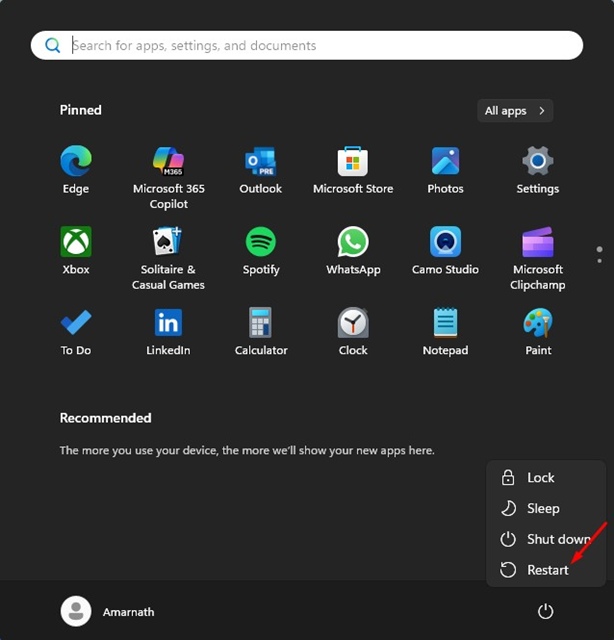
- Click on the Windows 11 Start button.
- Next, click on the Power Menu and select Restart.
3. Run the SFC and DISM Command
Sometimes, corrupted system installation files also trigger such problems. Hence, you should also find and fix the corrupted system files. Here’s what you need to do.
- Open Command Prompt with admin rights.
- Next, execute this command:
sfc /scannow
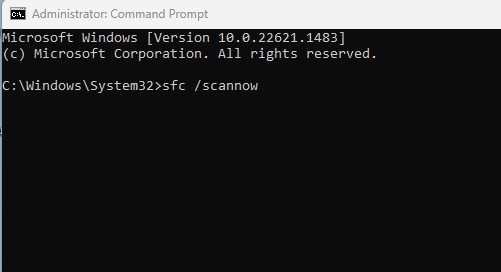
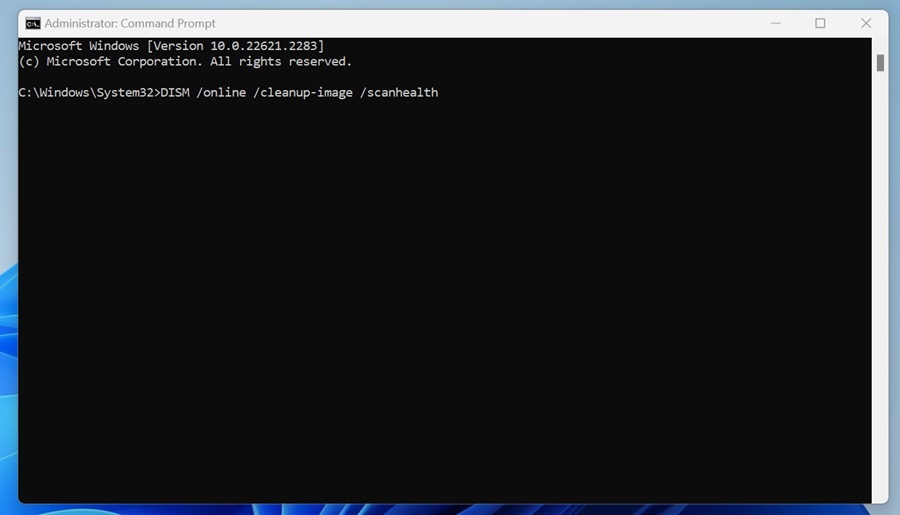
- If the SFC command returns an error, execute these commands one after another.
DISM /Online /Cleanup-Image /ScanHealth
DISM /Online /Cleanup-Image /RestoreHealth
4. Repair all Windows Apps via PowerShell
Next, you can try repairing all Windows apps via PowerShell. Here’s what you need to do.
- Type PowerShell in Windows Search.
- Right-click on PowerShell and select Run as administrator.
- Paste the given command into PowerShell
Get-AppXPackage -AllUsers -Name windows.immersivecontrolpanel | Foreach {Add-AppxPackage -DisableDevelopmentMode -Register “$($_.InstallLocation)\AppXManifest.xml” -Verbose}
- Then execute this command:
Get-AppXPackage | Foreach {Add-AppxPackage -DisableDevelopmentMode -Register “$($_. InstallLocation)\AppXManifest.xml”}
You need to ignore the red errors and let the process complete. Make sure to restart your computer.
5. Install Pending Windows Update
Since you aren’t able to access the Windows 11 Settings, you can still try running the ‘Check for Updates’ option from the Windows 11 Search. Here’s what you need to do.
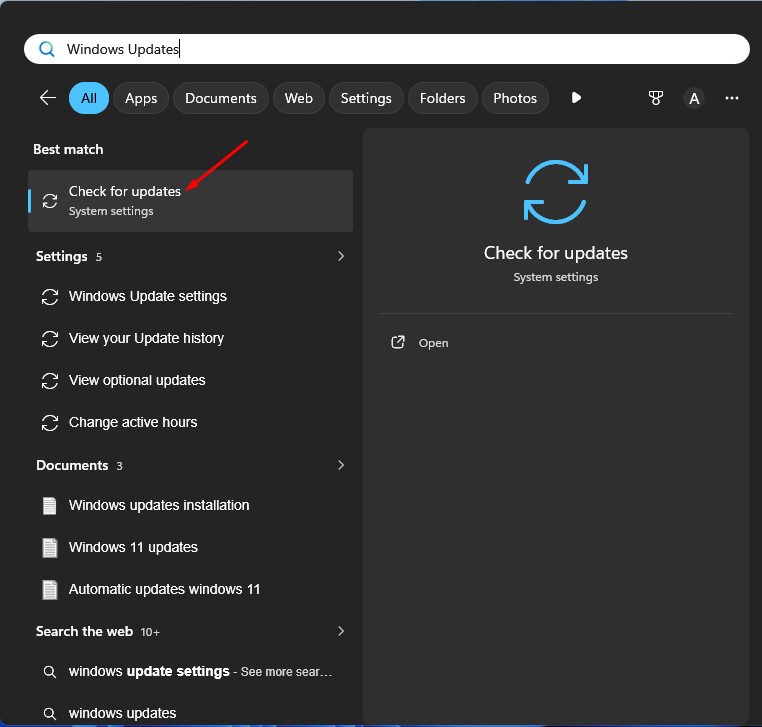
- Type Windows Update in the Windows Search.
- Open the Check for Updates option.
- This will directly open the Windows Update Page.
- If the page is visible, click the ‘Download & Install all’ option.
This will install all pending Windows 11 Updates.
These are a few of the best ways to fix the Windows 11 Settings app black screen problem. If you need more help on this topic, let us know in the comments. Also, if you find this guide helpful, share it with your friends.

