

Last Updated on November 4, 2026 by Larious
A drop shadow effect is applied to make the icon text more visible, but the same feature can make text difficult to read on some displays and with lighter wallpapers. You may find it very difficult to read the icon label at times, making the text appear blurry.
Hence, if you cannot read the icon labels due to the drop shadow effect, you need to turn it off manually in Settings. Here’s how you can disable it.
Table of Contents
1. Disable Drop Shadow Effect via Settings
This method will use Windows 11’s Settings app to disable the drop shadow effect.
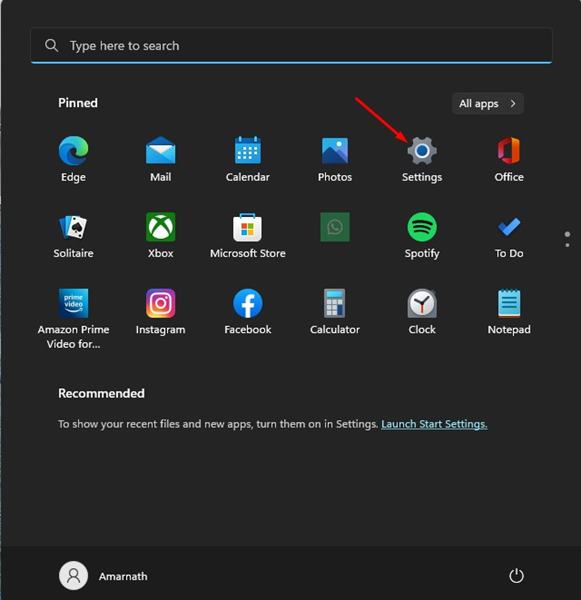
1. Click on the Windows 11 Start button and select Settings.
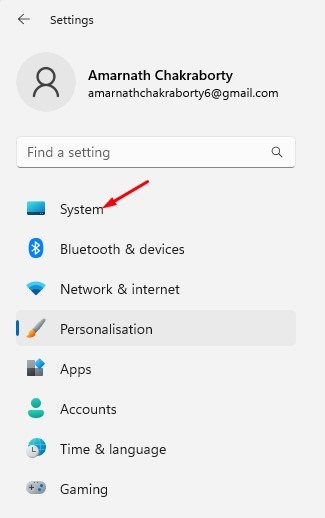
2. Click on the System tab.
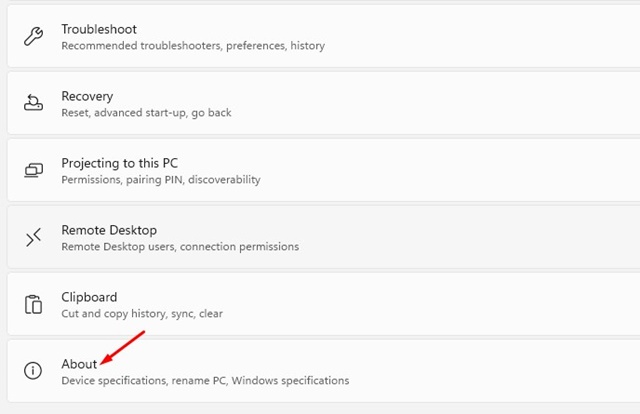
3. Scroll down to the end and click on About.
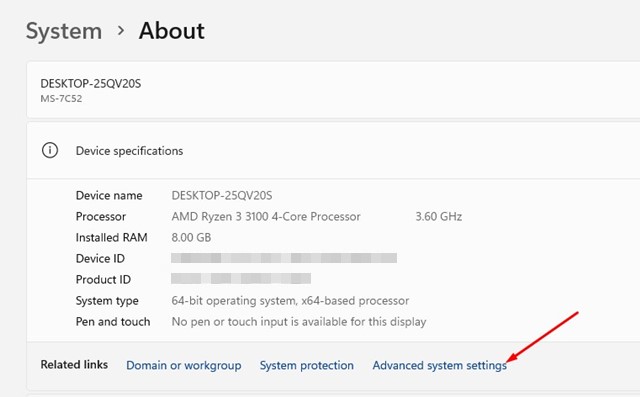
4. Scroll down and click on the Advanced System Settings link.
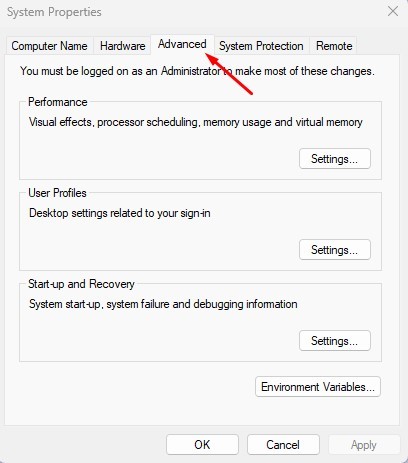
5. This will open the System Properties Window. You need to switch to the Advanced tab, as shown in the screenshot.
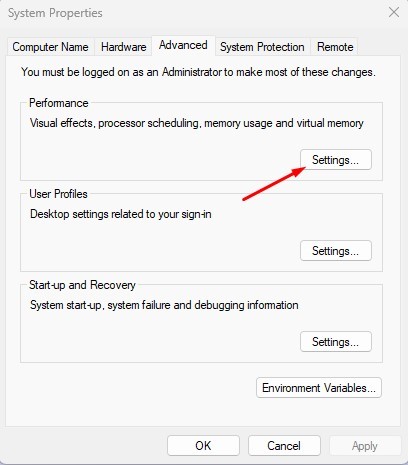
6. Click on the Settings button under Performance.
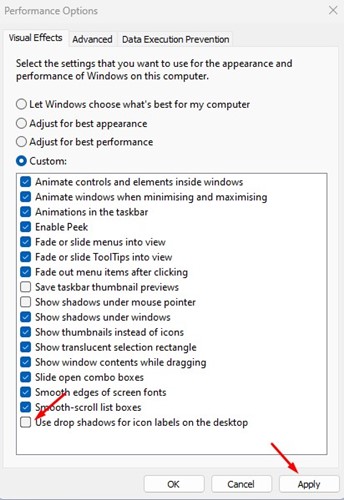
7. On the Performance tab, switch to the Visual Effects tab. Select the Custom option and uncheck the ‘Use drop shadows for icon labels on the desktop’. Once done, click the Ok button.
2. Disable Desktop Icon Drop Shadow Effect via Registry Editor
This method will use the Registry Editor to disable the desktop icon drop shadow.
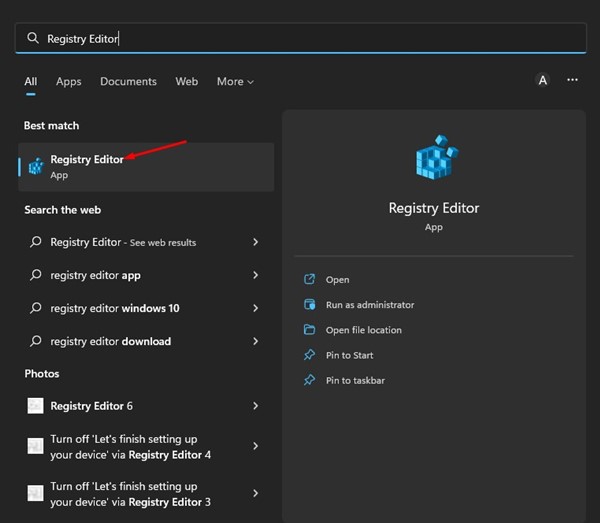
1. Click on the Windows 11 search and type Registry Editor. Next, open the Registry Editor app from the list.
2. In the Registry Editor, navigate to the path:
HKEY_CURRENT_USER\Software\Microsoft\Windows\CurrentVersion\Explorer\Advanced
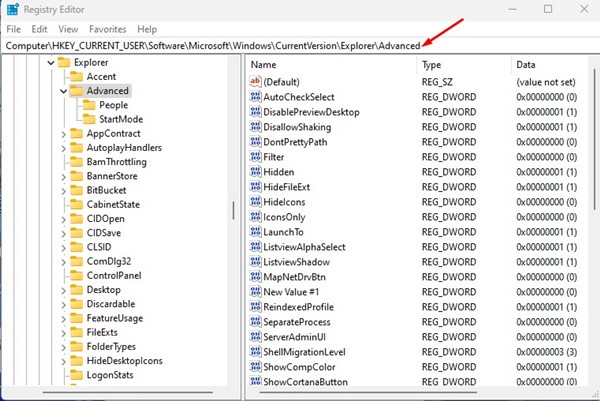
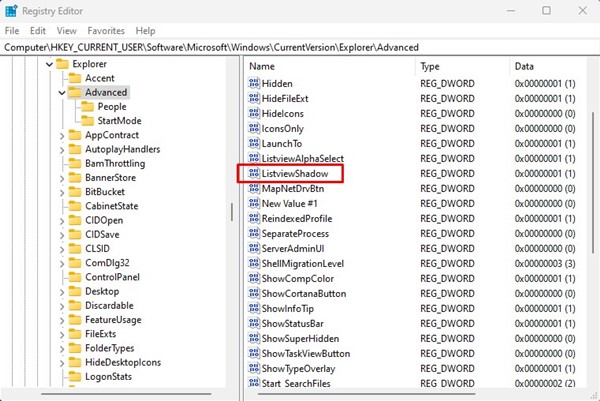
3. In the right pane, find and double-click on ListviewShadow.
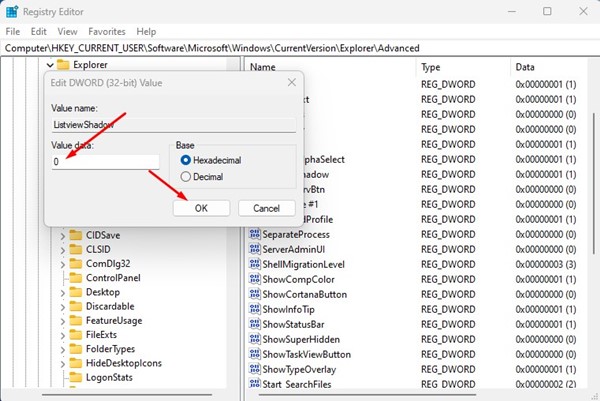
4. If you want to disable the Drop Shadow effect, enter 0 in the Value data field. To enable the drop shadow effect again, you must enter 1 in the Value data field. Once done, click on the Ok button.
Make sure to restart your computer after applying the changes.
that’s all about how to disable the drop shadow effect from desktop icons in Windows 11. If you use a light background, it’s best to disable the drop shadow effect for text on the desktop icons.

