

Last Updated on November 6, 2026 by Larious
It’s pretty common for Controlled Folder Access to assume a safe app is harmful. When this happens, the security feature automatically blocks the apps from launching or making changes to your system.
To deal with such issues, one needs to allow apps through the Controlled Folder Access in Windows 11. And here’s how you can do it.
Steps to Allow Apps Through Controlled Folder Access in Windows 11
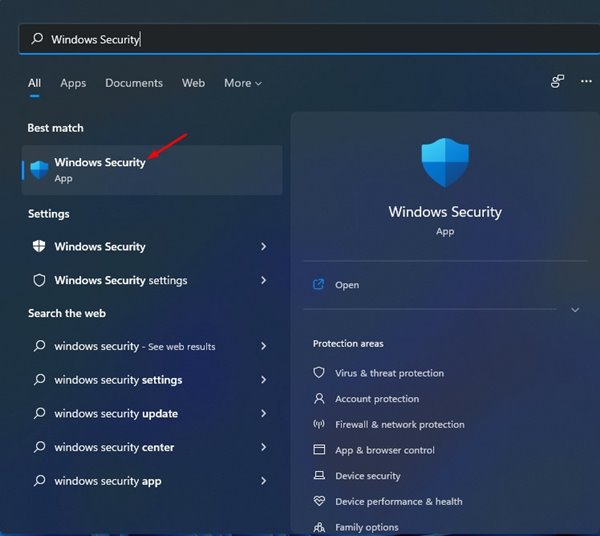
1. Open the Windows 11 search and type in Windows Security. Open Windows Security from the list.
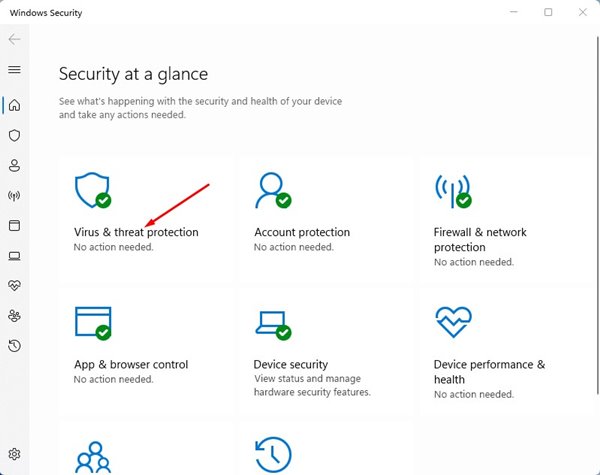
2. In Windows Security, click on Virus & threat protection.
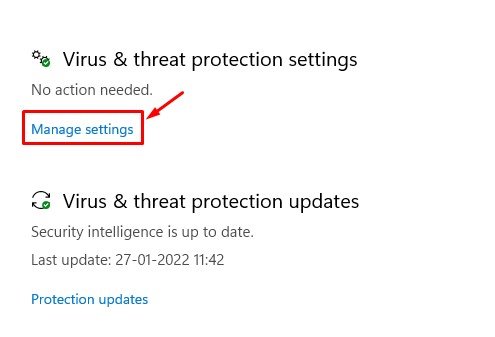
3. Scroll down and click on the Manage Settings link under the Virus & threat protection Settings.
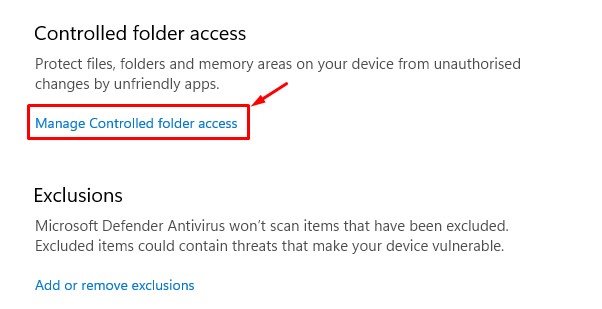
4. Click on the Manage Controlled folder access link.
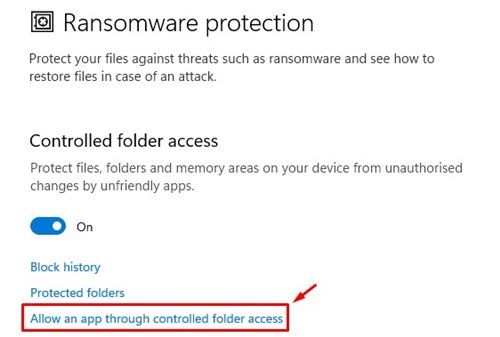
5. On the next screen, click on the Allow an app through controlled folder access link.
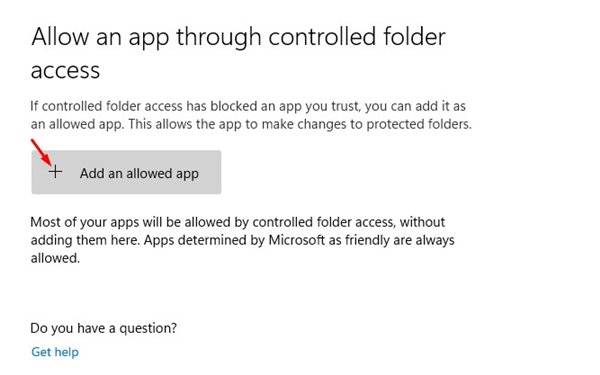
6. You need to click on (+ Add an allowed app) and select the program you want to allow.
Allowing the app through Controlled folder access is pretty easy, especially on Windows 11. If you believe that a blocked app is safe to use, you can add it to the exclusion list. I hope this article helped you! Please share it with your friends as well. If you have any doubts related to this, let us know in the comment box below.

