

Last Updated on November 6, 2026 by Larious
The default date & time format is totally acceptable; you can change these settings easily. If you want to change the date & time format in Windows 11, here’s what you should do.
Table of Contents
1. How to Change the Time Format
Important: Whatever time format you choose, it will appear on the Taskbar at the bottom-right corner of the screen.
1. Click on the Windows 11 Start button and select Settings.
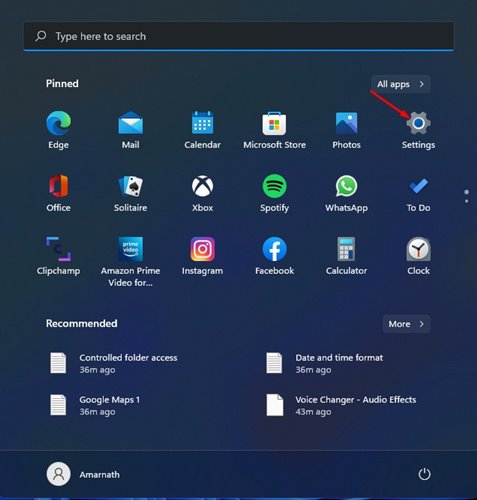
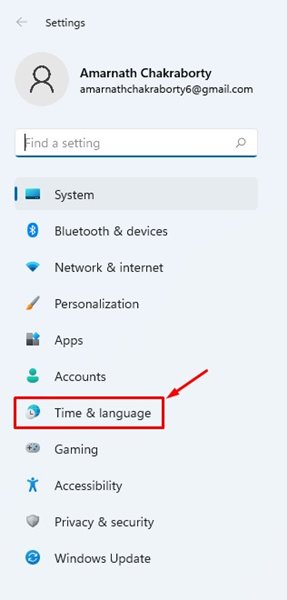
2. Click on Time & language.
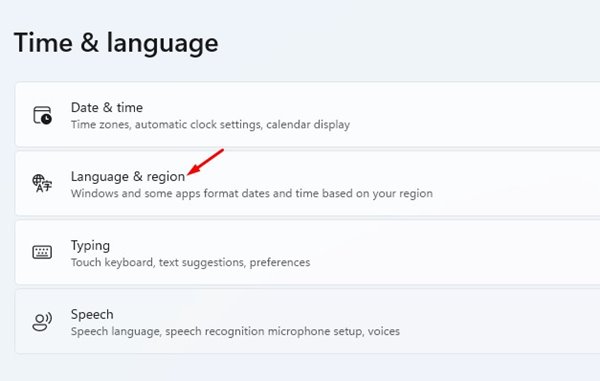
3. Click on Language & region.
4. Scroll down and click on the Administrative language settings.

5. Switch to the Formats tab.
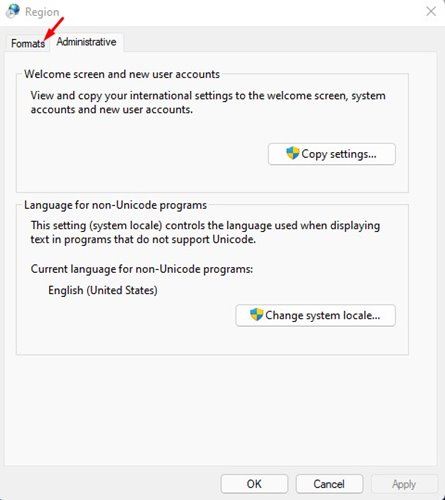
6. Under Short time, you need to select the time format. If you want to use 24-hour format, select H:mm or HH:mm.
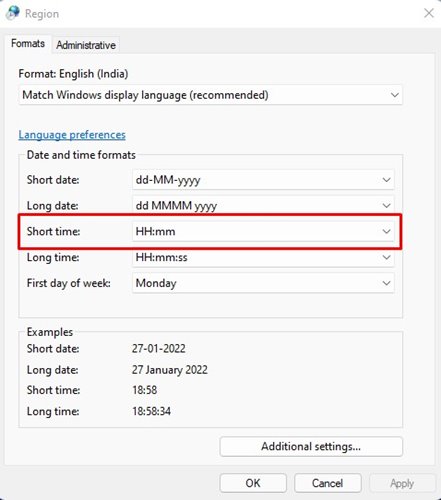
7. If you want to use the 12-hour format, you need to select the hh:mm:tt option.
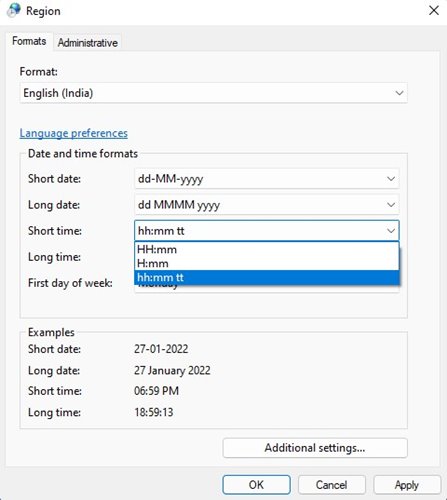
8. Once done with the changes, click on the Apply button.
2. How to Change the Date Format
Like the time format, you can also change the date format in Windows 11.
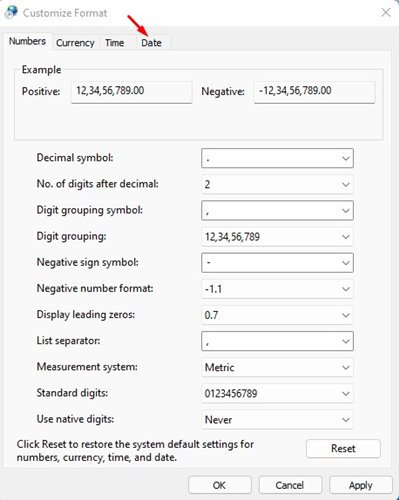
1. On the same page, you need to click on Additional settings.

2. On the Customize Format dialog box, switch to the Date tab.
3. Under the Short date, you need to select your preferred date format.
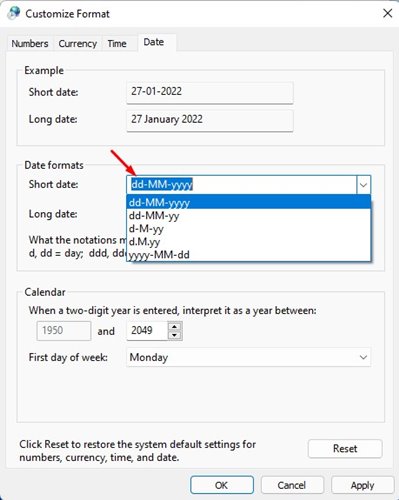
4. Once done with the changes, click on the Apply button.
Important: There are lots of options for the time & date format in Windows 11. It’s recommended to go through all formats before finalizing one for your PC.
Changing the time & date format in Windows 11 is an easy process. I hope this article helped you! Please share it with your friends also. If you have any doubts related to this, let us know in the comment box below.

