

Last Updated on November 8, 2026 by Larious
The new clipboard manager of Windows 11 takes the copy and paste function to a new level. It not only remembers multiple items you have copied but also remembers pictures, text, scripts, links, documents, and videos under 4MB in size. If you want to turn on and use Clipboard History on Windows 11, here’s what to do.
Table of Contents
Enable Clipboard History on Windows 11
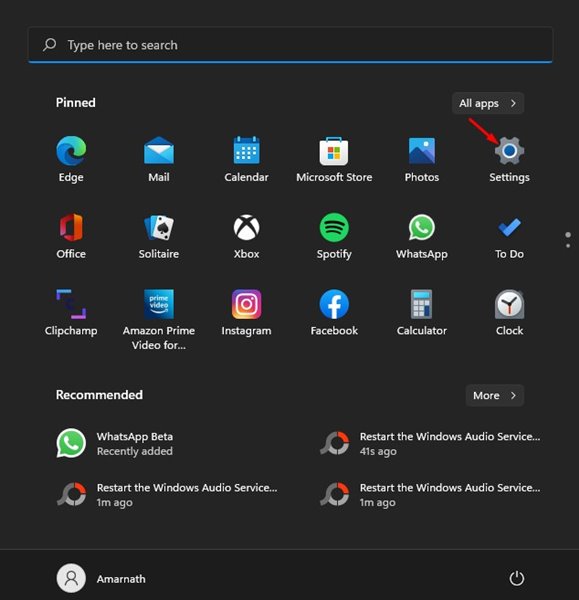
1. Click on the Windows 11 Start menu and select Settings.
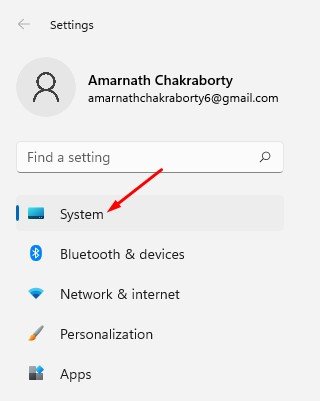
2. In the Settings app, click on the System tab.
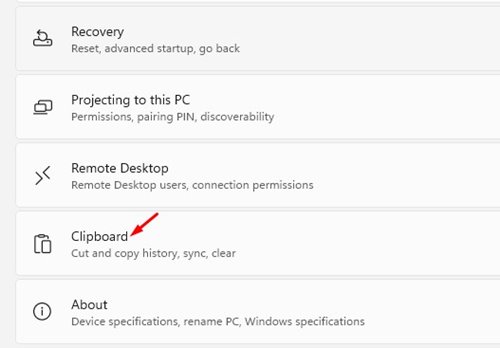
3. In the right pane, scroll down and click on Clipboard.
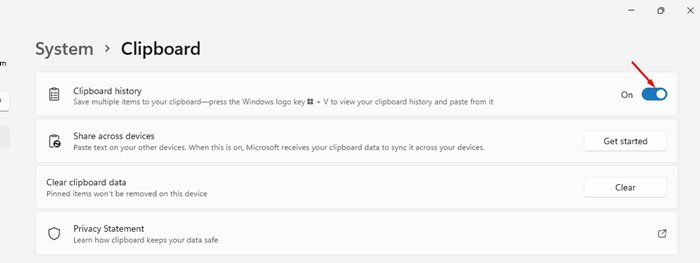
4. Under Clipboard, enable the Clipboard history.
How to View Clipboard History on Windows 11?
When the Clipboard history is enabled, the operating system stores multiple items you have copied before. It can store a maximum of 25 entries, with the oldest items disappearing as the new ones appear.
To view the clipboard history on Windows 11, you need to press the Windows Key + V This will open a small pop-up listing the clipboard items.
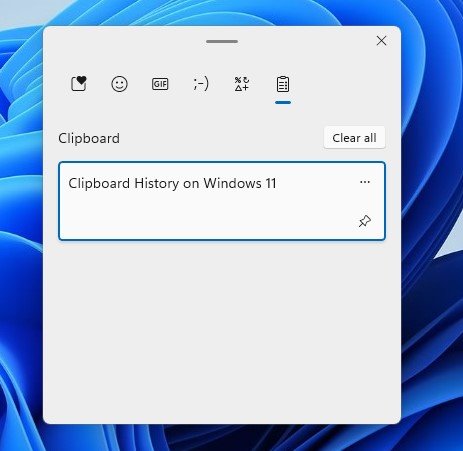
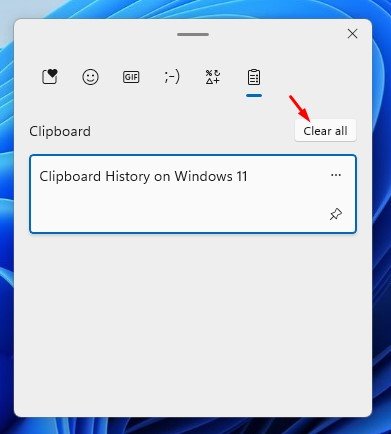
To clear the clipboard items, you need to click on the Clear all button, as shown in the screenshot below.
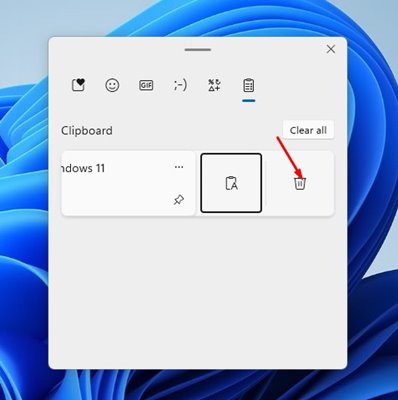
If you want to remove selected entries from the clipboard, click on the three dots beside the entry and click on the Delete icon.
Enabling clipboard history is pretty easy on Windows 11. With Clipboard History, you can keep track of the past 25 items you have copied. I hope this article helped you! Please share it with your friends as well. If you have any doubts related to this, let us know in the comment box below.

