

Last Updated on October 5, 2026 by Larious
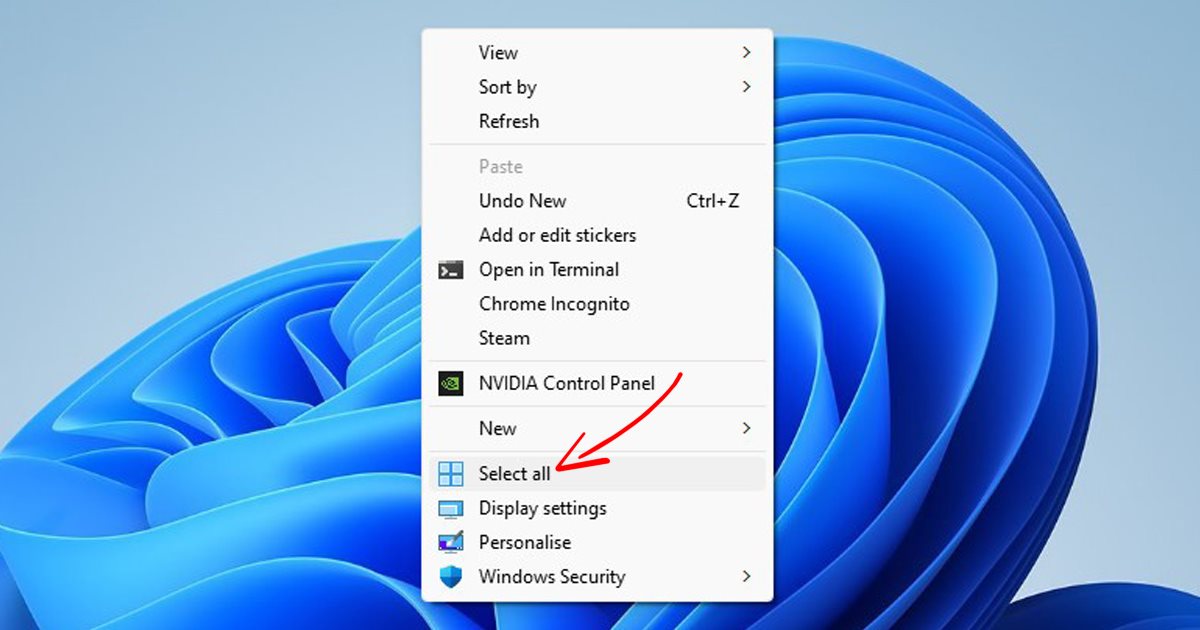
While it’s pretty easy to press the CTRL+A key to select all items, if your keyboard is not working or you don’t like using a keyboard shortcut, you can add the ‘Select all’ functionality straight to the Context menu.
Both Windows 10 and Windows 11 let you modify the context menu options in easy steps. You can edit the Registry file or use third-party apps to customize the context menu on Windows 11.
Also Read: Windows 11 Free Download Full Version (ISO File 64 Bit)
Table of Contents
Add ‘Select All’ Option to Windows 11 Context Menu
If you are interested in adding the ‘Select all’ option to the Windows 11 right-click menu, here’s what you should do.
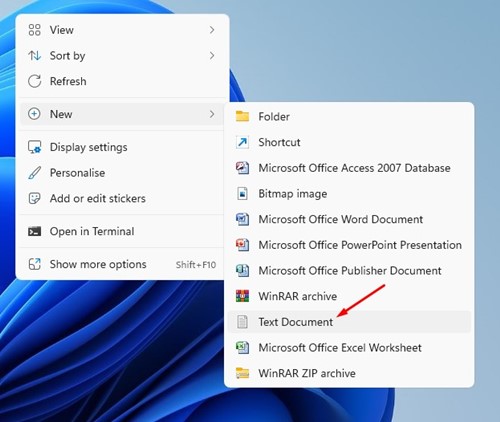
1. Right-click anywhere on your desktop and select New > Text Document.
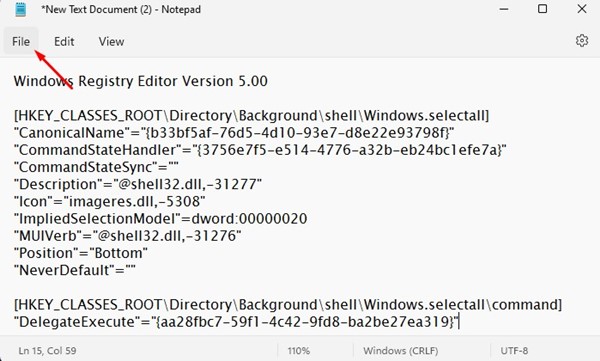
2. In Notepad, copy and paste the following script:
Windows Registry Editor Version 5.00
[HKEY_CLASSES_ROOT\Directory\Background\shell\Windows.selectall]"CanonicalName"="{b33bf5af-76d5-4d10-93e7-d8e22e93798f}""CommandStateHandler"="{3756e7f5-e514-4776-a32b-eb24bc1efe7a}""CommandStateSync"="""Description"="@shell32.dll,-31277""Icon"="imageres.dll,-5308""ImpliedSelectionModel"=dword:00000020"MUIVerb"="@shell32.dll,-31276""Position"="Bottom""NeverDefault"=""
[HKEY_CLASSES_ROOT\Directory\Background\shell\Windows.selectall\command]"DelegateExecute"="{aa28fbc7-59f1-4c42-9fd8-ba2be27ea319}"
3. Once done, click File.
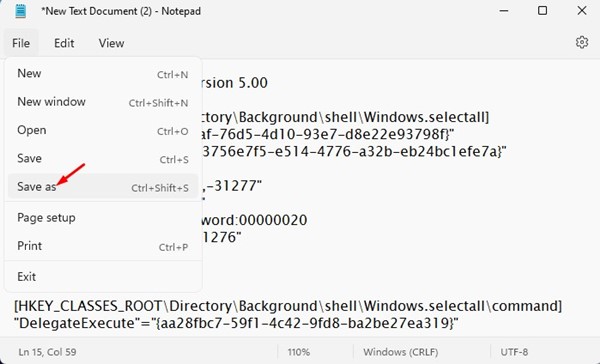
4. Click on the Save As option.
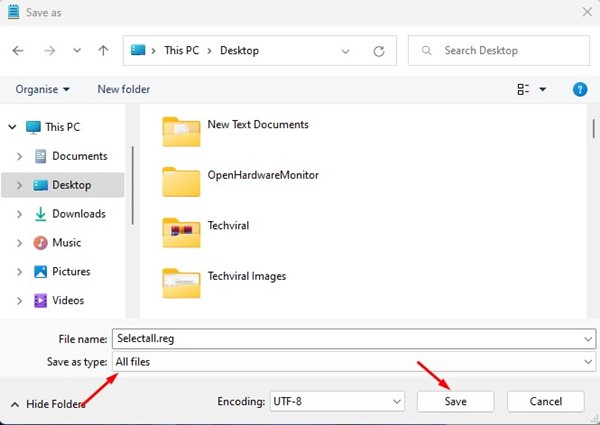
5. On the Save As prompt, name the file as selectall.reg and select ‘All Files’ in the Save as type. Once done, click Save.
6. Double-click on the Selectall.reg file to add the script to the registry.

After making the changes, restart your Windows 11 computer. After the restart, right-click on a blank space in a folder and find a new ‘Select all’ option.
How to Remove the Select All Option from the Context Menu
If you don’t like to have the ‘Select all’ option in the Context Menu, you can remove it quickly. Here’s how to remove it.
1. Right-click anywhere on your desktop and select New > Text Document.
2. In Notepad, copy and paste the following script:
Windows Registry Editor Version 5.00
[-HKEY_CLASSES_ROOT\Directory\Background\shell\Windows.selectall]
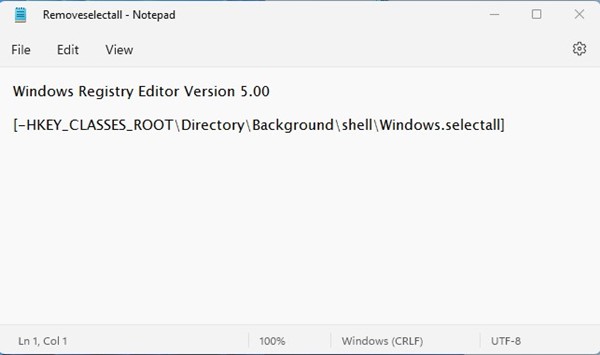
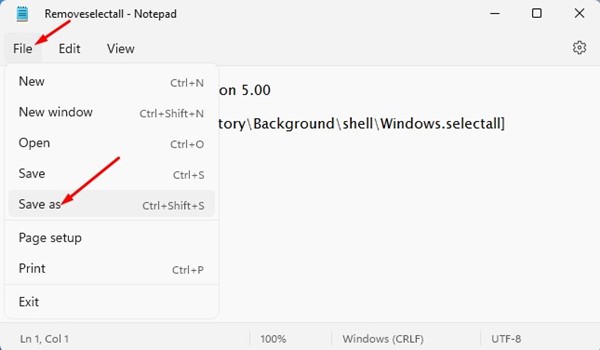
3. Once done, click on the File > Save As option.
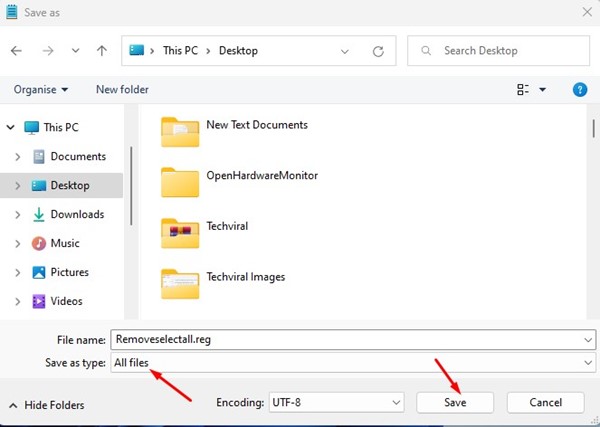
4. In the Save As window, name the file as Removeselectall.reg and set All Files in the Save as Type. Once done, click Save.
5. If you want to remove the Select all option from the context menu, double-click on the Removeselectall.reg file you have created.

Also read: How to Change Wallpaper in Windows 11 Without Activation
This guide is about adding or removing the ‘Select All’ option to the Windows 11 context menu. If you need more help customizing the context menu, let us know in the comments.

