

Last Updated on October 21, 2026 by Larious
On Windows 11, you can only view the remaining battery percentage on the system tray, not the remaining time. Although the feature to check the battery remaining has been removed from the system tray, it can be accessed via the Settings app.
Hence, in this article, we shared a step-by-step guide on checking the Battery time remaining on the Windows 11 operating system.
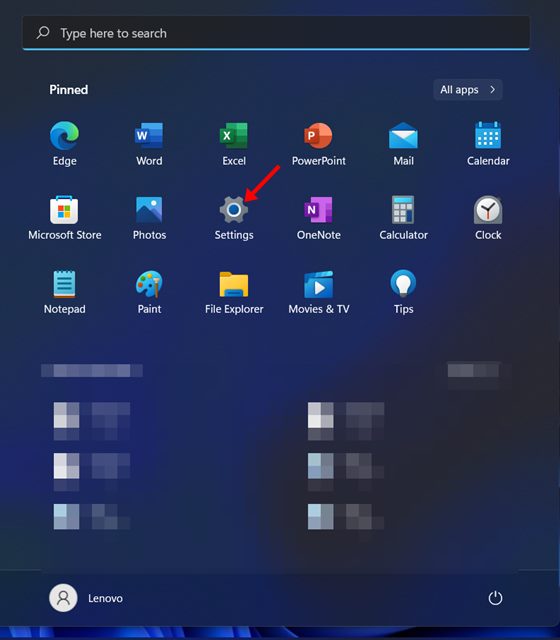
1. Click on the Windows 11 Start menu and select Settings.
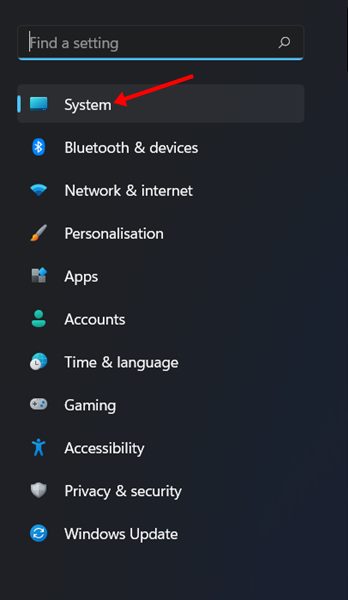
2. Click on the System tab.
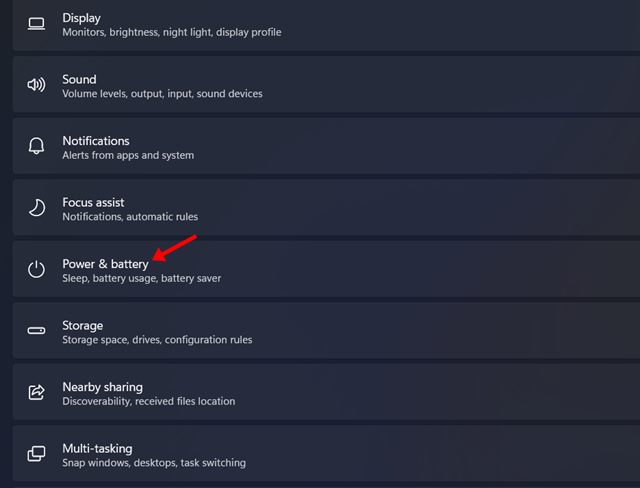
3. Scroll down and click on the Power & battery option.
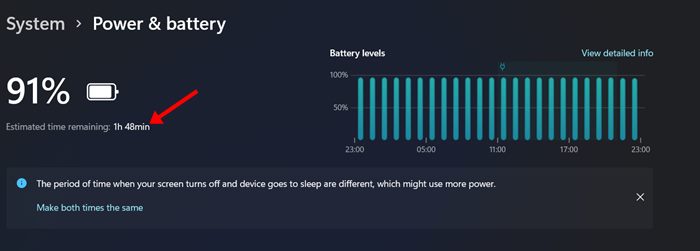
4. On the Power & battery page, you will see the estimated time remaining.
Check other battery-related details on Windows 11
You can check which apps are using the most of your battery power. Here’s how.
1. Open Settings > System > Power & battery.
2. In Power & Battery, click on the View detailed info option.
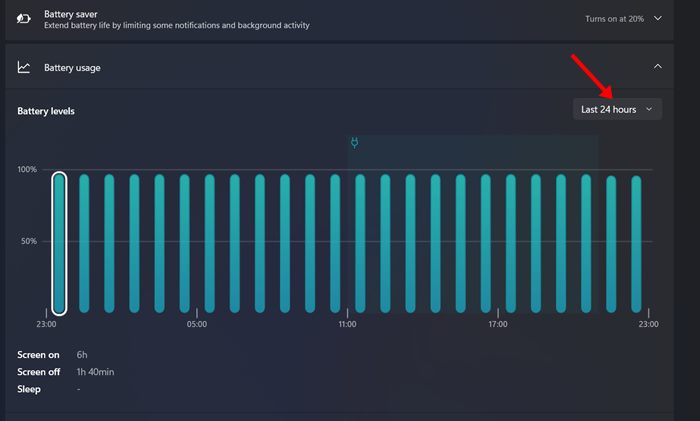
3. You will see the battery levels from the last 24 hours. You can use the drop-down behind it and select the Last seven days period to get more details.
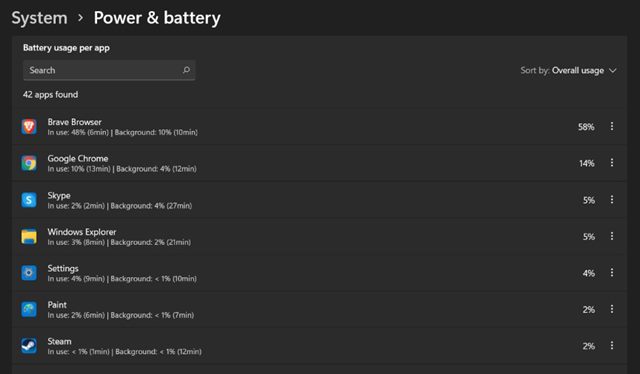
4. Scroll down further on the same page to see the battery usage per app. The battery usage per app section will show you how each app impacts your battery life.
It’s easy to check the remaining battery time on Windows 11. I hope this article helped you! Please share it with your friends also. If you have any doubts related to this, let us know in the comment box below.

