

Last Updated on October 9, 2026 by Larious
Since Modern Standby keeps your device awake, it’s unable to save battery power effectively. Also, many users have reported heating issues with their laptops due to Modern Standby Mode. If you feel that Modern Standby Mode is not helping your device save battery life, you can turn it off. Here’s how to disable Modern Standby in Windows 11.
Table of Contents
1. Disable Modern Standby using Windows Terminal
You can use the Windows Terminal app to disable Modern Standby mode on Windows 11. Here are some of the simple steps you need to follow.
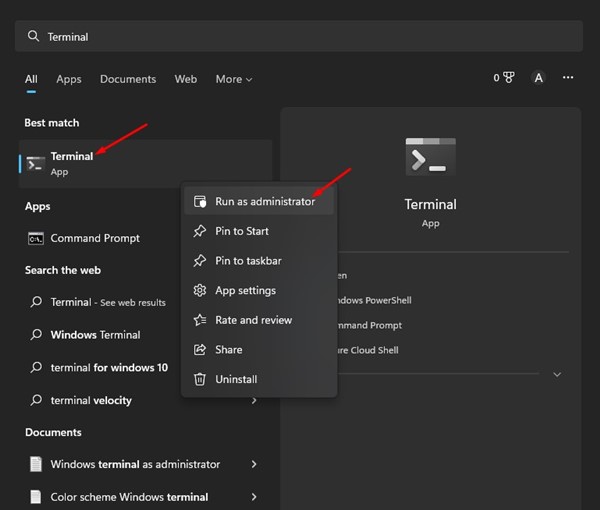
1. Click the Windows 11 search and type in Windows Terminal. Next, right-click on Windows Terminal and select Run as administrator.
2. In Windows Terminal, paste the following command and press Enter.
reg add HKLM\System\CurrentControlSet\Control\Power /v PlatformAoAcOverride /t REG_DWORD /d 0
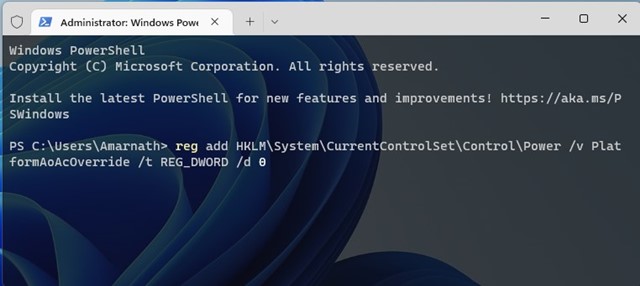
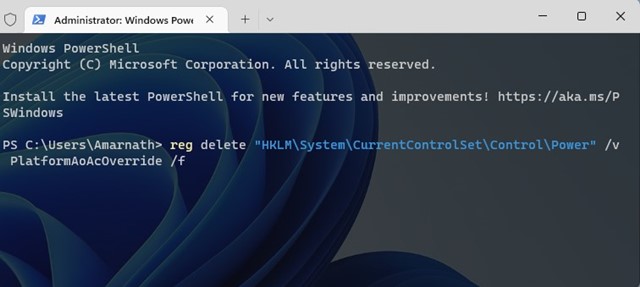
3. This will disable Modern Standby on your PC. If you want to enable Modern Standby again, execute the command:
reg delete "HKLM\System\CurrentControlSet\Control\Power" /v PlatformAoAcOverride /f
2. Disable Modern Standby using Registry Editor
You can also use the Registry Editor to disable Modern Standby. Follow some of the simple steps shared below.
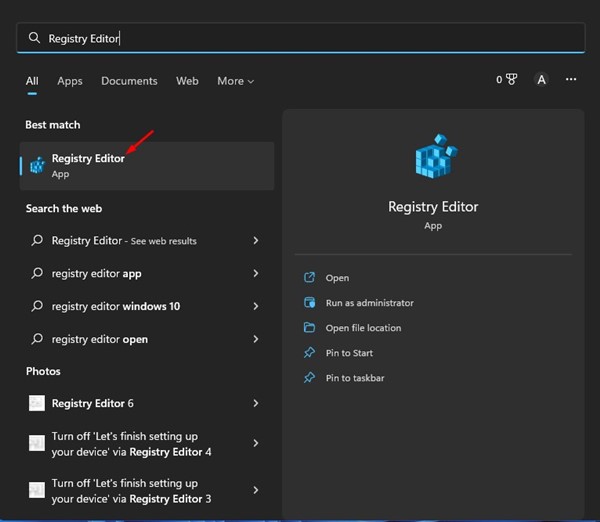
1. Click on the Windows 11 search and type Registry Editor. Open the Registry Editor app from the list.
2. In Registry Editor, navigate to the following path:
HKEY_LOCAL_MACHINE\SYSTEM\CurrentControlSet\Control\Power
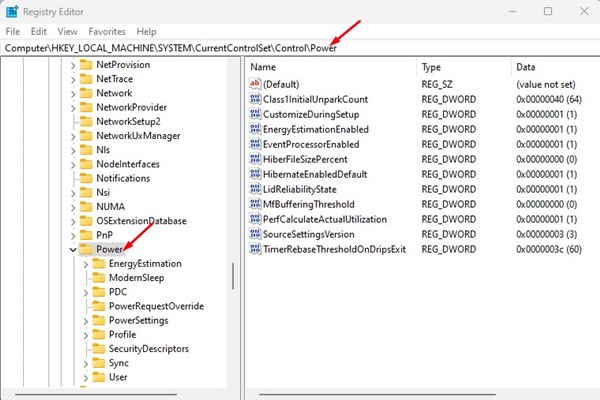
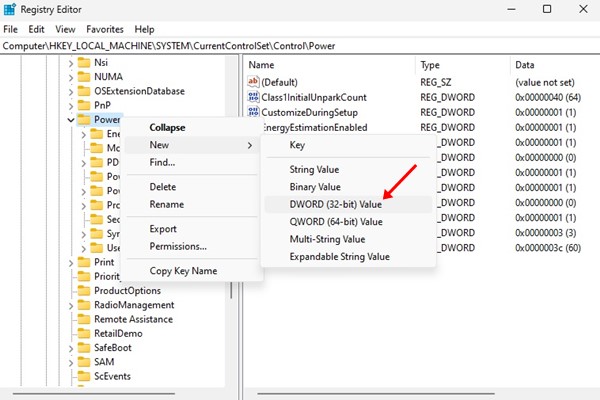
3. Right-click on Power and select New > DWORD (32-bit) Value.
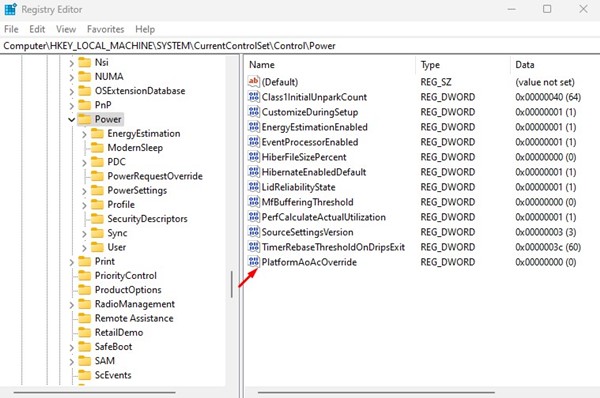
4. Name the newly created value as PlatformAoAcOverride
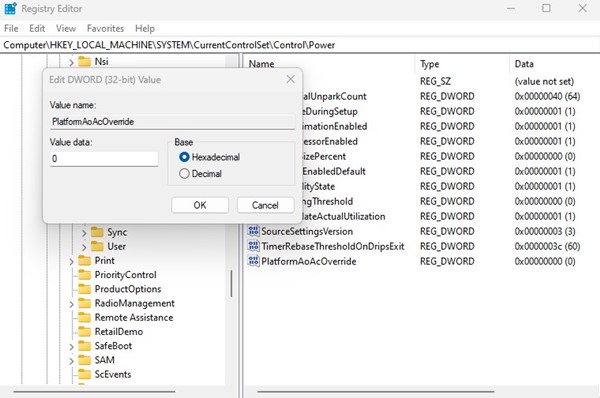
5. Double-click on PlatformAoAcOverride and type 0 in the Value Data field. Once done, click Ok.
Also read: 10 Best Windows 11 Themes and Skin Packs
These are the two best ways to disable the Modern Standby on Windows 11 computers. Please let us know in the comment box below if you need more help disabling the new feature.

