

Last Updated on October 12, 2026 by Larious
Windows 11 shows thumbnail previews of all open windows in the taskbar. For example, when multiple Chrome browser windows are open, when you hover your cursor over Chrome’s taskbar icon, it will show you the thumbnail previews. The thumbnail previews look great and fit with the operating system’s design, but the thumbnail takes a moment to appear.
If you don’t want to wait for those milliseconds, or you like the concept of showing a thumbnail preview in the Taskbar, you can turn it off quickly. Below, we have shared some of the best methods to disable the Taskbar thumbnails in Windows 11.
Table of Contents
1. Disable Taskbar Thumbnails via Group Policy Editor
This method will use the Local Group Policy Editor to disable the Taskbar Thumbnails.
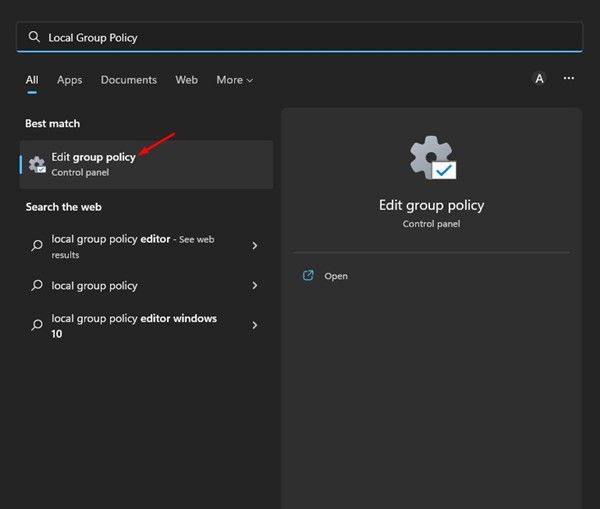
1. Open the Local Group Policy Editor from the Windows Search.
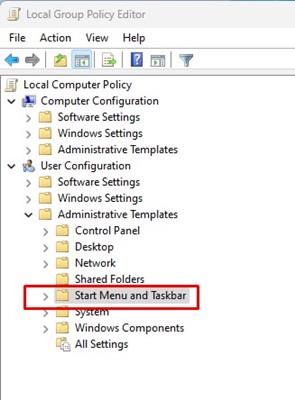
2. In the Local Group Policy Editor, navigate to User Configuration > Administrative Templates > Start Menu and Taskbar.
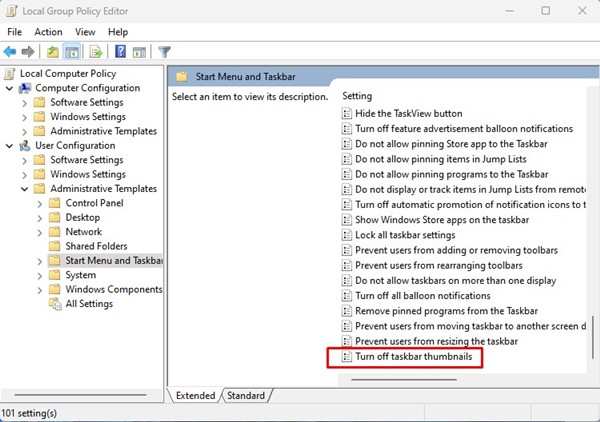
3. Scroll down and double click on Turn off taskbar thumbnails.
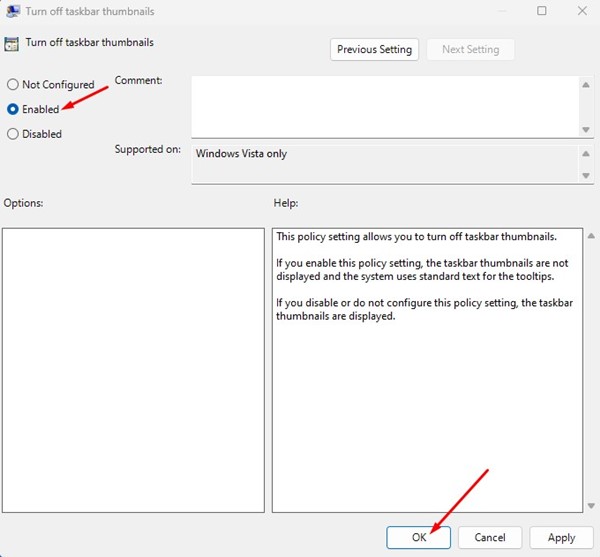
4. In the Turn off taskbar thumbnails Window, select Enabled and click OK.
2. Disable Taskbar Thumbnails via Registry Editor
If Windows 11’s taskbar still shows thumbnails of opened items, you need to make a few changes in the Registry Editor.
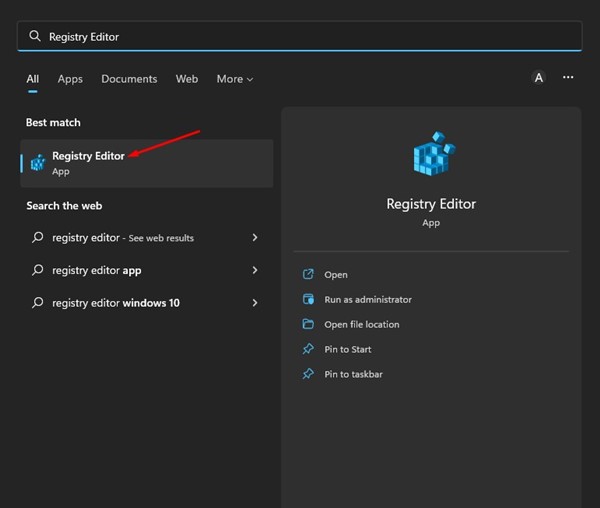
- Open Registry Editor from Windows Search.
2. In Registry Editor, navigate to the following path:
HKEY_CURRENT_USER\Software\Microsoft\Windows\CurrentVersion\Explorer\Taskband
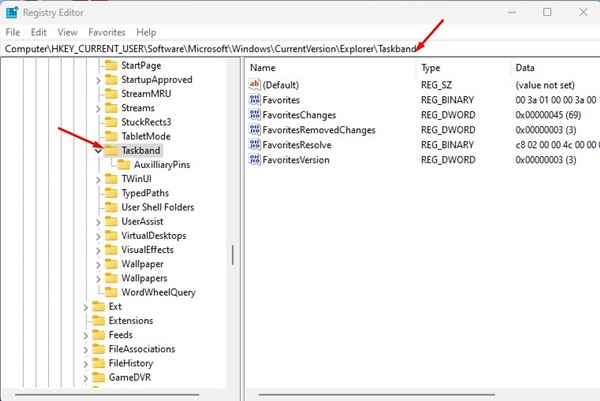
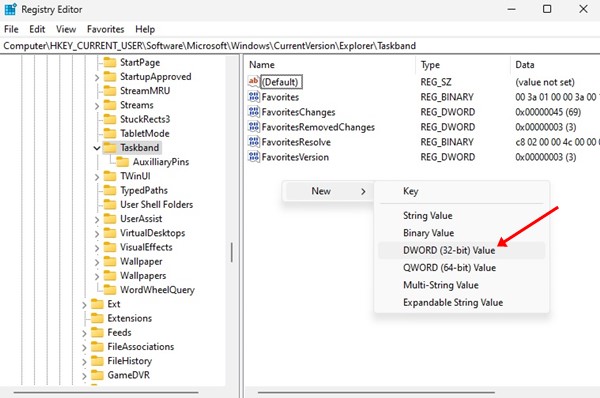
3. On the right, find the value named NumThumbnails. If you can’t find the value, right-click and select New > DWORD (32-bit) Value. Name the new value as NumThumbnails.
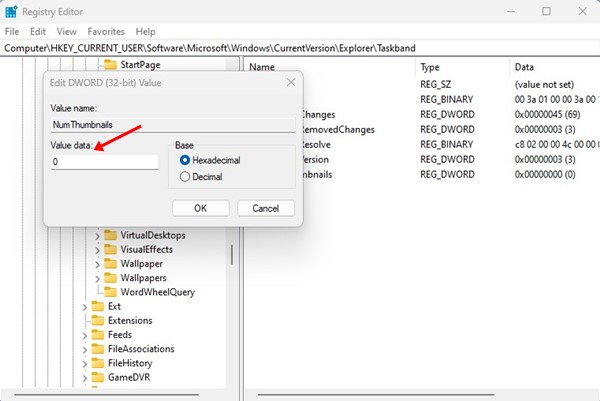
4. Double-click on NumThumbnails and enter 0 in the Value data field. Once done, click OK.
3. How to Show Taskbar Thumbnails Back?
If you’ve disabled the Taskbar Thumbnails, Windows 11 will automatically show the list. However, if you change your mind and want to re-enable Taskbar Thumbnails, you need to revert your changes.
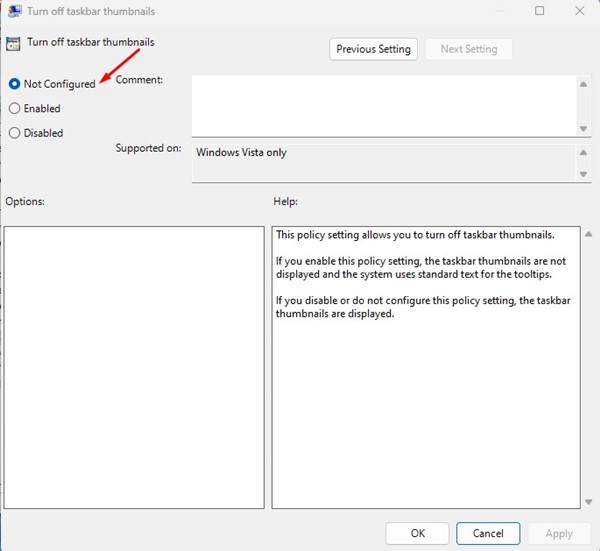
In the first method, you need to open the Local Group Policy Editor and navigate to User Configuration > Administrative Templates > Start Menu Taskbar. Double-click Turn off Taskbar Thumbnails in the right pane and select Not Configured. Once done, click Ok.
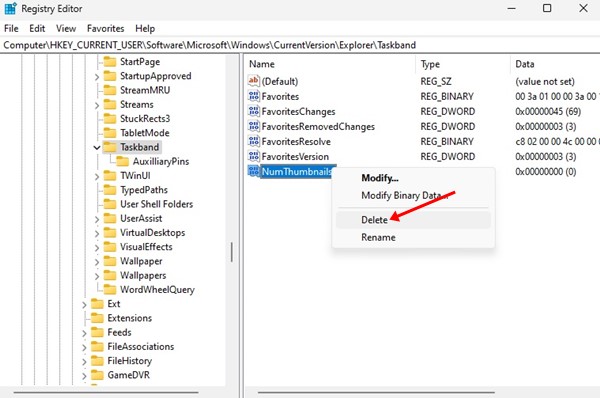
If you have used the second method to hide the Taskbar Thumbnails, you need to repeat all steps and delete NumThumbnails from the following path:
HKEY_CURRENT_USER\Software\Microsoft\Windows\CurrentVersion\Explorer\Taskband
Also Read: How to Remove Weather Info from Windows 11 Taskbar
These are a few best ways to show a list instead of Thumbnails in Windows 11’s taskbar. If you need more help or are stuck on the steps, let us know in the comments below.

