

Last Updated on October 15, 2026 by Larious
Application Telemetry tracks the anonymous usage of specific Windows system components by application. It gathers app usage information such as how long you use a specific app, what errors you get, and how you use the app.
This is done to improve the app’s compatibility with the operating system, and this data is sometimes sent to app developers to improve their apps. While there’s nothing wrong in sharing the app usage information, you may want to stop sending anonymous data to Microsoft if you use sensitive apps. Below, we have shared the two best ways to turn off application telemetry in Windows 11.
Table of Contents
1. Turn off Application Telemetry using Local Group Policy Editor
This method will use the Local Group Policy Editor to disable application telemetry.
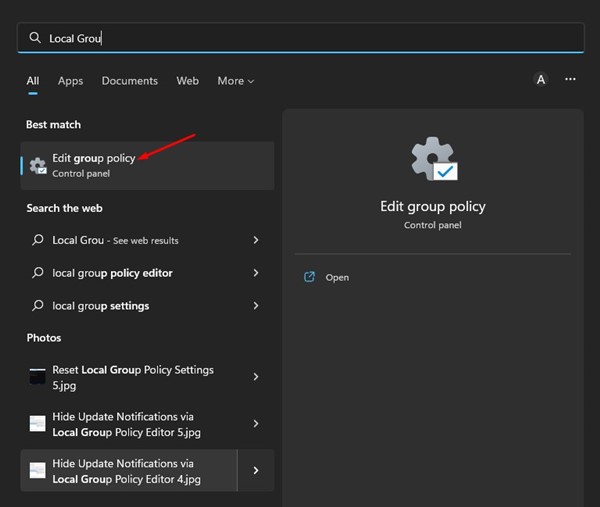
1. Open Local Group Policy Editor from Windows Search.
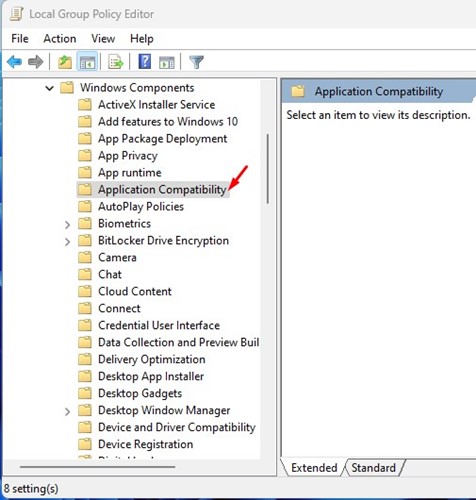
2. Navigate to the following path:
Computer Configuration > Administrative Templates > Windows Components > Application Compatibility
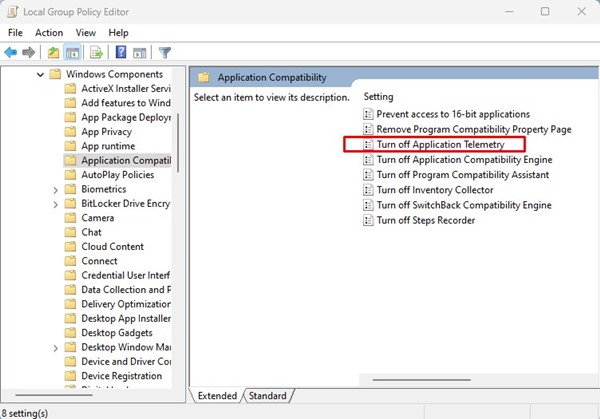
3. Double-click the Turn off Application Telemetry policy on the right side.
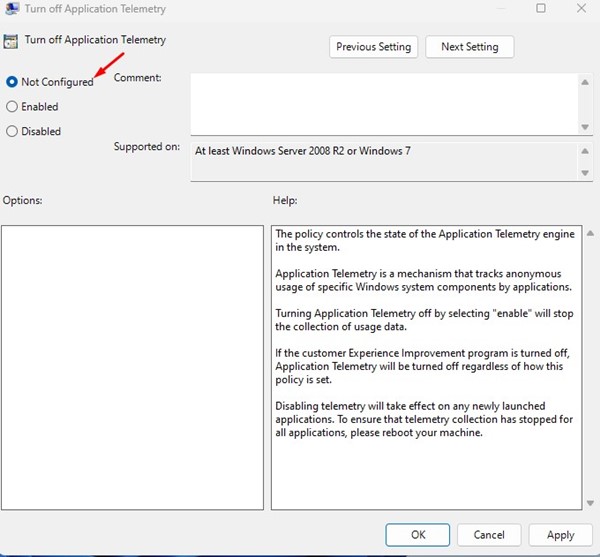
4. On the Turn off Application Telemetry window, select Enabled and click Apply.
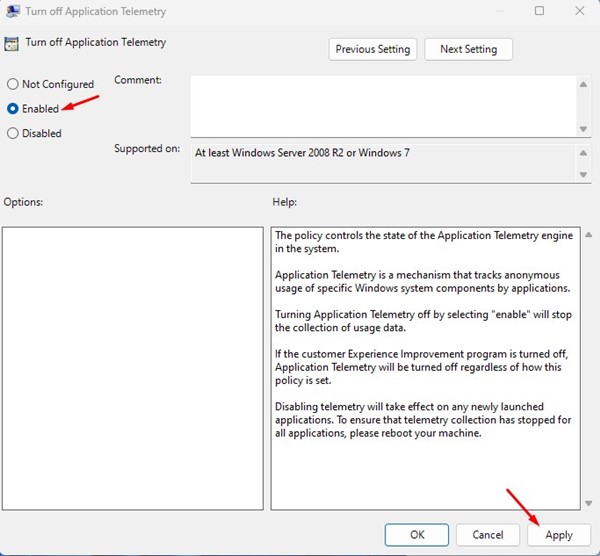
5. If you want to enable Application telemetry again, select Not Configured or Disabled in the above step.
2. Disable Application Telemetry in Windows 11 via Registry Editor
This method will use the Registry Editor of Windows 11 to disable Application Telemetry.
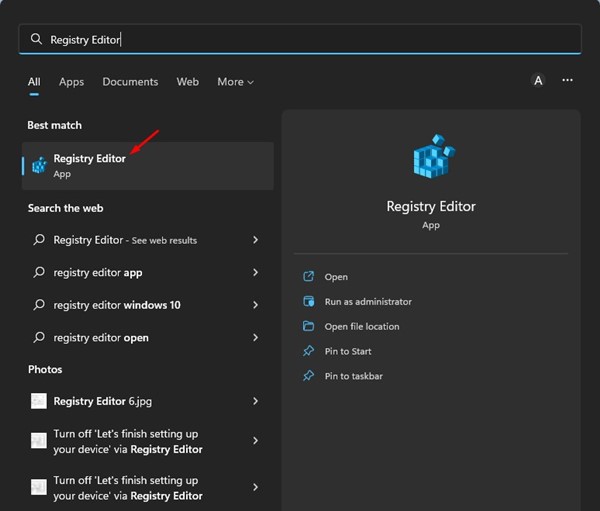
1. Open Registry Editor from the Windows Search.
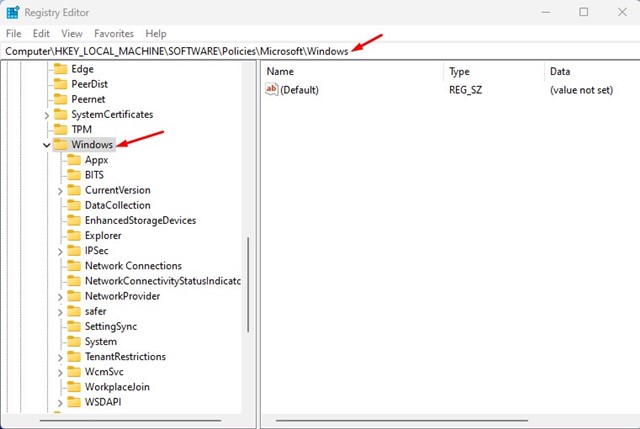
2. Navigate to the following path:
HKEY_LOCAL_MACHINE\SOFTWARE\Policies\Microsoft\Windows
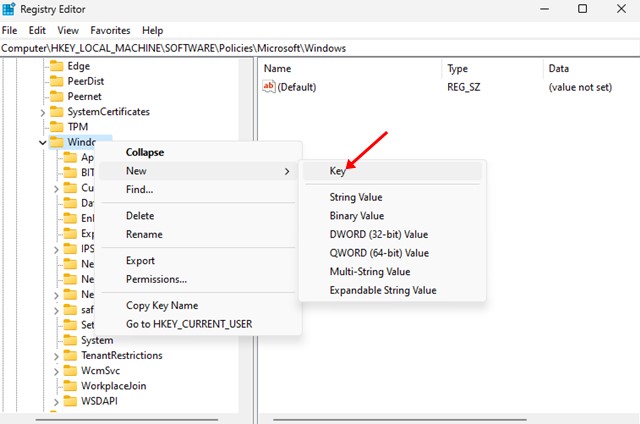
3. Right-click on the Windows folder and select New > Key.
4. Name the new key as AppCompat.
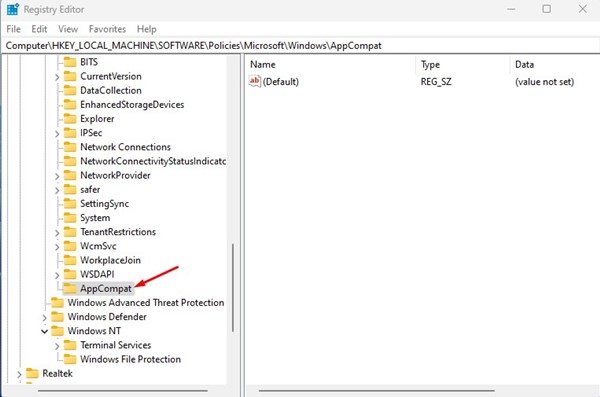
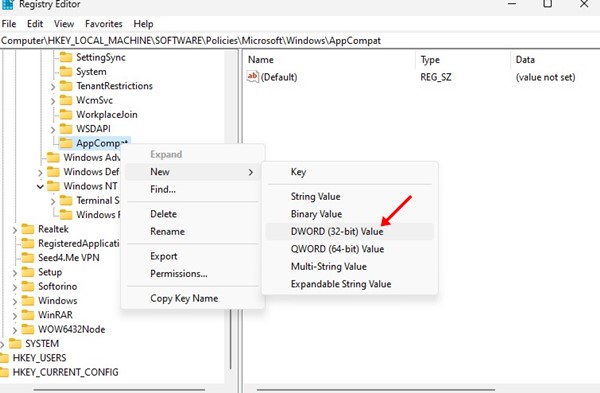
5. Right-click on AppCompat and select New > DWORD (32-bit) Value.
6. Name the newly created DWORD key as AITEnable.
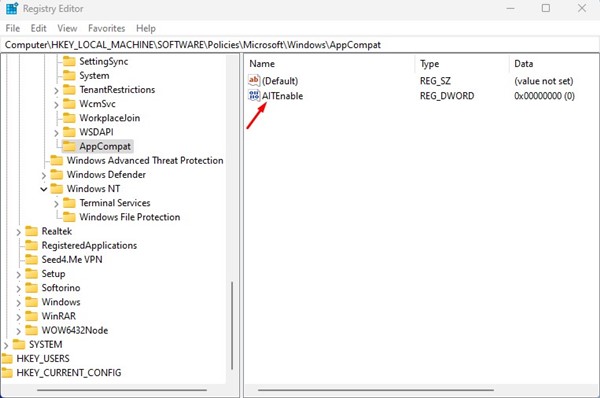
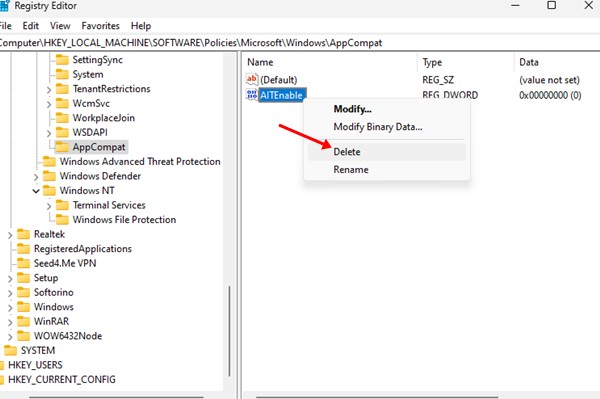
7. This will disable Application Telemetry on Windows 11. If you want to enable Application telemetry, delete the AITEnable DWORD key in the above step.
Also read: Backup and Restore the Registry on Windows 11
The above two methods will help you completely disable the data collection feature on your Windows 11. If you care about your privacy, you should disable Application Telemetry on Windows 11. If you need more help with Application Telemetry, let us know in the comments below.

