

Last Updated on October 23, 2026 by Larious
Windows Security runs in the background all the time and constantly monitors your device for security issues. Once it has analyzed your device, it provides you with a report that is very easy to read.
It provides four different types of health reports and offers recommendations to remedy them. So, if you are interested in checking your device performance and health in Windows Security, here’s what you should do.
Table of Contents
Steps to Check Your Device Performance & Health in Windows 11
1. Click on the Windows Search and type in Windows Security. Next, select Windows Security in the list of results.
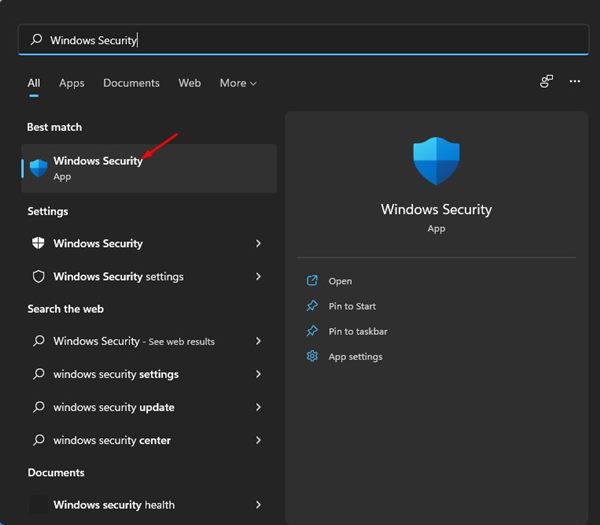
2. This will open the Windows Security app on your Windows 11 device.
3. In the Windows Security application, click on the Device Performance & health section.
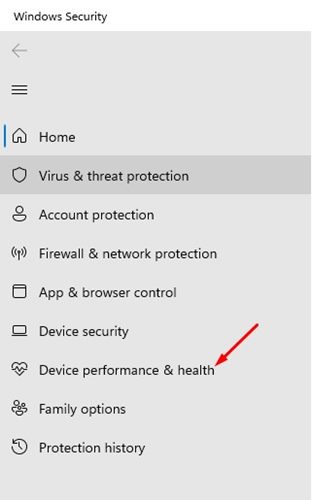
4. Click on the Device Performance & health option.
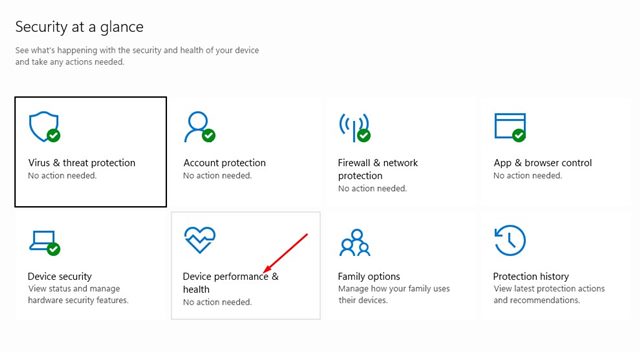
5. In Device Performance & health, you need to look at the Health Report.
Reading the Health Report in Windows 11
The health report screen in Windows Security will show four different options. Here’s what each option means.
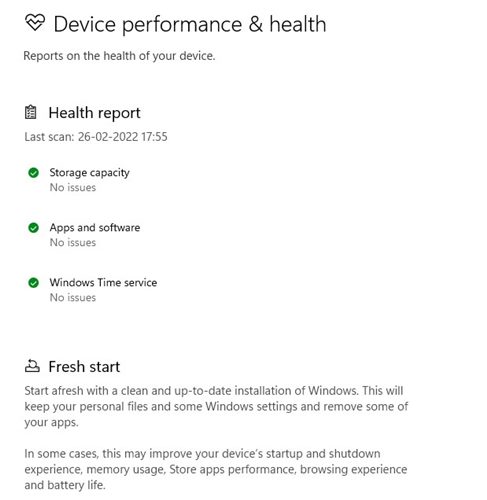
Storage Capacity – This shows whether your PC is running low on storage space or disk space.
Apps and Software – This shows if any software needs an update and if it’s failing. This only applies to the Microsoft Store apps.
Battery Life – This section shows if anything is putting an extra strain on your PC’s battery.
Windows Time Service – This shows whether the Windows Time Service is running & functioning properly. Windows Time Service syncs your system clock to an internet-based time service to show you the correct time.
What if Health Report says there’s a problem?
If the health report comes back negative, you need to resolve the existing issue. For example, if your Storage Capacity has a problem, you need to delete some unused files from your system.
Simply to extend the battery life, you need to find apps putting an extra strain on your PC’s battery and stop them from running.
For better performance & stability, it’s always best to update the pending Windows 11 updates. To update Windows 11, follow our guide.
It’s essential to check and analyze the device performance and health regularly, and Windows Security lets you do it for free. I hope this article helped you! Please share it with your friends as well. If you have any doubts related to this, let us know in the comment box below.

