

Last Updated on October 23, 2026 by Larious
Although Color Filters are available in Windows 10, Windows 11 introduced new color modes. So, if you have one of the several different types of color blindness, you should enable the color filters. We shared a detailed guide on enabling and using Color Filters in Windows 11.
How to Enable & Use Color Filters in Windows 11
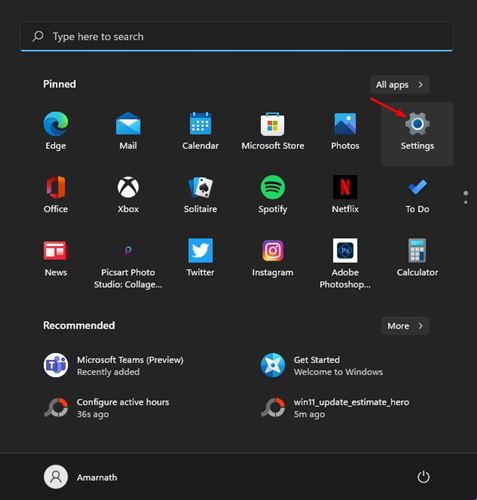
1. Click on the Start button and select Settings.
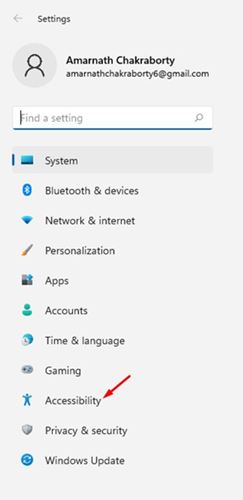
2. Click on the Accessibility option.
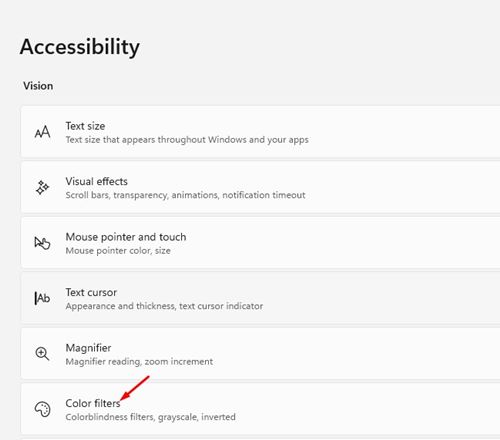
3. On the right-hand pane, click on the Color Filters mode.
4. Enable the Color filters option.
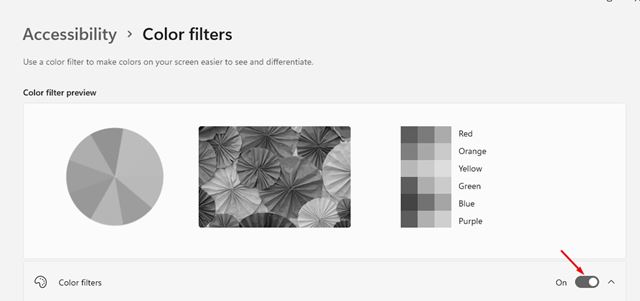
5. Behind the Color filters, you will find six different types of color filters.
- Red-green (green weak, deuteranopia)
- Red-green (red soft, protanopia)
- Blue-yellow (tritanopia)
- Grayscale
- Grayscale Inverted
- Inverted
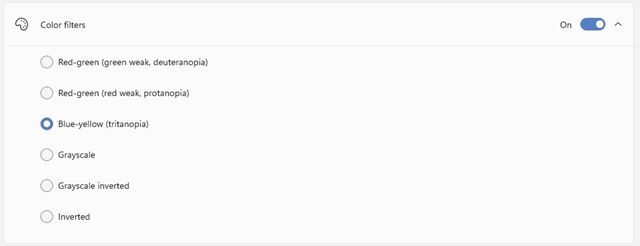
6. Depending on what type of color blindness you have, you need to select the option. Click on the circular button beside the color filter option to enable the color filter.
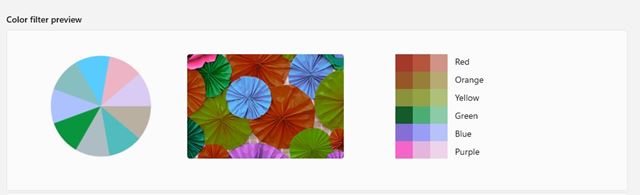
7. The Color filters page will also show you a preview of the effects.
This guide is all about how to use color filters in Windows 11. I hope this article helped you! Please share it with your friends as well. If you have any doubts about this, let us know in the comment box below.

