

Last Updated on October 26, 2026 by Larious
If you are using Windows 11 on your laptop, the first thing you might want to adjust is the power plan. Windows 11 overhauled the Power & Battery management page, letting you check remaining battery time, see which apps use the most battery, and more directly from the Battery settings page.
You can also use the Battery Management page in Windows 11 to enable automatic battery saver mode. Windows 11 offers you an improved battery saver option that can extend your laptop’s battery life to some extent.
Enable Automatic Battery Saver in Windows 11
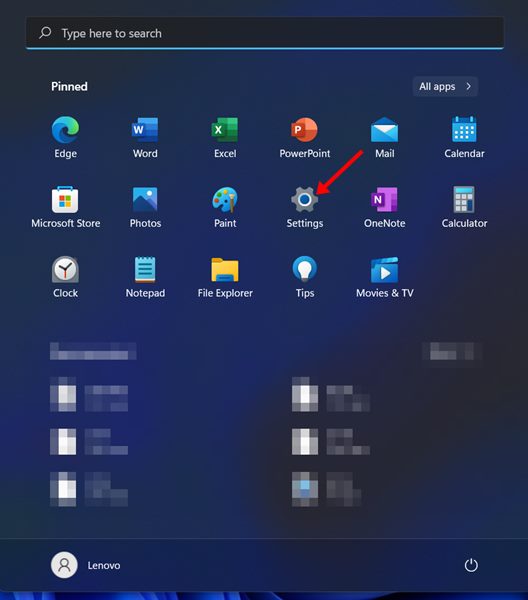
1. Click on the Windows 11 Start menu and select Settings.
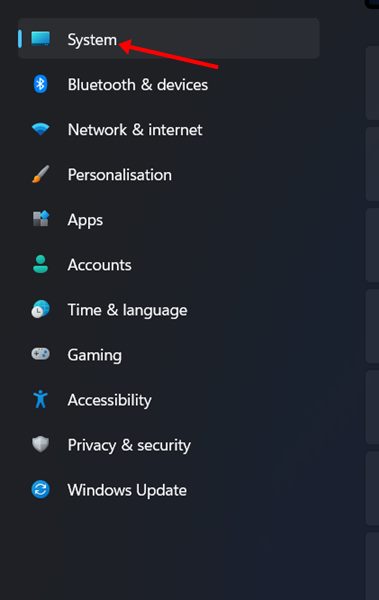
2. Click on the System option in the left pane.
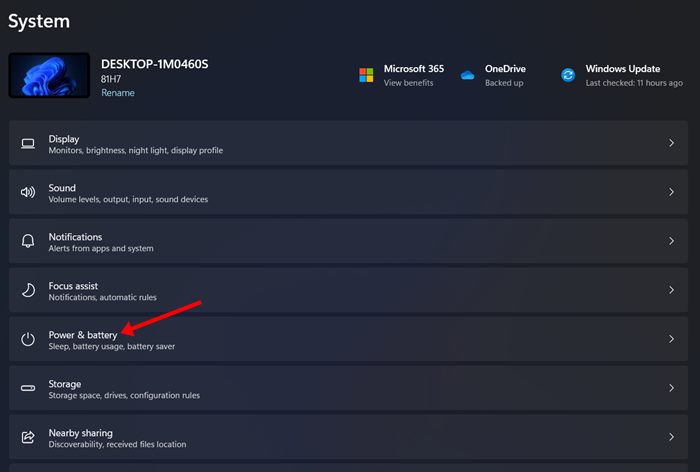
3. Scroll down and click on the Power & battery option.
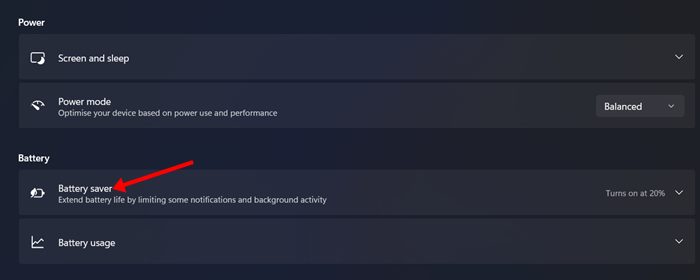
4. Now, on the expanded menu, click on the Battery Saver option placed in the Battery section.
5. If you wish to turn on the battery saver mode, you need to click on the Turn on now button.
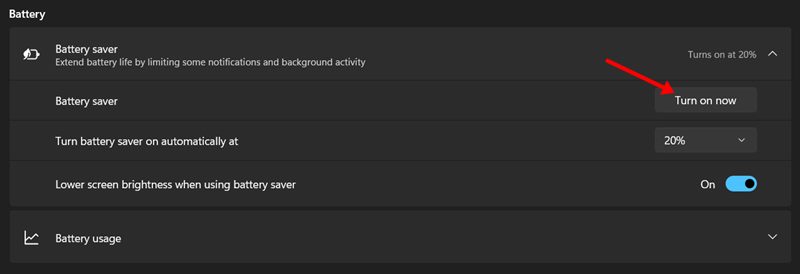
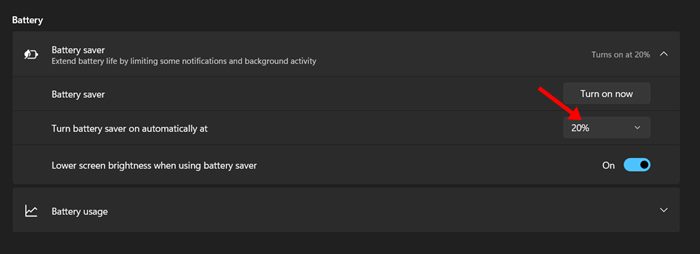
6. If you want Windows 11 to enable battery saver mode automatically, click on the battery percentage drop-down and select when you want to enable the feature.
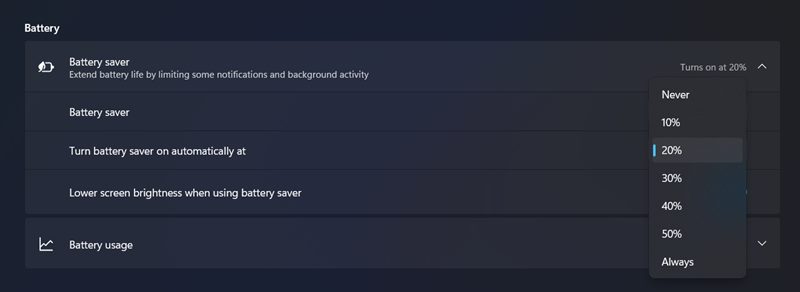 7. You can choose to enable the battery saver mode when your laptop reaches the 20% battery mark. Similarly, you can also choose to turn the battery saver on automatically at the 30, 40, and 50% marks.
Although the battery saver mode is useful, you still need to optimize Windows 11 for better battery performance. Hence, you may want to check the remaining battery time on Windows 11 and terminate apps using most of the battery resources.
This guide is all about how to enable battery saver mode automatically on Windows 11. I hope this article helped you! Please share it with your friends as well. If you have any doubts related to this, let us know in the comment box below.

