

Last Updated on October 24, 2026 by Larious
Always on Top, or window pinning, is a feature that lets you pin a Window that stays at the top of your computer screen all the time. The feature benefits those with hundreds of windows open on their desktop. With the Always on Top feature, users can pin specific windows to stay on top of everything. The feature is supposed to make workflow easier.
In this article, we shared the best methods to keep a Windows Always-on-Top in Windows 11.
Table of Contents
1. Using DeskPins
DeskPins is a third-party utility that allows users to pin specific windows on top of other windows. Here’s how to use DeskPins on Windows 11.
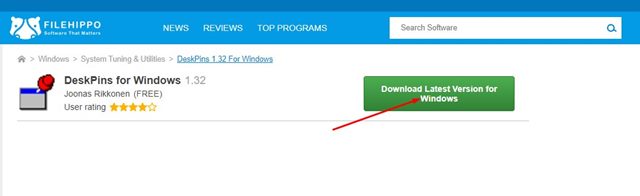
1. Visit this webpage and download DeskPins on your Windows 11 PC.
2. Once downloaded, install the program. The program icon will be added to the system tray. Click on the System Tray icon to launch the app.
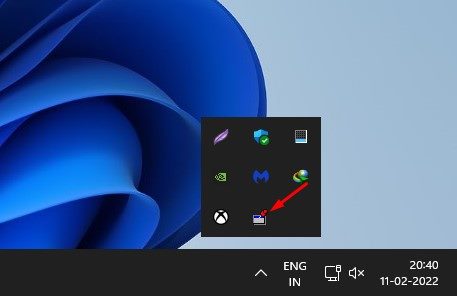
3. Upon clicking the DeskPins icon on the system tray, your mouse cursor will turn into a Pin.
4. You must click on the window you want to pin to the top. This will pin the Window on top of every other Window.
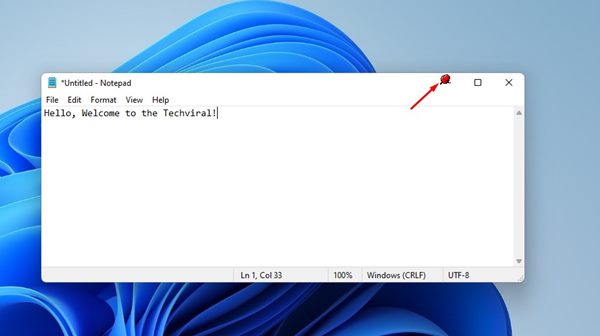
5. To unpin the window, hover your mouse cursor over the pin and click on the cross button that appears.
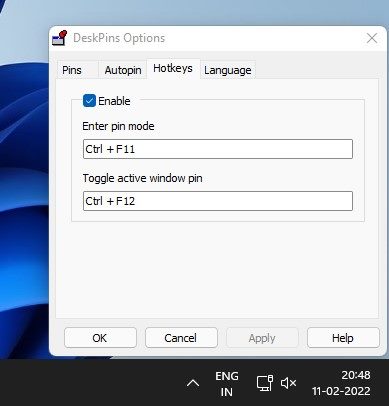
6. Alternatively, press the CTRL + F11 key to pin a Window on top. To remove the pin, press the CTRL + F12 key.
2. Using PowerToys
The utilities of PowerToys can be used to maximize productivity or add more customization options to the operating system. Here’s how to use PowerToys.
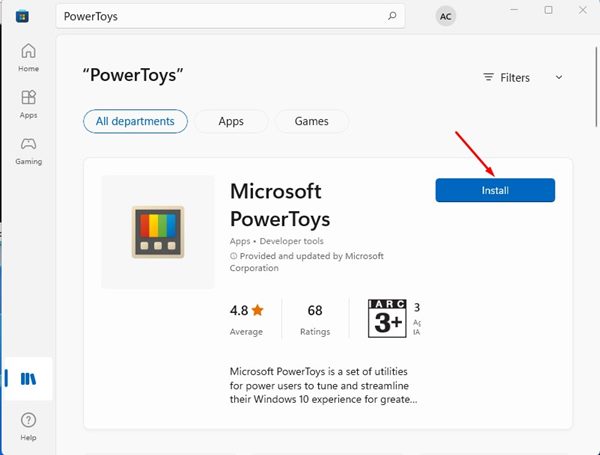
1. Download & install PowerToys on Windows 11 via the Microsoft Store.
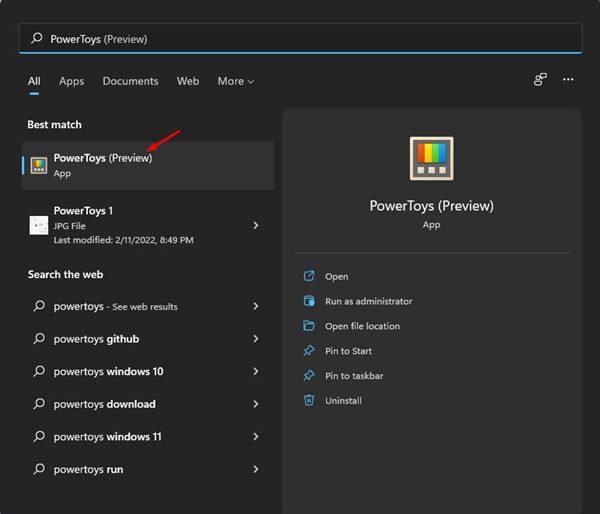
2. Once installed, open PowerToys from the Start Menu.
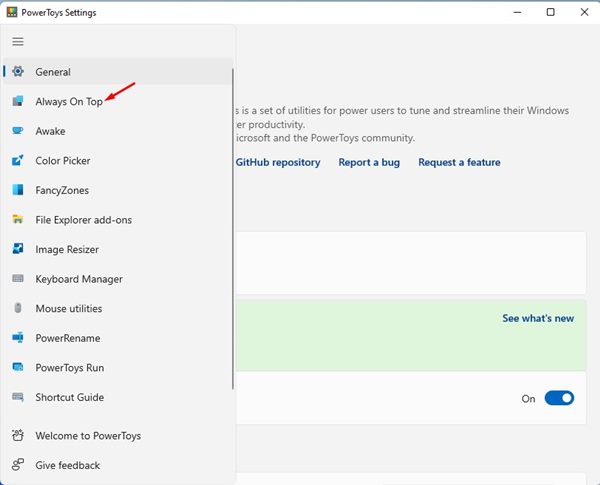
3. On the left pane, click on the Always On Top option.
4. Enable the toggle button for Enable Always on Top in the right pane.
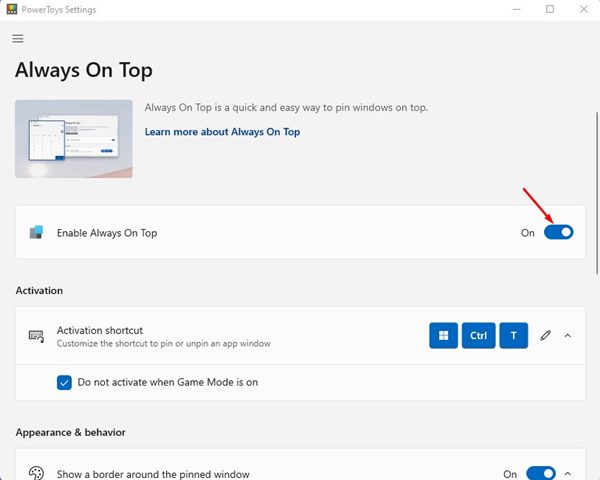
5. To use the Always On Top feature, open a Window and press the Windows + CTRL + T keys. This will pin the Window on top.
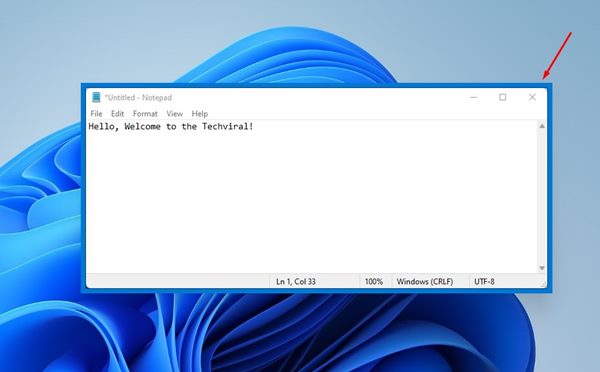
6. To disable Always On Top for a Window, press the Windows + CTRL + T keys again.
Always-on-Top is a great feature, but it’s missing even on Windows 11. You can rely on these two apps to get the same feature on your PC. I hope this article helped you! Please share it with your friends as well.

