

Last Updated on October 29, 2026 by Larious
Microsoft tweaked the interface of Do Not Disturb and added a few new options. All notifications will be sent directly to the Notification Center when you enable Do Not Disturb mode in Windows 11.
Below, we have shared a step-by-step guide on enabling the Do Not Disturb mode in Windows 11 to stop distracting notifications.
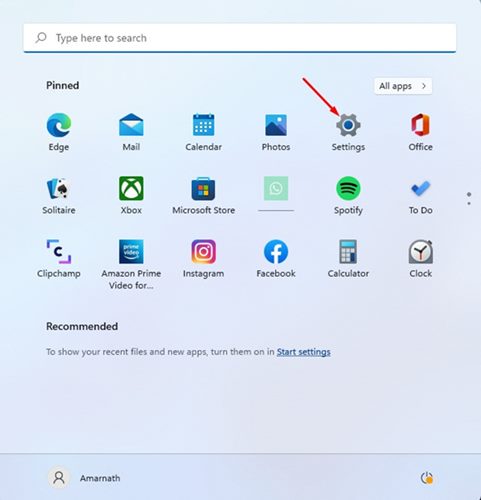
1. Click on the Windows 11 search and select the Settings app.
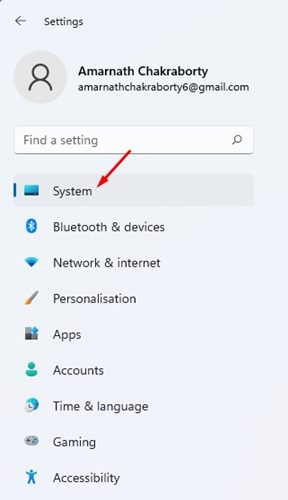
2. In the Settings app, switch to the System tab.
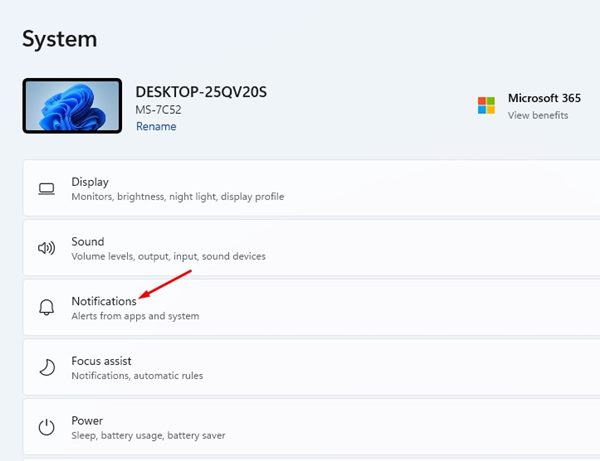
3. Now, on the right pane, click on Notifications.
4. Next, on the Notifications page, enable the toggle for ‘Do not disturb’.
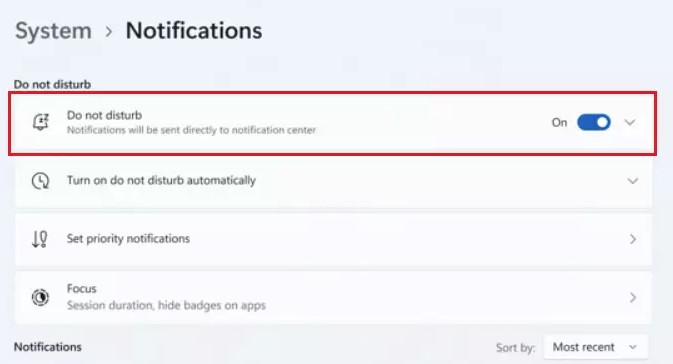
5. Once enabled, expand the Do Not Disturb section. You will find many settings; you need to specify when you want your PC to turn on Do Not Disturb mode automatically.
That’s it! This is how you can enable Do Not Disturb mode in Windows 11. If you want to disable the feature, turn off the toggle for Do Not Disturb in Step 4.
Completely Disable Notifications on Windows 11
If you want, you can completely disable notifications on Windows 11. You need to follow some of the simple steps we have shared below.
1. Click on the Windows 11 Start button and select Settings.
2. In the Settings app, click on the System tab.
3. On the right, click on Notifications.
4. Turn off the toggle for ‘Notifications’ on the next screen.
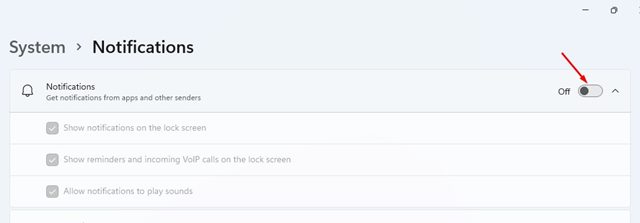
These are some of the simple steps to enable or disable Do Not Disturb mode in Windows 11. You can also turn off web notifications sent by web browsers on your Windows 11 PC, other than the system notifications.

