

Last Updated on October 28, 2026 by Larious
If you don’t change the language of your Windows 11 system very often, you might want to remove the language switcher from the Windows 11 taskbar altogether. You can do it by going through the Windows 11 Settings and manually turning off the language switcher.
This article will share two different ways to remove the language switcher icon from the Windows 11 Taskbar.
Table of Contents
1. Remove the Secondary Language on Windows 11
The language switcher will only appear if you have more than one language downloaded on your device. Hence, you need to ensure that you have only one Primary language on Windows 11.
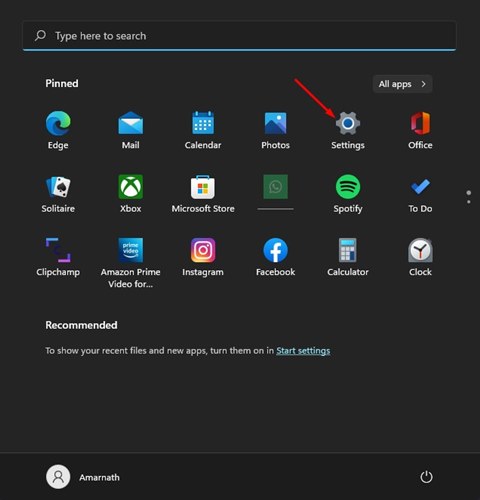
1. Click on the Windows 11 Start button and select Settings.
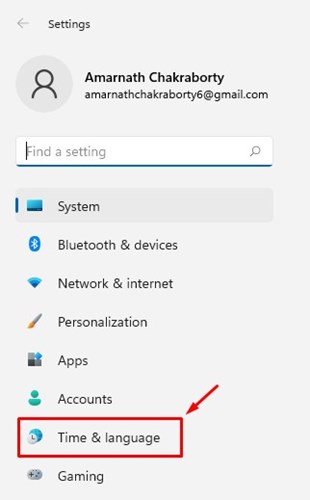
2. In the Settings app, click on the Time & language option.
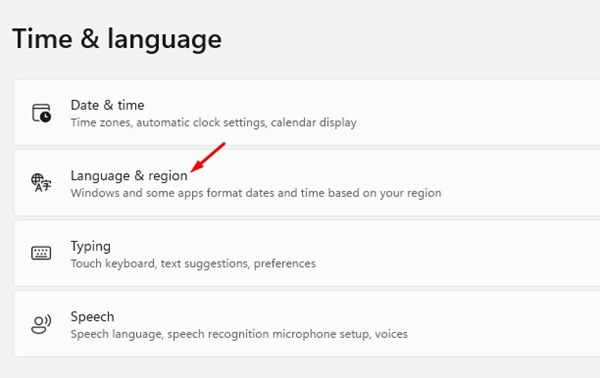
3. Click on the Language & Region option in the right pane, as shown in the screenshot below.
4. You need to find the language you don’t use on the next screen. Next, click on the three dots behind the language and select the Remove option.
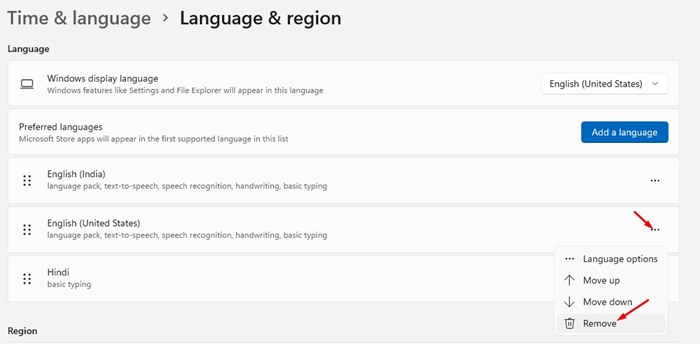
This will remove the other language installed on your Windows 11. Once done, restart your computer, and the language switcher will be gone.
2. Hide the Language Bar
Here we will change the Typing and language bar settings to remove the language switcher from the Windows 11 taskbar.
1. Click on the Windows 11 Start button and select Settings.
2. In the Settings app, click on Time & language.
3. In the Right pane, click on Typing.
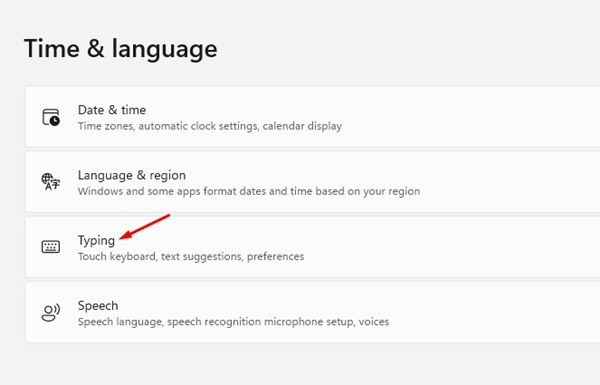
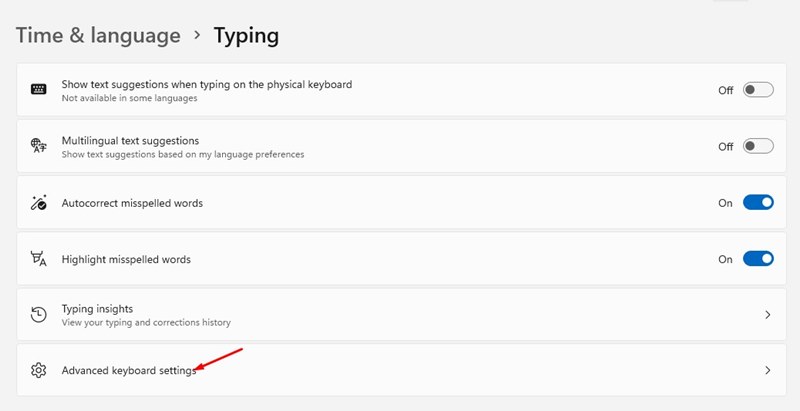
4. Next, scroll down and click on the Advanced Keyboard settings.
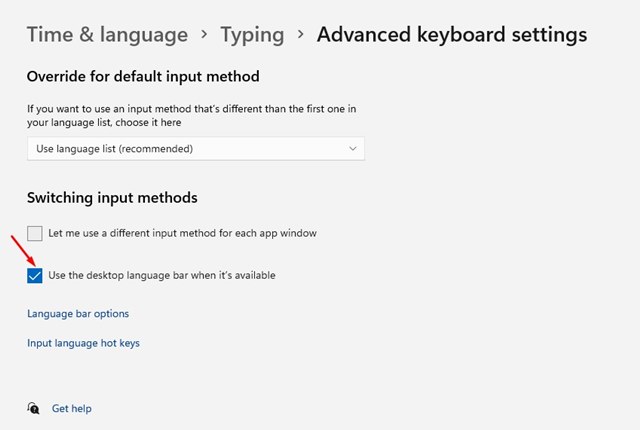
5. On the Advanced Keyboard Settings page, enable the option Use the desktop language bar when it is available.
6. Next, click on the Language bar options.
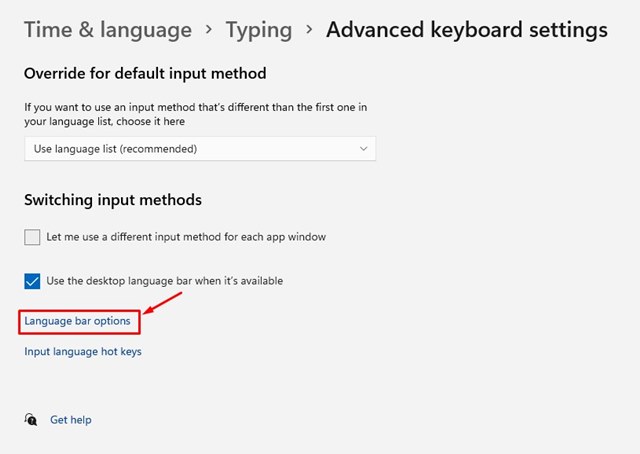
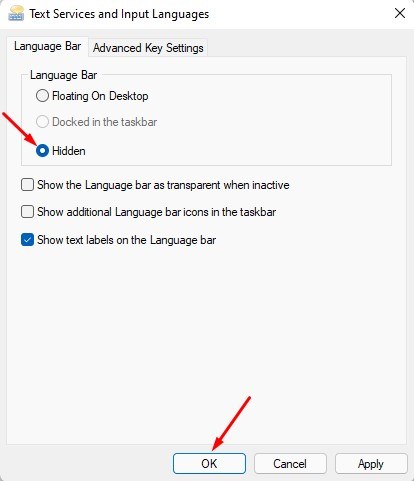
7. On the Text Services and Input Language Window, select ‘Hidden’ for the Language bar and click the Ok button.
It’s easy to remove the language switcher from the Windows 11 Taskbar. I hope this article helped you! Please share it with your friends as well. If you have any doubts about this, let us know in the comment box below.

