

Last Updated on November 1, 2026 by Larious
Generally, the integrated GPU is optimized for power efficiency, whereas the discrete GPU is better for gaming and graphics-demanding applications. If your laptop/PC has both, and if you rarely play games, it’s best to select the integrated GPU for handling daily tasks.
On the other hand, if you don’t care about battery life or have a gaming PC, it’s best to use the Discrete GPU as the default GPU. So, in this article, we shared steps to set the default GPU for Apps & Games on Windows 11.
Set Preferred GPU for Apps & Games in Windows 11
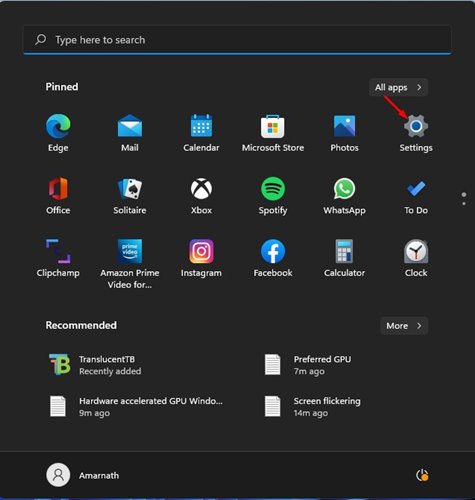
1. Click on the Windows 11 Start button and click on Settings.
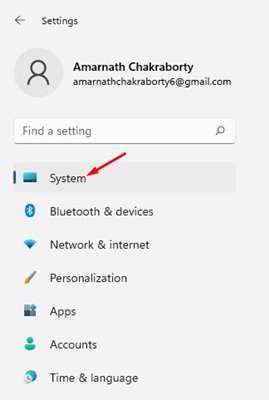
2. Click on the System option.
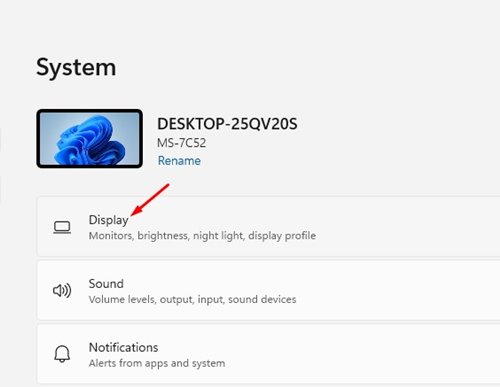
3. On the right pane, click on the Display option.
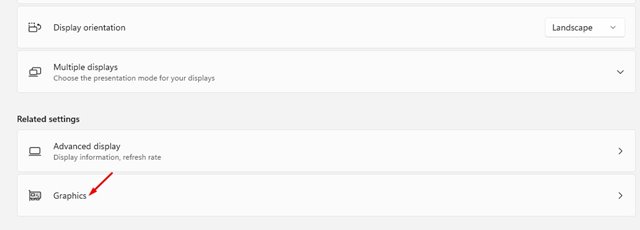
4. On the Display page, scroll down and click on Graphics.
5. Now scroll down, and you will see a list of all installed apps & games.
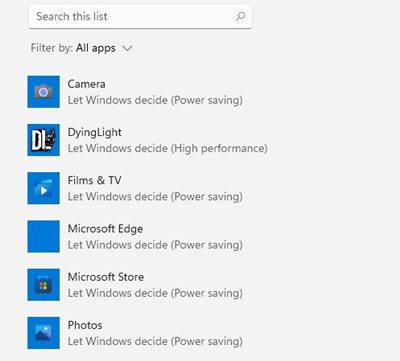
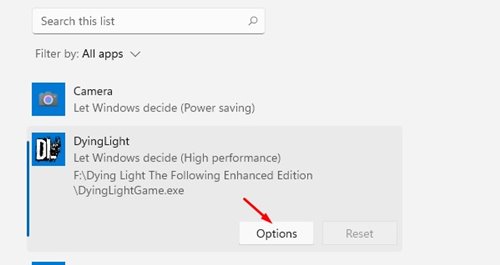
6. Select the App or Game and click on Options.
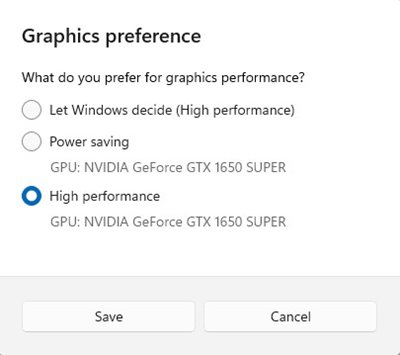
7. Now, you will see the Graphics Preference prompt. You need to select between Power Saving and High Performance. If you want to have the best performance, select the High-Performance option.
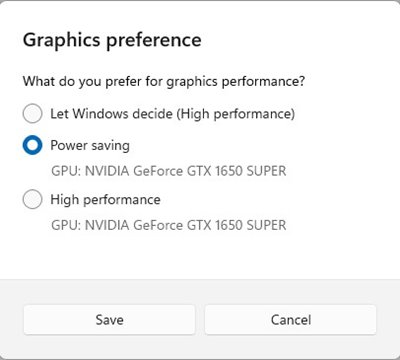
8. If you want to optimize your system for better battery life, select Power Saving.
Setting the preferred GPU for Apps & Games in Windows 11 is pretty straightforward. However, it’s best to update the graphics drivers for better gaming performance. I hope this article helped you! Please share it with your friends as well. If you have any doubts about this, let us know in the comment box below.

